

FSR 4 Upscaling Modes: Quality, Balanced, & Performance Tested
Comprehensive evaluation of Quality, Balanced, and Performance modes with insights into texture, stability, disocclusion, and frame-rate trade-offs.
Hardware by Nakiro on Aug 06, 2025
FSR 4 represents a major leap forward in image upscaling for AMD graphics cards, bringing significant improvements in both quality and flexibility. Earlier iterations FSR 2.2 and FSR 3- offered only a handful of usable presets and primarily delivered acceptable results at 4K resolutions.
However, those earlier settings frequently generated visible softness or visual abnormalities that diminished the gaming experience on 1440p and 1080p monitors. FSR 4 combines more complex sharpening algorithms with more robust temporal data gathering, making it a fully feasible option over a wider range of resolutions.
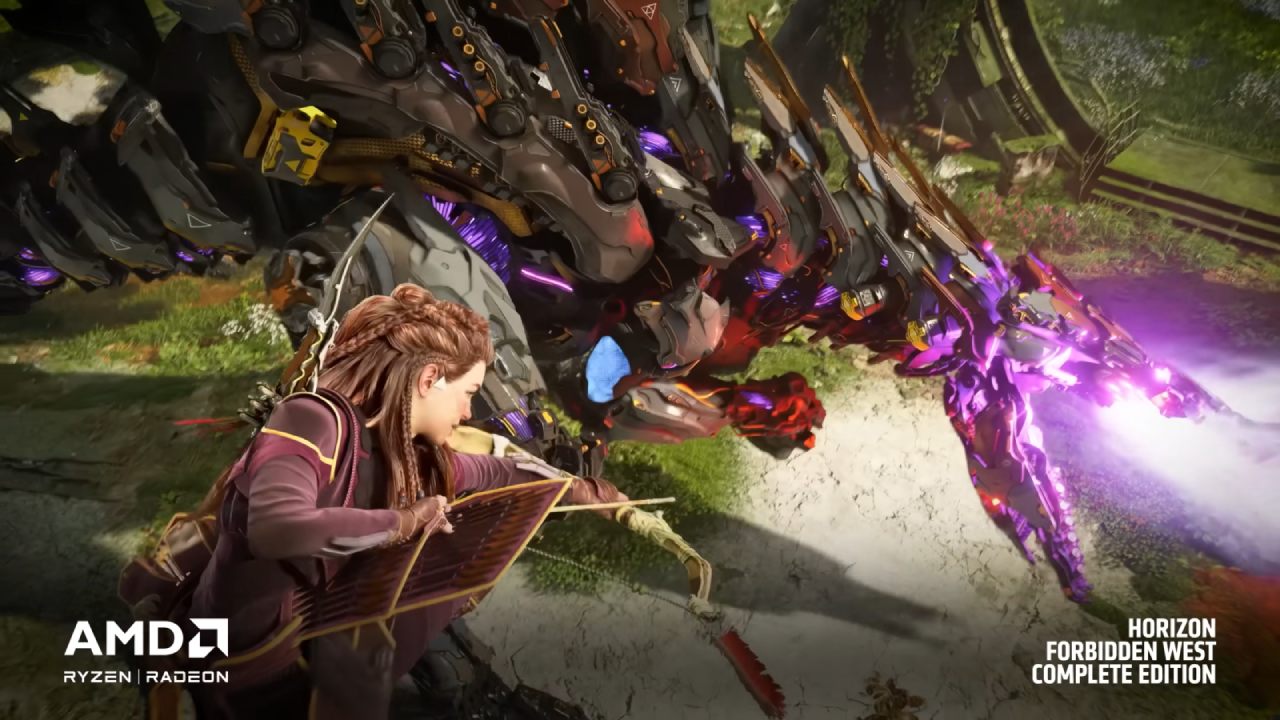
As a result, whether playing at extremely high definitions or more moderate frame sizes, players may now experience better performance, clearer fine details, and finer textures.
We broke down the strengths and limitations of each FSR 4 mode in depth to help determine which setting best balances graphical fidelity with higher frame rates.
Texture Quality
FSR 4 is fantastic at eliminating TAA blur in motion, preserving full texture detail as you move around the game world, and preventing obvious drops in sharpness. Whether you choose quality, balanced, or performance mode, you won’t see the blur penalty common in previous versions.
In most situations, including gaming at lower resolutions, there is no blur penalty from turning down the FSR 4 mode. Occasionally, you might notice slight artifacts at the lowest render resolutions such as 1080p performance modebut pixels become more sharply defined rather than simply blurrier.
If blur has kept you from using lower upscaling modes in the past, you should definitely experiment with performance mode at 4K and balanced or performance at 1440p and 1080p.
Stability
Stability is one of the weaker aspects of FSR 4, though still a significant improvement over FSR 3. Elements that are stable in quality mode will often remain stable in performance mode, with minimal degradation. If an element shows instability in quality modebe it sizzling or aliasing it will likely worsen in lower modes.
At 4K, quality, balanced, and performance modes are often similarly stable, so you can drop to performance if you don’t mind minor grain or aliasing. At 1440p and 1080p, quality and balance are often comparable, while performance may suffer in fine detail, such as pixel-level wires and lines. If you are sensitive to aliasing, you may want to stick with quality mode.
Interestingly, you might find balanced mode sometimes more stable than quality, especially at 1440p. In those cases, bounce mode can be the ideal choice.

Disocclusion
Using a lower upscaling mode increases the visibility of disocclusion artifacts, but FSR 4 handles these situations well at higher resolutions. Dropping from 4K quality to 4K performance is not a major visual issue.
However, at 1440p, performance mode becomes pixelated and blurry, and you’ll likely want to stick with balanced or quality. At 1080p, these artifacts become even more pronounced. Different titles exhibit varying sensitivity; in some games you may never notice disocclusion issues, while in others you may need to test each setting yourself.
Hair
Hair quality is only slightly affected between modes. At 4K, there is very little difference between quality and performance, and you probably won’t spot any serious artifacts in motion. At lower resolutions, performance mode can introduce more grain and pixelation, making balanced mode the safest minimum choice for 1440p and 1080p.
Titles with less hair or less motion hold up better, but if crisp strands matter to you, you’ll want to lean toward balanced or quality.
Particles
Particle quality hinges on resolution, stability, and disocclusion handling. At 4K, the performance mode’s particle resolution is only marginally lower than quality. At 1440p, performance becomes noticeably grainier, so balanced is preferable.
Performance mode also exhibits more aliasing in particle effects such as confetti. For titles with intricate particle systemslike spores in The Last of Us Part Onequality upscaling delivers the finest, highest-detail particles.

Transparency
Transparency quality isn’t significantly impacted when lowering FSR 4 modes, especially at high resolutions. Holograms, fire effects, and similar elements remain clear when dropping from quality to performance. At 1080p, you might see slight blur or aliasing in performance mode, but transparency is rarely the deciding factor in choosing your upscaler.
Foliage
Foliage can suffer quality loss at lower modes, particularly at 1440p and 1080p. Grass becomes grainier and more aliased below the quality mode. Balanced at 1440p holds up reasonably well, while performance at 1440p and below is visibly degraded.
At 4K, quality and balanced look good, with performance only slightly worse. Dense moving grass is most problematic; static grass fares better. Tree leaf quality remains strong across modes, though fine branches may alias in lower settings. If fine natural detail is critical to you, avoid performance mode at lower resolutions.
Fences
FSR 4 handles disocclusion behind fences effectively, but fine detail reconstruction of the fence itself degrades in lower modes. In tests with intricate overlapping fences, balanced and performance reduce aliasing less effectively than quality.
At 1440p, performance mode is blurrier than quality, and you may notice more artifacts. Overall, the differences between modes aren’t dramatic, but if fence detail matters to you, lean toward balanced or quality.
Stationary Scenes
Comparing upscalers in stationary scenes is not meaningful, as each mode accumulates data over frames to produce a high-quality image. Performance mode is just as good for screenshots as quality mode or even native FSR 4. However, most gameplay involves movement, so evaluate settings under motion rather than still frames.

Final Thoughts
Comparisons across quality, balanced, and performance modes reveal patterns similar to those we saw with DLSS 4. At 4K, the differences between modes are small, making balanced and performance viable in many scenarios.
We recommend experimenting with lower settings to gain an additional performance boost each step down can provide roughly a 6–12% uplift. FSR 4 resists TAA blur across all modes, so performance mode isn’t necessarily blurrier than quality.
Stability, fine detail reconstruction, grass quality, and particles can degrade at lower modes, especially at 1440p and 1080p. Disocclusion becomes more obvious but remains better handled than with other upscalers, and hair and transparency hold up well.
Different games show artifacts in unique ways, so the optimal mode can vary by title. As a rule of thumb, balanced mode at 4K is best for most situations, while quality is preferred at 1440p and 1080p. If you’re GPU limited, don’t hesitate to try performance mode at 4K or bounce at 1440p.
If you see no performance improvement switching from quality to balanced, you’re likely CPU limited and should stick with quality. By experimenting and finding the sweet spot that delivers the frame rates you need without compromising the visual experience.
Check Our Other Upscaling Articles:
Editor, NoobFeed
Latest Articles
No Data.