
How to Enable DLSS Multi Frame Generation on Steam Deck with DLSS Enabler
Full DLSS Enabler package setup ensures compatibility across supported MFG titles.
Hardware by Shinji Okazaki on Feb 24, 2026
DLSS Multi Frame Generation, or MFG, is a new feature that uses AI to create frames and can add up to three more frames for every frame that is shown. MFG can greatly enhance FPS while keeping input lag low and avoiding visual artifacts thanks to improved AI. This is different from traditional frame generation, which simply generates one extra frame for every real frame.
This capability is technically available only on RTX 50-series GPUs. Still, the experimental version of DLSS Enabler lets you use MFG on devices like the Steam Deck and other handheld platforms. It also works with Optical Scale and FSR4, which means greater FPS, better graphics, and less input lag with fewer artifacts.
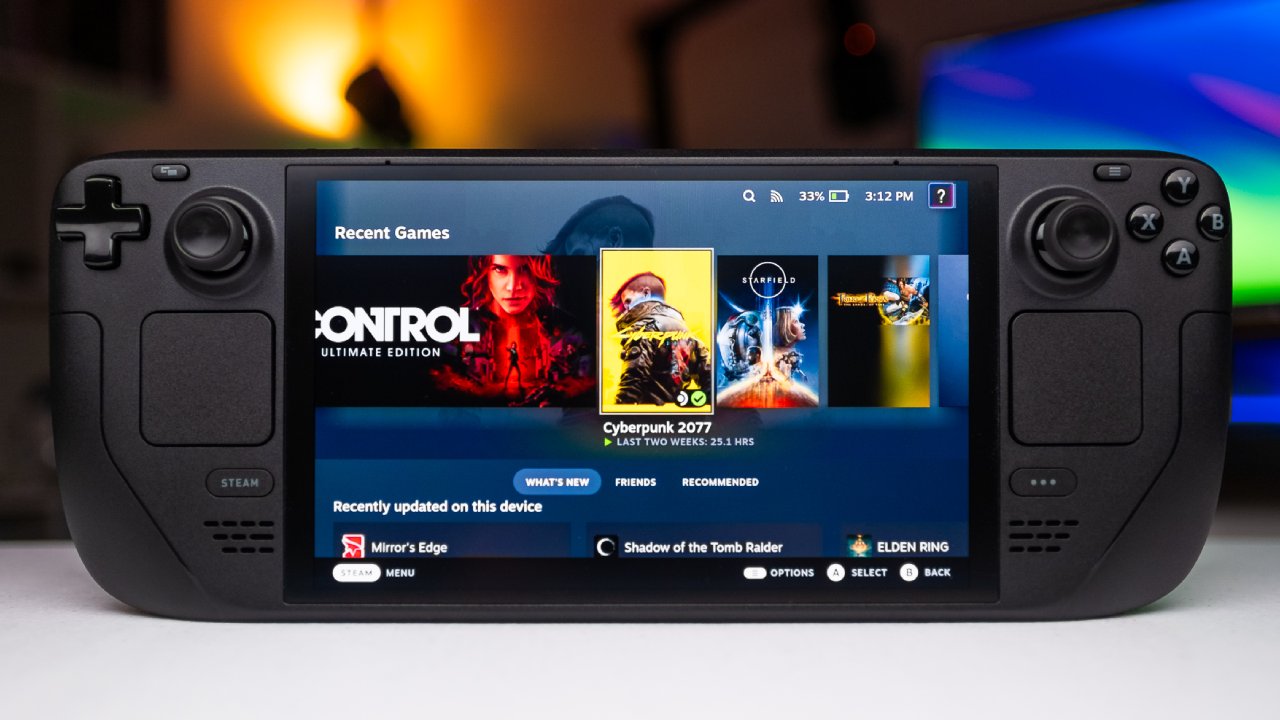
Getting the Game Files Ready
Make sure the game files are clean before you go on. If you previously installed Demra or Optiscolor, make sure to uninstall them properly to avoid issues. For LCD Steam Deck models, overclocking to 70Hz can help reduce lag when typing. Before you can go further, the plug-in configuration should already be done.
Downloading the files needed for DLSS Enabler
Open a browser in Desktop mode and get the DLSS Enabler 3.02 installation. The tech preview version comes as a single DLL file and is meant to work without any other files. Without the whole setup package, frame generation may not work properly on the Steam Deck. Therefore, it is best to install the full package.
Also, get the test version. The most recent version is 40011, which is what we recorded. When the download finishes, go to the Downloads folder and create a new folder named DLSS Enabler.
To add the setup file to Steam, right-click on it and choose "Add to Steam." Open Steam, find DLSS, right-click it, and choose Properties. Then, click on Compatibility. Turn on Proton Experimental and start the setup. Agree to the terms and conditions and then continue with the setup. When prompted to choose the installation path, select the DLSS Enabler folder you created earlier. It's usually found under Z drive, home, deck, downloads, DLSS Enabler.
Select Install as winmm.dll. Enable support for AMD and Intel, then choose Linux SteamOS hardware faking. Finish setting it up. You might get an error in the end. Just accept it and finish the setup.
To install the Experimental DLL, go back to the Downloads folder and unzip the tech preview zip file. Change the name of version.dll to winmm.dll. Put this file in the DLSS Enabler folder and replace the existing one.
DLSS Enabler does not have any new support for FSR4 or XESS2. Get the extra DLL files you need and unzip them. Put all of the DLL files into the DLSS Enabler folder, and if there are already files there, replace them. The package is ready now.
Copy all the files in the DLSS Enabler folder and put them in the same folder as the game's .exe file. When asked, overwrite. Then, in Steam, go to the game's Launch Options and paste the launch command you copied.
Setting up the Controller
Change to Gaming Mode. Click on the game's controller layout and then click on Edit Layout. Set the right trackpad to Mouse and the left Mouse click to Click in the Trackpads section. Set the left trackpad to "Single Button" and the "Insert" key to "Click." Set L4 to the Tilde key under Buttons. You can change these bindings as needed, but make sure you remember what each one does.
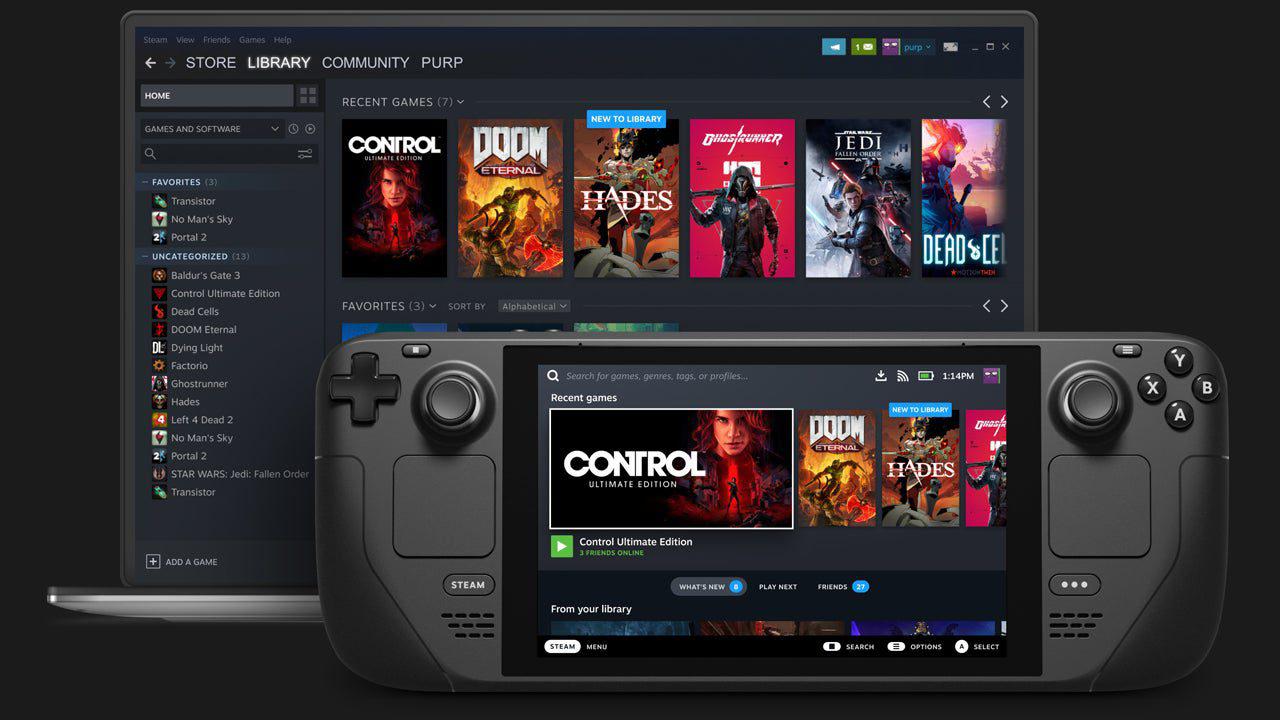
How to Enable Multi-Frame Generation in Game
To open the Optical Scale menu, start the game and press the Insert key. Choose New CAMS DLSSG from the Frame Generation option. Close the game and save it. Then start it again.
Turn off VSYNC in the graphics options and make sure Frame Generation is on and set to 3x mode. To get to the MFG settings menu, press L4 or the Tilde key.
If the game supports ray tracing, enable Screen Space Ray Tracing for better lighting and shadows without changing the base settings. To reduce input lag, set the FPS to match the display's refresh rate.
You can also turn on Dynamic Frame Generation. This feature changes between 2x, 3x, and 4x modes based on the basic FPS. It switches to 3x or higher if performance degrades in tough places. When the basic FPS rises, it reverts to the set threshold. To achieve stable outcomes, you may need to adjust each game. Choose Persist to save your settings after making changes.
Final Thoughts
Because MFG is still in the testing phase, the results of each game are different. Some versions might not work right, so earlier builds need to be tested. In some circumstances, you may need to delete DLL files, such as dxgi.dll, to improve performance.
Some games may also need more mods and performance tweaks to keep the FPS stable in sections or situations when it decreases. Testing some hard parts of a game can help you figure out the right dynamic frame generation thresholds and FPS restrictions.
We can provide more optimization tips based on performance tests in challenging locations where the Steam Deck struggles to maintain a steady FPS.
Also, check our other hardware articles:
- AMD Ryzen 9 9950X3D Review: Setting The Standard For 2025 Gaming CPU
- Amazon Luna 2025 Review: Is Prime Gaming's Cloud Service Your Go-To For Casual Fun?
- AMD RX 9070 XT Review: AMD's RDNA 4 Champion for 1440p Gaming
- GeForce Now Ultimate: Ditching Your Gaming PC For Cloud RTX 4080 Power?
- NVIDIA GeForce RTX 5080 Review (2025): Still A 4K Gaming Powerhouse?
- Intel Core Ultra 9 285K Review And Performance Breakdown (2025)
- AMD Ryzen 7 9800X3D Review: 3D V-Cache Goes God Mode with Stunning Gaming Performance
- Intel Core Ultra 9 285K vs AMD Ryzen 7 9800X3D: In-Depth Gaming Performance and Benchmark Comparison
- NVIDIA GeForce RTX 5080 Super Performance In Cyberpunk 2077: Path Tracing & DLSS 4.0 Tested
- AMD Radeon RX 9070 XT In Cyberpunk 2077: Ray Tracing & FSR 4.0 Tested
- Intel Arc B580 Review: The $250 GPU Revolutionizing 1440p Gaming
- Intel Arc B570 Vs. B580: Value, Specs, And Real-World Gaming Performance
- RTX 5090 Laptop Vs. M4 Max MacBook Pro: Ultimate Raw Performance Vs. Battery Endurance
- Intel Arc b580 Vs. RTX 4060: Game Performance And Value Analysis
- RTX5090 Hell Is Us Demo 4K Ultra Benchmark: DLSS Vs. Native Performance Guide
- NVIDIA RTX 5070 Review: Mid-Range Muscle or Marketing Hype?
- Nintendo Switch 2 Review: Handheld Performance, Features & Value Breakdown
- RTX 5070 Ti Review: Performance, Thermals & Power Efficiency Tested
- Samsung Odyssey OLED G81SF Review 2025: Ultimate 32-Inch QD-OLED Gaming Monitor
- AMD RX 9070 Performance Review: Thermals, Clocks, and Real-World FPS
- AMD Ryzen 5 7600 Review: Best Budget Gaming CPU of 2025?
- AMD Radeon RX 7800 XT Review: RDNA 3 Power For Midrange Gaming
- Asus ROG RTX 5090 Astral OC Vs. Founders Edition: The 4K Gaming Benchmark
Editor, NoobFeed
Gaming Hardware Updates
No Data.