
Xbox Full Screen Experience vs. SteamOS: The Future of Handheld Gaming
SteamOS offers efficient power management, but Xbox full screen brings wider compatibility and smoother accessibility for modern handheld gaming.
Hardware by Tanvir Kabbo on Oct 04, 2025
Xbox's full-screen experience is a much bigger deal than many might think. Once installed, it completely changes how Windows handhelds operate, turning them into far more controller-friendly and console-like devices.
Instead of relying heavily on touchscreens, hotkeys, or awkward workarounds, you can now navigate directly with a controller from the lock screen to the desktop. This kind of convenience adds a layer of confidence and reliability every time you power on your handheld.
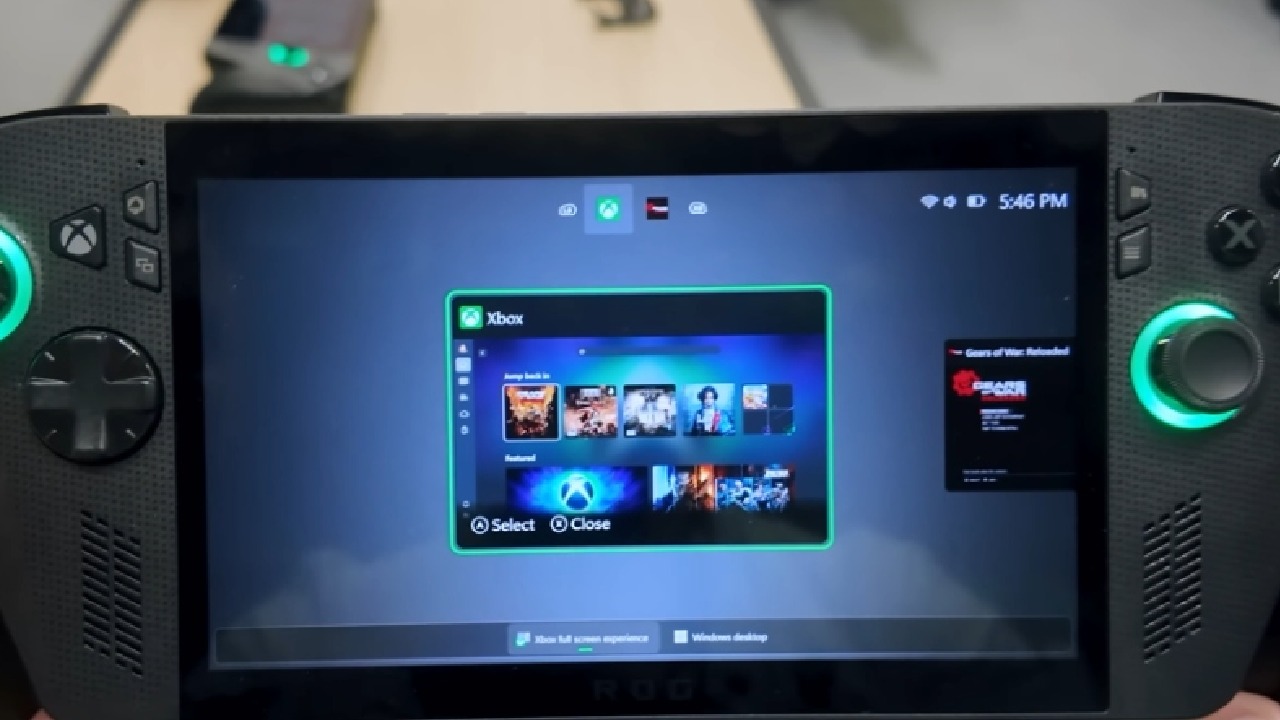
Beyond that, the experience doesn't strip away the advantages of Windows—it still gives you full access to mods, cheat tools, and compatibility with games that don't run on Linux-based systems.
In many ways, this shift can directly challenge SteamOS by offering the best of both worlds: the streamlined, console-like usability of a handheld operating system combined with the flexibility and compatibility of Windows.
Controller-Friendly Integration
One of the most noticeable benefits of the Xbox experience is how it makes Windows handhelds controller-friendly in areas they usually aren't. For example, the unskippable lock screen can now be bypassed with just the controller.
Swiping up or pressing A lets you enter your password without needing to use the touchscreen. Immediately after logging in, you're greeted with the Xbox home screen, and from there, many of the common hassles of navigating Windows with a controller disappear.
Seamless Game Launching
Typically, running handheld devices on Windows requires multiple steps—such as swiping, using hotkeys, or connecting an external keyboard— to resolve glitches. With the Xbox experience installed, these problems fade away. You can confidently boot up your device, knowing everything is set for controller navigation.
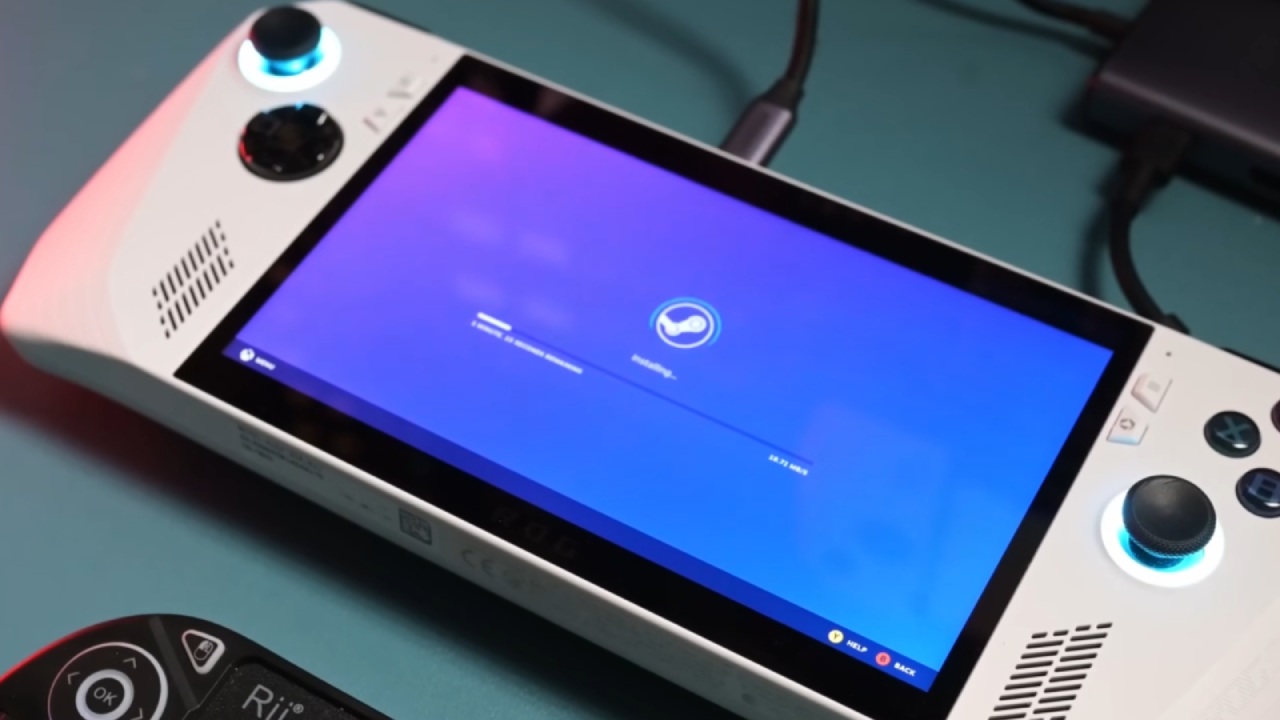
Many of us combine this with Steam Big Picture Mode, running two launchers at once. While that might sound odd on paper, it works smoothly in practice. We gain the responsiveness of Xbox controller navigation alongside the familiar Steam interface for launching games.
Compatibility with Windows Games
SteamOS has limitations when it comes to multiplayer titles with strict anti-cheat systems. Games like Battlefield 6 are not playable on Steam Deck or Linux-based systems. With the Xbox full-screen experience on Windows, we can enjoy these same titles without restrictions.
Beyond compatibility, Windows also unlocks advanced features like frame generation and lossless scaling, making games far smoother. Switching between enhanced visuals, mods, or even cheat tools becomes straightforward.
Convenience and Accessibility
This Xbox experience is all about convenience, which is what handheld gaming is all about. It gets easier and faster to change settings, do more than one thing at once, and switch between programs. You may add third-party programs like Discord or trainers right to the Xbox Home, or you can use widgets like Spotify.
Multitasking feels natural, letting you jump between tasks without the interruptions that are common in desktop Windows mode.
Console-Like Docking
Docking handhelds with Windows has always meant connecting to external displays with a mouse and keyboard. Now, with the Xbox experience, docking transforms the device into something closer to a Nintendo Switch.
We can connect to a TV, grab a controller, and control everything—opening and closing games, switching apps, and managing the system—all without touching the device itself. Streaming services like GeForce Now also integrate seamlessly into this setup, giving a true living room console feel.
Current Limitations
Despite its strengths, the Xbox experience still has shortcomings. The UI, while responsive, doesn't yet feel as fluid or polished as SteamOS. Animations and transitions can feel clunky and jagged.
Battery life and performance improvements are inconsistent, with some users reporting small FPS gains. In contrast, others see no difference or even a reduction in efficiency compared to standard Windows desktop mode.
The sleep and wake function is another problem. The Steam Deck's ability to suspend and resume without any problems is still the best. Sleep mode doesn't always work on Windows with the Xbox experience, so we often use hibernation instead. Hibernate works fine, although it takes longer to boot back into than SteamOS.
Installation Guide
Installing the Xbox full-screen experience isn't difficult. First, ensure your device is updated to Windows 25H2 through the Windows Insider program. Joining is simple—you log in and opt into either the pre-release or dev build.
Once updated, navigate to Settings, select Gaming, and look for the Full-Screen Experience option. If it doesn't appear, a quick command-line entry will enable it. From start to finish, setup usually takes less than 10 minutes, making it far simpler than installing SteamOS.
Final Thoughts
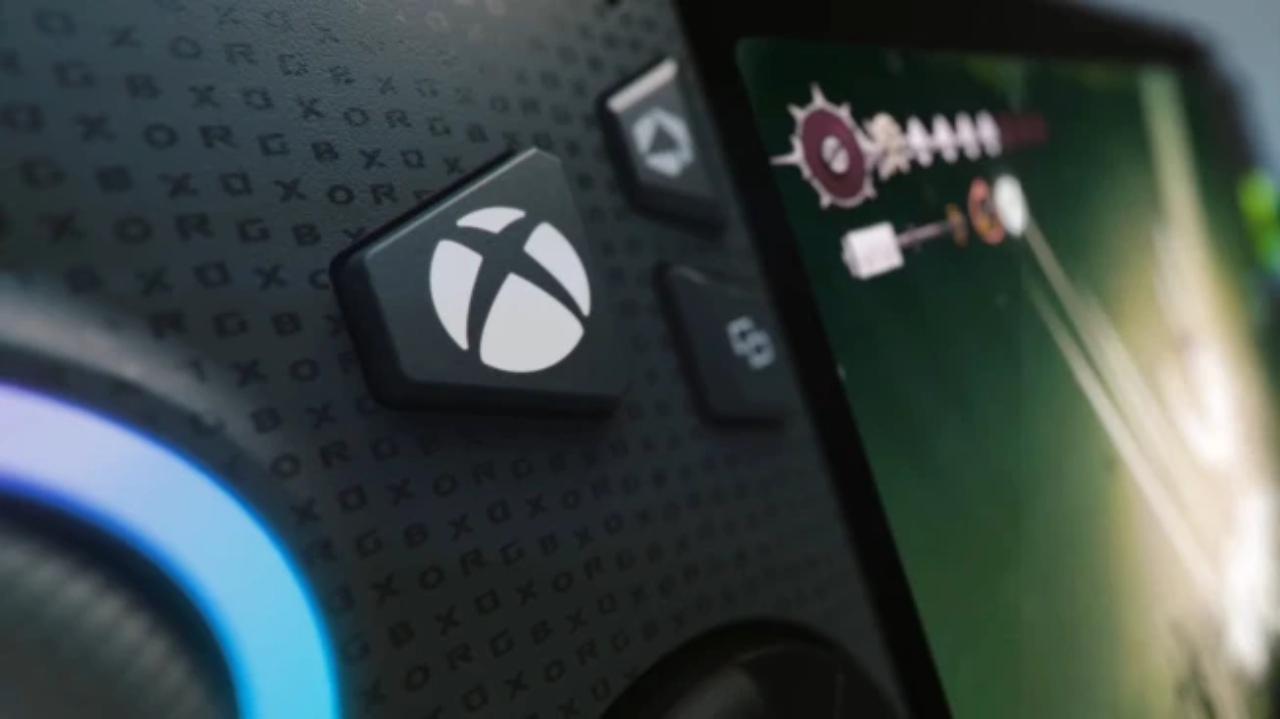
The Xbox full-screen experience finally provides Windows handhelds with a controller-first, console-like interface while still preserving the vast flexibility and compatibility of Windows.
While SteamOS remains stronger in battery efficiency and instant suspend/resume, the Xbox experience excels in convenience, controller integration, and access to the full library of Windows-compatible games and apps.
For those who value mods, cheat tools, and full compatibility with modern multiplayer titles, this experience can genuinely replace SteamOS. It marks a big step toward uniting console convenience with PC freedom in handheld Gaming.
Check our Other Handheld Articles :
- ASUS ROG Ally X Handheld Review: Double the Battery, Double the Comfort
- Nintendo Switch 2 Vs. Original Switch 1: A Full Comparison
- How To Connect A Camera And Join Voice Chat With Nintendo Switch 2
- Nintendo Switch 2 Review: Handheld Performance, Features & Value Breakdown
- ROG Xbox Ally X Vs. ROG Ally X: Display, Battery & Controls
- ASUS ROG Ally X vs. Steam Deck OLED: Display, Battery & Gaming Benchmarks
- MSI Claw 8 AI+ Review: Display, Controls & Gaming
- Nintendo Switch 2 vs. Steam Deck OLED: Gaming, Performance, Battery, Display and Value
- PlayStation Portal Review: Remote Play, Cloud Streaming & Travel Gaming
- PlayStation Portal vs. Lenovo Legion Go: Best Portable Gameplay
- Cyberpunk 2077 Patch 2.3 FPS Test on MSI Claw 8 AI+
Senior Editor, NoobFeed
Gaming Hardware Updates
No Data.