
Samsung 9100 Pro Gen5 NVMe SSD: Heatsink vs Motherboard Heat Shield Performance Test
PCIe Gen5 NVMe SSDs deliver extreme speeds but introduce serious heat management challenges under sustained workloads.
Hardware by Mitsuba Miyu on Dec 30, 2025
Gen5 NVMe SSDs are very fast, but they also make it harder to keep things cool. When pushed too hard, not enough cooling can cause throttling, changes in performance, and worries about long-term stability.
When using top-of-the-line PCIe Gen5 drives on new motherboards, it's important to know how different cooling methods affect performance in the real world.
.jpg)
Initial Observations With the Samsung 9100 Pro
In a recent build, the Samsung 9100 Pro NVMe SSD was put in a PCIe Gen5 slot and tried under a constant load. The drive's amazing speed made me want to use it, but pretty soon worry started about how hot it was getting.
The drive reached a very high temperature of 94°C under test stress, well outside the range Samsung says the drive should operate in. If you keep using it at this level, it could eventually slow down and stop working.
This brought up an important question: how much difference does the cooling solution really make, and is the stock heatsink always the best choice?
Heatsink vs Motherboard Heat Shield: The Test Setup
We put the standard non-heatsink Samsung 9100 Pro next to the heatsink-equipped version to see what would happen. The goal was to see how each of them did when paired with a modern motherboard that already has a big, low-profile Gen5 heat shield.
The test machine's operating system drive was a Crucial P310, and the Samsung 9100 Pro, which was just formatted as an NVMe drive, was a backup. This ensured that Windows activity wouldn't affect the benchmark results.
The testing was done in a Corsair Frame 4000D case with 10 fans total: 6 for intake and 4 for exhaust. This gave them strong airflow and made case cooling the least important factor limiting the test.
Benchmarking Tools and Verification
CrystalDiskMark was used to test performance, and HWiNFO64 was used to get specific information on temperature and PCIe lanes. Samsung Magician was also used to identify the issue, speed up performance, and run additional benchmarks to ensure the results were accurate.
HWiNFO64 showed that the drive was working correctly on a PCIe Gen5 x4 port at 32GT/s. In theory, this setup should let the Samsung 9100 Pro reach the promised top speeds.
Performance With the Samsung Heatsink Version
When the 9100 Pro with a heatsink was placed in the top Gen5 spot, sequential read speeds reached about 12,000 MB/s. Even though it was quick, this was still lower than expected based on earlier tests with a different CPU.
But temperatures remained a major problem. The drive consistently exceeded 90°C during multiple CrystalDiskMark tests. The write speed was disappointing too; it dropped to about 2000 MB/s, well below what was expected for a Gen5 SSD. Even with ample airflow and a high-quality case, the original heatsink struggled to keep temperatures under control.
System Updates and BIOS Optimization
The system was made sure to be fully updated so that software or firmware limits weren't the problem. It was a new Windows install; all drivers and the motherboard BIOS were updated to the latest versions. With this update, Intel 200S Boost is now supported, and memory performance and microcode have been improved.
Intel 200S Boost was turned on in the AI Tweaker menu after the BIOS update. This feature raises performance without voiding the guarantee. It makes the whole system more stable, which might indirectly improve storage performance.
Full-speed mode was also enabled for the drive using Samsung Magician. Even with these changes, the read speed stayed at 12,000 MB/s, and with the Samsung heatsink, temps were still too high under load.
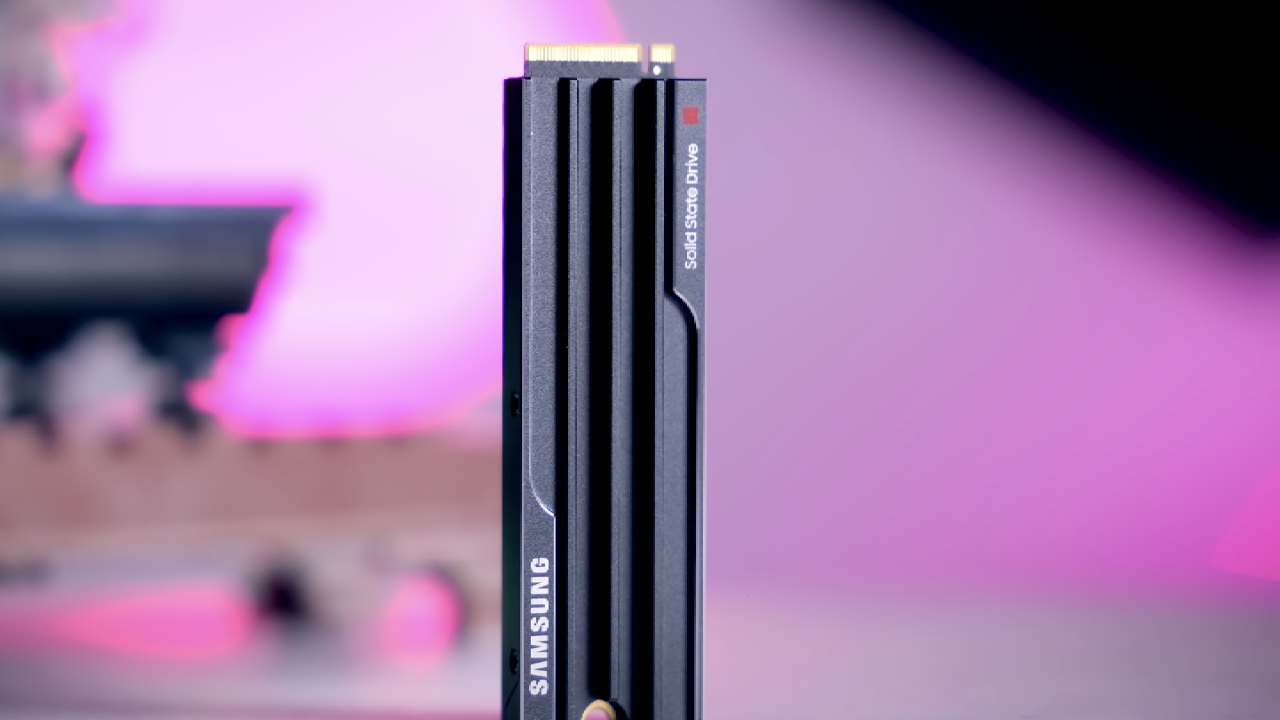
Switching to the Non-Heatsink Drive
Next, the drive with a heatsink was removed and replaced with a standard Samsung 9100 Pro without a heatsink. In this case, the motherboard's big Gen5 heat shield was used. The thermal pads were applied correctly, and all protective films were removed where they weren't needed. The SSD labels were not removed.
A fair comparison was made possible by using the same format, Samsung Magician options, and benchmark tests.
Improved Thermals and Write Performance
With the heat shield on the processor, the read speeds remained about 12,000 MB/s. The write speed, on the other hand, greatly improved and was in line with expectations for the drive. More importantly, the temperatures dropped significantly.
During several tests, the drive never went above 90°C; it stayed between 81°C and 83°C at most. Even when force was continuously applied, the temperatures remained well below the point at which throttling would occur. The drive also completely missed the very high-temperature warning levels.
In this case, the Samsung 9100 Pro without a heatsink ran cooler and more consistently than the model with a factory heatsink, at least on a motherboard with a big, well-designed heat shield.
The BIOS PCIe Configuration Check
If Gen5 NVMe speeds feel slower than they should, it's a good idea to check the PCIe setup settings in the BIOS. Under PCIe Express Settings and System Agent Configuration, manually set the active slot to Gen5 instead of "Auto". In some situations, this can help fix internet issues and get things working at full speed again.
Even though this system's peak read speeds were less than 14,000 MB/s, lowering the temperature definitely helped keep performance steady.
Final Thoughts for Gen5 NVMe Builds
Gen5 NVMe SSDs generate significant heat, so cooling is essential to keep the drives fast and reliable. If your motherboard has a thick, well-designed Gen5 heat shield, choosing the Samsung 9100 Pro's non-heatsink version can help keep things cooler and maintain better performance.
In some cases, the stock heatsink isn't the best option. When you match the SSD to the cooling system in your computer, it can make a big difference, especially when you have to run heavy tasks repeatedly. Careful BIOS configuration, firmware updates, and correct thermal pad installation all help you get the speed you are paying for.
Also, check our other hardware articles:
- AMD Ryzen 9 9950X3D Review: Setting The Standard For 2025 Gaming CPU
- Amazon Luna 2025 Review: Is Prime Gaming's Cloud Service Your Go-To For Casual Fun?
- AMD RX 9070 XT Review: AMD's RDNA 4 Champion for 1440p Gaming
- GeForce Now Ultimate: Ditching Your Gaming PC For Cloud RTX 4080 Power?
- NVIDIA GeForce RTX 5080 Review (2025): Still A 4K Gaming Powerhouse?
- Intel Core Ultra 9 285K Review And Performance Breakdown (2025)
- AMD Ryzen 7 9800X3D Review: 3D V-Cache Goes God Mode with Stunning Gaming Performance
- Intel Core Ultra 9 285K vs AMD Ryzen 7 9800X3D: In-Depth Gaming Performance and Benchmark Comparison
- NVIDIA GeForce RTX 5080 Super Performance In Cyberpunk 2077: Path Tracing & DLSS 4.0 Tested
- AMD Radeon RX 9070 XT In Cyberpunk 2077: Ray Tracing & FSR 4.0 Tested
- Intel Arc B580 Review: The $250 GPU Revolutionizing 1440p Gaming
- Intel Arc B570 Vs. B580: Value, Specs, And Real-World Gaming Performance
- RTX 5090 Laptop Vs. M4 Max MacBook Pro: Ultimate Raw Performance Vs. Battery Endurance
- Intel Arc b580 Vs. RTX 4060: Game Performance And Value Analysis
- RTX5090 Hell Is Us Demo 4K Ultra Benchmark: DLSS Vs. Native Performance Guide
- NVIDIA RTX 5070 Review: Mid-Range Muscle or Marketing Hype?
- Nintendo Switch 2 Review: Handheld Performance, Features & Value Breakdown
- RTX 5070 Ti Review: Performance, Thermals & Power Efficiency Tested
- Samsung Odyssey OLED G81SF Review 2025: Ultimate 32-Inch QD-OLED Gaming Monitor
- AMD RX 9070 Performance Review: Thermals, Clocks, and Real-World FPS
- AMD Ryzen 5 7600 Review: Best Budget Gaming CPU of 2025?
- AMD Radeon RX 7800 XT Review: RDNA 3 Power For Midrange Gaming
- Asus ROG RTX 5090 Astral OC Vs. Founders Edition: The 4K Gaming Benchmark
Editor, NoobFeed
Gaming Hardware Updates
No Data.