

How to Optimize RAM Usage on Windows 11 and Low Memory Systems?
Windows 11 memory allocation strategies continue reshaping how limited system resources are consumed during daily workloads.
Hardware by Godrics01 on May 31, 2026
Memory and storage costs remain high at the start of mid-2026, and it would be good to spend a moment discussing appropriate optimizations for smaller memory sizes. Many of these tips are obvious to power users, but many people just don't consider these things. These strategies will not eliminate the need for memory upgrades altogether, but they can help make systems work until it is feasible to upgrade.
Rather than talking about performance benchmarks or FPS, it is about ensuring that the OS and games won't consume too much memory and that capacity isn't as much of a problem as before. The amount of available memory is important to consider, particularly when systems are approaching capacity, and is measured in megabytes and gigabytes.
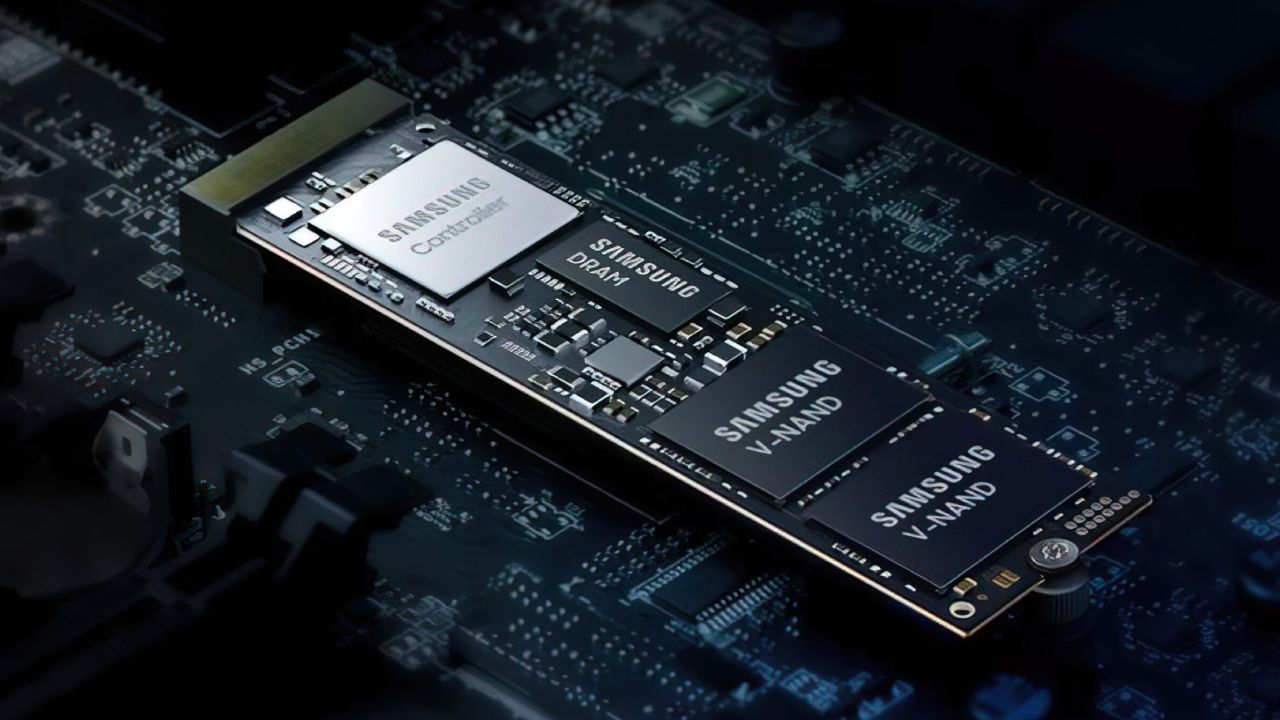
Windows 11 Consumes a lot of Memory
Exactly what is Windows 11 doing, and why does it feel at ease using up memory? In other words, Microsoft seems to think that unused memory is just unused memory. This activity has been around on the Windows operating systems for years. Around 14 years ago, the school computers with 2GB of RAM were upgraded to Windows 8, and the memory usage in Task Manager was often at 100%.
This was also the case with Windows 10 later on. Over time, the amount of memory available on the system increased, but not enough to require much more from the operating system, and more software began to use it. Today, computers typically come with at least 8GB of RAM, and Windows 11 will use it.
But regardless of whether we like that design choice, it raises questions in an era when NVMe SSDs can deliver at least 4GB/s of sustained secondary storage bandwidth, even in the lower-cost category. With storage getting faster, it might seem a bit sensible to ask: why the big mess in memory, anyway? Today, it makes more sense to be moderately aggressive with your caching strategy, rather than with older hard drives.
Meanwhile, Windows 11 dynamically allocates and frees cache as programs run. With only 7.5GB of the 8GB of memory in use, you might see the system idle, but as software starts, cached files are removed, freeing up more memory to breathe. The system may momentarily stall during loading, but this isn't a long-term issue, as memory is redistributed as needed.
Save Memory and Manage Startup Apps
The biggest tip for saving memory is to start up apps in system settings. This needs to be considered because, during boot, startup programs use CPU time and memory in the background. In the days of just a few startup apps, that doesn't really have much impact, but as software like Steam, Discord, Teams, Office 365, Copilot, and Spotify start automatically, more software is running in memory, thus consuming more resources.
Disabling unwanted startup programs can help alleviate memory strain. It's not a huge amount of data to save or lose, but on systems with 8GB of memory, it could help to prevent slowdowns even when sitting on the desktop. The less memory available, the greater the impact of a small amount of background usage.
Software Design and Memory Usage
Memory consumption is highly reliant on the load in software design and programming. For some workloads, such as 3D rendering, the footprint of application implementations is well-defined. This is because the model size, which determines the number of parameters required, scales directly with the available memory. Other workloads, such as large language models and AI algorithms, follow the same pattern: as more parameters are required, model size scales with available memory.
This was mainly focused on single-precision floating-point numbers. The precision of AI systems is improving, and with it, data types are becoming smaller and more specialized, optimizing within the limited number of bits they have.

One such example is Google's Brain Float, which preserves the range of single-precision floats while reducing memory usage. It is a 16-bit encoding; only the mantissa is altered from the regular IEEE754 definition, rather than using 32 bits. Another format that preserves the same exponent range as single-precision floats is TensorFloat-32. The name suggests it will occupy 19 bits of data, but it does not.
Brain Float and TensorFloat both aim to solve the same problem: preserving useful precision while minimizing memory usage. For 3D rendering, these formats might not be particularly significant, but they can help accelerate convolutional neural networks and transformers. Perhaps more important, they enable large, multi-billion-parameter models to be run on consumer equipment, albeit with some loss of model accuracy.
Mini and Micro Floats are the Data Types
There are more aggressive options, such as 8-bit, 6-bit, and 4-bit mini or micro floats. These formats will sacrifice even more precision for memory economy. These low-precision floating-point numbers are useful for very small numbers or for values as large as 240, depending on the AI workload.
When talking about micro and mini floats, it can be tricky to find consistent definitions as compared to single or half precision. There are many possible mantissa/exponent combinations: some use the sign bits, others do not. There is also varying hardware support, so it depends on which devices support it. The trend towards smaller data types also alters circuit design, as hardware can be optimized and shrunk, reducing overall cost to the user and memory requirements.
At some point in the future, Windows might not seem quite as convenient beyond gaming.
Although gaming support is excellent, other workflows are increasingly tied to an ecosystem-driven experience rather than a general-purpose computer environment. While AI integration seems like a fundamental objective for an operating system, the capabilities might be more of an afterthought for many users, lacking practical, everyday value.
We have found that Linux Mint can be used on systems with 8GB of memory. It is not optimized to use less idle memory on most Linux distros, which typically run around 2GB. For those who primarily work on documents, run light loads, and play games like Minecraft, 8GB of memory can still be enough as long as they are willing to invest some time in troubleshooting when needed.
Editor, NoobFeed
Latest Articles
No Data.