
DLSS 4.5 Dynamic Frame Generation Explained with 5x and 6x Performance Gains
Fixed and dynamic frame generation modes expand performance scaling with support for up to 6x multipliers.
Hardware by Nahe Yan on Apr 04, 2026
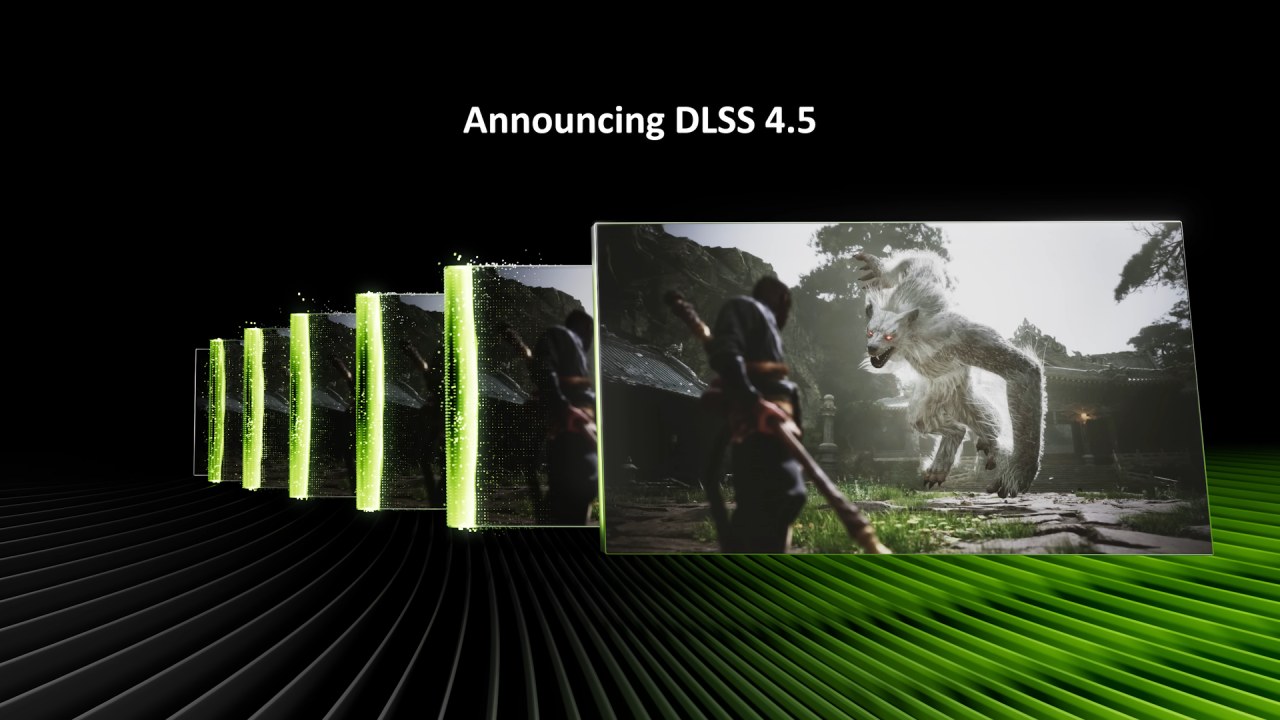
DLSS 4.5 adds new frame generation methods, including dynamic frame generation and fixed modes that support multipliers of up to 5x and 6x. The update includes a dynamic mode that adjusts frame generation based on the refresh rate or a chosen FPS target.
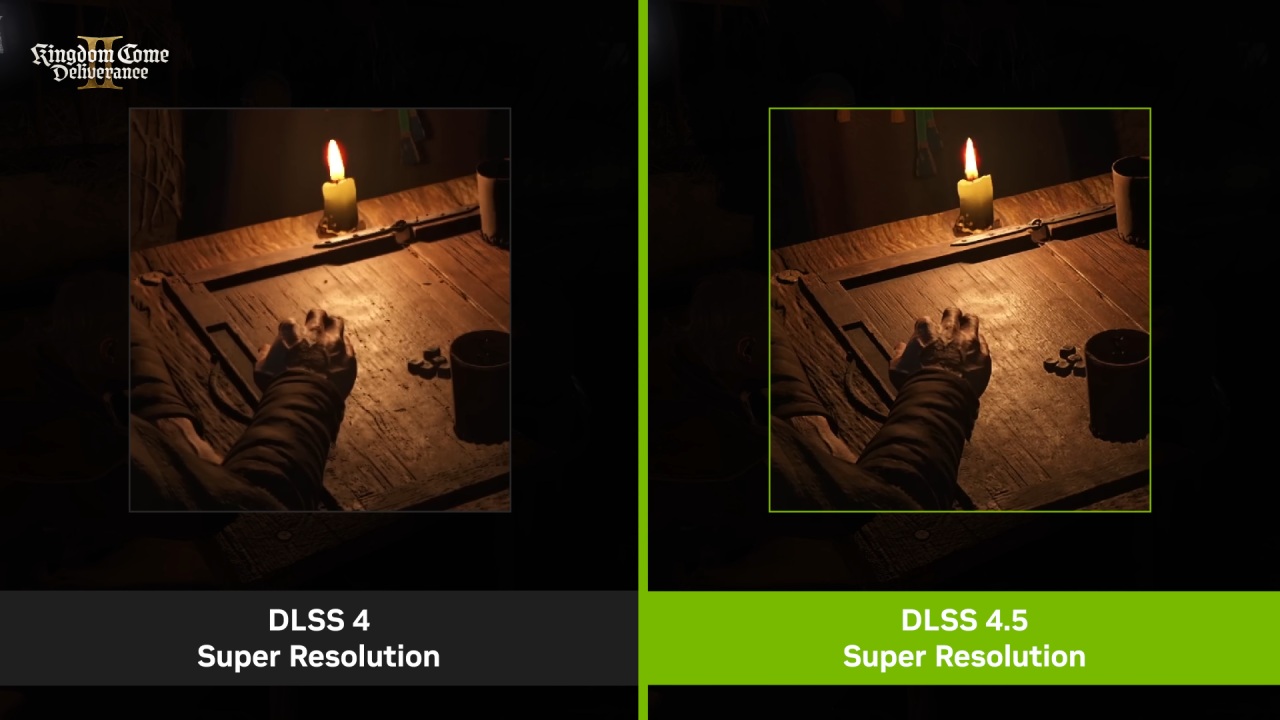
This mode is in addition to the already available 3x and 4x options. It also adds a new model preset, preset B, that focuses on improving image quality and fixing UI rendering issues.
Getting to the Update and Turning on Features
You need the most recent version of the Nvidia app to use these features. After the update, you have to turn on the beta or experimental features option in the settings. The app refreshes and gives you access to the new options once it's turned on.
You can choose frame generation options in the graphics settings. Choosing setting B makes the visuals look better than preset A, especially in UI elements, where ghosting and artifacts were more visible when things moved quickly. The recommended setting lets DLSS versions transition automatically based on the resolution mode you choose for super resolution and reconstruction.
How to Use Frame Generation Modes
We now have three basic ways to generate frames: application-controlled settings, fixed mode, and dynamic mode. In fixed mode, you can choose the multiplier. It now supports 5x and 6x in addition to 3x and 4x. Dynamic mode automatically adjusts the multiplier to maintain a target FPS or match the display's refresh rate.
In dynamic mode, you can choose a maximum multiplier, a refresh rate, or a custom FPS target like 230fps on a 240hz display. This lets frame generation change based on how much work there is to do and how complicated the scenario is.
Support for and Compatibility with Games
Not every game works with the new features. Some titles let you use both dynamic and fixed modes fully. In contrast, others just let you use earlier frame generation options. Some modes may not be available even if frame creation is supported, depending on how it is set up.
Testing Modes for Fixed Frame Generation
We began testing fixed frame generation with 5x. The base framerate was about 50 fps; enabling 5x frame generation increased the output to about 190 fps. This shows how the multiplier can greatly improve performance.
We saw artifacts while moving, especially around edges and weapon models. When you move quickly or render thin or translucent items, these artifacts are easier to see. Even so, the overall output stays the same, and the latency stays within a reasonable range.
Going to 6x frame generation increased the output to about 220 fps. But the problems with the visuals got worse, especially with scopes, crosshairs, and thin shapes. The technique still works, but the rise in artifacts demonstrates the trade-off between better multipliers and more stable images.
Assessing Dynamic Frame Generation
Dynamic frame creation changes the multiplier in real time. When trying to achieve 230 fps on a 240Hz display, the system switches between multipliers such as 5x and 6x depending on the scenario's complexity. For instance, gazing at less challenging areas increases the multiplier, while gazing at more demanding areas decreases it.
When you go from path tracing to normal ray tracing, the system lowers the multiplier to keep the desired FPS. Lowering the graphical load even further lets you use lower multipliers, such as 4x, which makes the output steadier and lowers latency.
When the multiplier is lower, like 2x or 3x, latency is very low, and responsiveness gets better. But switching between multipliers can make things unstable. Because the system only supports integer scaling, changes like 2x to 3x can exceed the FPS target, sometimes exceeding the display refresh rate and causing tearing.
Limitations and Things to Notice
Dynamic frame generation doesn't work with fractional scaling, which makes the transitions between multipliers quite sudden. This can cause FPS spikes that go above the limit you specified. Changing the FPS ceiling might help, but it won't completely fix the problem.
Artifacts are still there when you use larger multipliers, especially in situations with movement or little details. Preset B improves handling over earlier versions, but certain problems persist in some situations.
Final Thoughts
Lower multipliers like 2x, 3x, and 4x give better visual consistency, lower latency, and steady performance. These modes do a good job of balancing quality and performance.
You can use higher multipliers like 5x and 6x when the base framerate is already high (about 100 fps or more), and you're trying to create a high refresh rate display (like 360Hz). For panels with a refresh rate of 240Hz or lower, 3x and 4x are still better alternatives because they produce fewer artifacts and have more consistent latency.
The new setting B improves overall output, making mid-range multipliers more stable while still letting you use higher modes when needed.
Also, check our other hardware articles:
- AMD Ryzen 9 9950X3D Review: Setting The Standard For 2025 Gaming CPU
- Amazon Luna 2025 Review: Is Prime Gaming's Cloud Service Your Go-To For Casual Fun?
- AMD RX 9070 XT Review: AMD's RDNA 4 Champion for 1440p Gaming
- GeForce Now Ultimate: Ditching Your Gaming PC For Cloud RTX 4080 Power?
- NVIDIA GeForce RTX 5080 Review (2025): Still A 4K Gaming Powerhouse?
- Intel Core Ultra 9 285K Review And Performance Breakdown (2025)
- AMD Ryzen 7 9800X3D Review: 3D V-Cache Goes God Mode with Stunning Gaming Performance
- Intel Core Ultra 9 285K vs AMD Ryzen 7 9800X3D: In-Depth Gaming Performance and Benchmark Comparison
- NVIDIA GeForce RTX 5080 Super Performance In Cyberpunk 2077: Path Tracing & DLSS 4.0 Tested
- AMD Radeon RX 9070 XT In Cyberpunk 2077: Ray Tracing & FSR 4.0 Tested
- Intel Arc B580 Review: The $250 GPU Revolutionizing 1440p Gaming
- Intel Arc B570 Vs. B580: Value, Specs, And Real-World Gaming Performance
- RTX 5090 Laptop Vs. M4 Max MacBook Pro: Ultimate Raw Performance Vs. Battery Endurance
- Intel Arc b580 Vs. RTX 4060: Game Performance And Value Analysis
- RTX5090 Hell Is Us Demo 4K Ultra Benchmark: DLSS Vs. Native Performance Guide
- NVIDIA RTX 5070 Review: Mid-Range Muscle or Marketing Hype?
- Nintendo Switch 2 Review: Handheld Performance, Features & Value Breakdown
- RTX 5070 Ti Review: Performance, Thermals & Power Efficiency Tested
- Samsung Odyssey OLED G81SF Review 2025: Ultimate 32-Inch QD-OLED Gaming Monitor
- AMD RX 9070 Performance Review: Thermals, Clocks, and Real-World FPS
- AMD Ryzen 5 7600 Review: Best Budget Gaming CPU of 2025?
- AMD Radeon RX 7800 XT Review: RDNA 3 Power For Midrange Gaming
- Asus ROG RTX 5090 Astral OC Vs. Founders Edition: The 4K Gaming Benchmark
Editor, NoobFeed
Gaming Hardware Updates
No Data.