
Legion Go 2 eGPU Docking Guide and Gaming Performance
Legion Go 2 transforms into a powerful gaming workstation when paired with an external AMD RX 7600M XT GPU.
Hardware by Masaru Hoshino on Oct 07, 2025
The Legion Go 2 has two USB4 ports that work with Thunderbolt, so users can connect external GPUs to get a big jump in performance.
This feature gives handheld gamers who seek desktop-level power on a portable device some intriguing new options. Users can experience smoother gameplay, higher frame rates, and better graphics by connecting the Legion Go 2 to a more powerful GPU. This makes it comparable to standard desktop gaming settings.
This feature does a great job of bridging the gap between mobility and high-end performance. When docked, the Legion Go 2 can be both a strong portable gaming console and a small desktop workstation.
.jpg)
Setting Up the External GPU
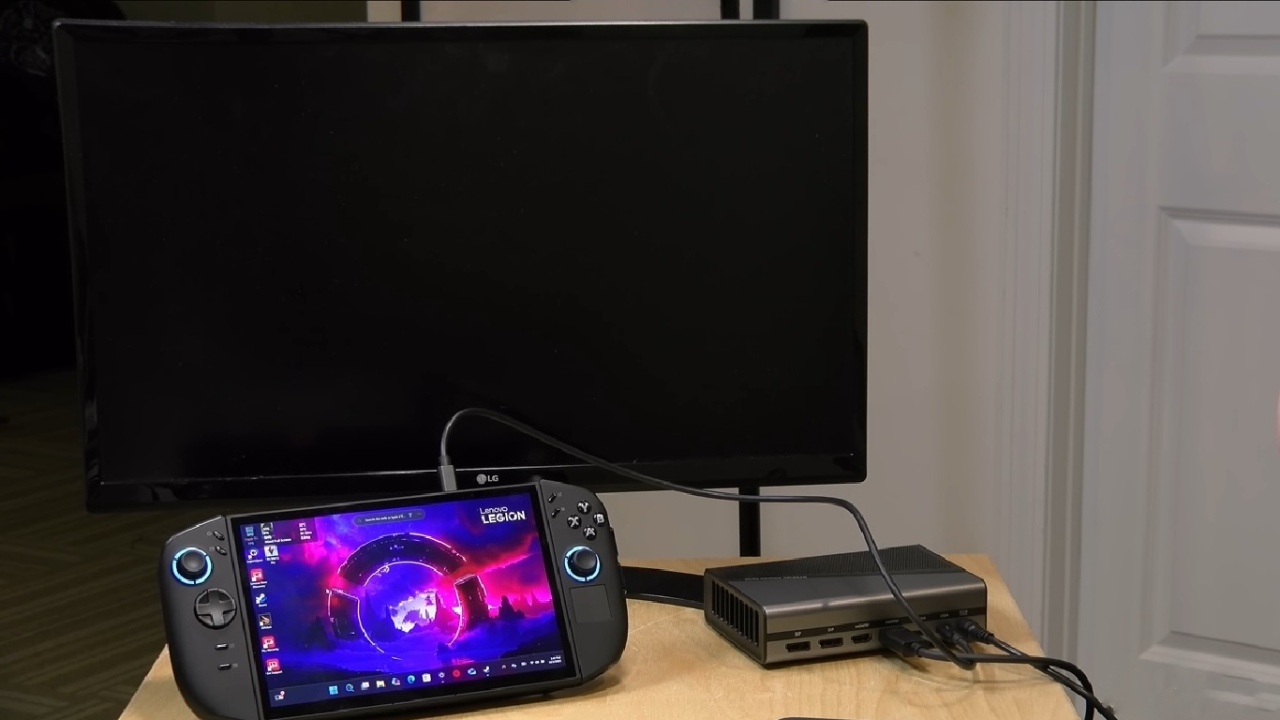
We began by testing the Legion Go 2's eGPU compatibility using the GMKtec ADGP1, an external GPU enclosure priced around $500. It houses an AMD RX 7600M XT with 8GB of video memory—significantly more powerful than the internal GPU of the Z2 Extreme chip inside the Legion Go 2.
The GMKtec ADGP1 is capable of powering both itself and the handheld through a single USB4 cable, simplifying the setup.
After connecting the cable to the top USB port of the Legion Go 2, the handheld began charging immediately. Windows detected the connection, but additional drivers for the external GPU were required.
Once those drivers were installed, everything was properly recognized, showing 8GB of available VRAM under the AMD hardware section.
Optimizing Display Configuration
We turned off the internal display and made the external monitor the main output to get the best performance. When both screens are on at the same time, the USB4/Thunderbolt interface limits the amount of bandwidth available. This means that the GPU can only work at its maximum capability when just the external display is on.
After configuring the system to "show only on two," the internal display turned off when the external GPU was active. When unplugged, the Legion Go 2 reverted to its internal graphics seamlessly. We found that desktop hot-swapping worked smoothly, but in-game switching required closing and reopening applications.
Benchmark Results and Performance
Using 3DMark's Time Spy benchmark, we observed a substantial performance boost. The Legion Go 2 achieved a score of 9,493 when docked with the external GPU, compared to its native score of 3,999. Frame rates also improved significantly, demonstrating the raw power of the external AMD RX 7600M XT.
Power draw reached around 215W, leaving some headroom within the ADGP1's 240W power budget. The performance gains were consistent with expectations, validating the effectiveness of the setup.
Real-World Gaming Test
We played No Man's Sky at 4K resolution with higher settings to see how it would work in the real world. Most of the time, the game had a steady frame rate of around 60 frames per second. There were some slight frame drops, which were probably caused by caching or the game's random generation.
Overall, it was smooth and highly playable—something the internal GPU alone couldn't achieve.
When we detached the controllers and ran the system on its stand, the setup remained stable. But, as expected, the game crashed when the eGPU connector was unplugged during gameplay because the GPU was abruptly gone. Because of this, it's not a good idea to hot-swap when playing games.
Docking Experience and Practical Considerations
For around $500, docking the Legion Go 2 with an external GPU, such as the GMKtec ADGP1, delivers a substantial boost in graphical performance. However, users should expect to adjust display and performance settings each time they switch between portable and docked modes, as automatic detection within Steam or Windows may not always occur.
There are also other external GPU options, such as Thunderbolt enclosures that allow installation of desktop GPUs. While powerful, they tend to be bulkier compared to the compact and elegant design of the GMKtec ADGP1. The included power supply delivers up to 240W, and the unit's compact design makes it a clean fit for a desk setup.
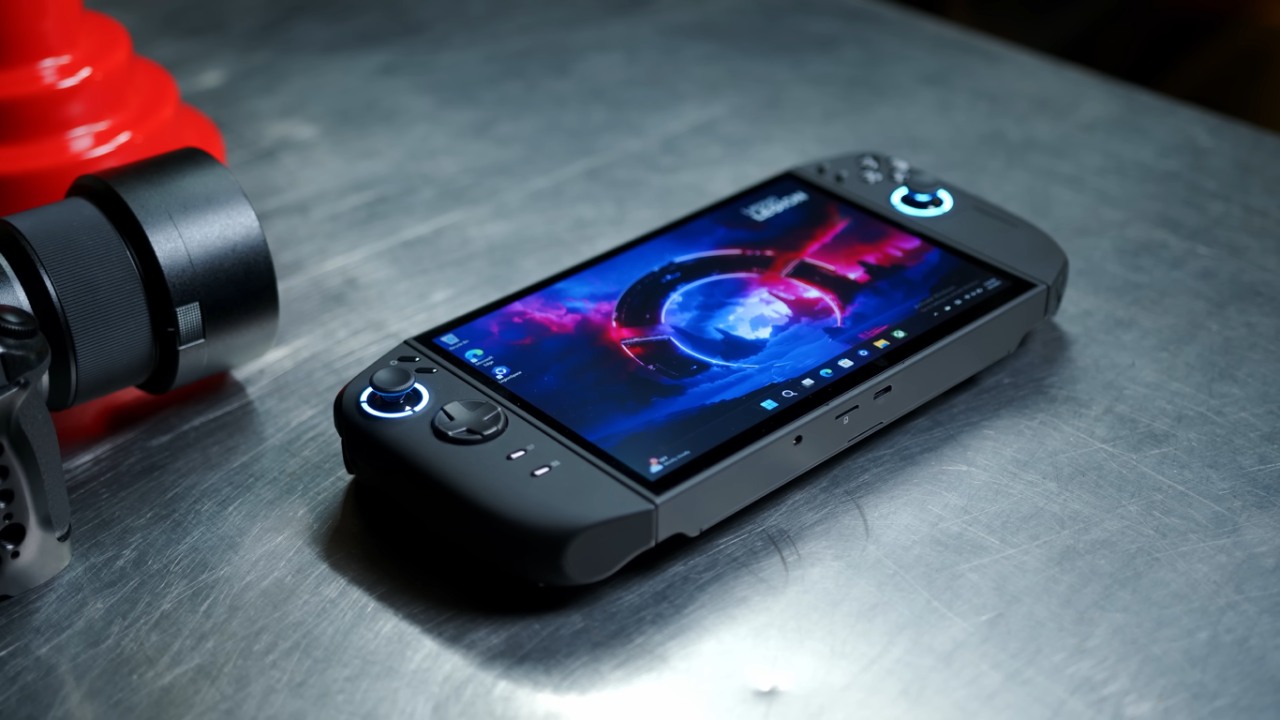
One design limitation of the Legion Go 2 is that its second USB4 port is located at the bottom. When using the built-in kickstand, that port becomes obstructed. A stand or angled connector can help maintain accessibility and airflow when docking.
The Legion Go S model, by contrast, positions both ports on the top—an improvement that would have benefitted this version as well.
Final Thoughts
Connecting an external GPU to the Legion Go 2 effectively transforms the handheld into a capable desktop-class gaming system. The GMKtec ADGP1 works well with a lot of different devices, gives good power, and has a clean docking experience with just one cable.
It's not as easy to swap between GPUs on a desktop, but it's a good option for people who want one device that works well at home and on the go.
For players seeking to maximize the Legion Go 2's potential without investing in a full desktop setup, pairing it with an eGPU like the GMKtec ADGP1 provides a powerful and flexible alternative.
Check our Other Handheld Articles :
- ASUS ROG Ally X Handheld Review: Double the Battery, Double the Comfort
- Nintendo Switch 2 Vs. Original Switch 1: A Full Comparison
- How To Connect A Camera And Join Voice Chat With Nintendo Switch 2
- Nintendo Switch 2 Review: Handheld Performance, Features & Value Breakdown
- ROG Xbox Ally X Vs. ROG Ally X: Display, Battery & Controls
- ASUS ROG Ally X vs. Steam Deck OLED: Display, Battery & Gaming Benchmarks
- MSI Claw 8 AI+ Review: Display, Controls & Gaming
- Nintendo Switch 2 vs. Steam Deck OLED: Gaming, Performance, Battery, Display and Value
- PlayStation Portal Review: Remote Play, Cloud Streaming & Travel Gaming
- PlayStation Portal vs. Lenovo Legion Go: Best Portable Gameplay
- Cyberpunk 2077 Patch 2.3 FPS Test on MSI Claw 8 AI+
Editor, NoobFeed
Gaming Hardware Updates
No Data.