
ASUS ROG Ally PS5 Remote Play | How to do Remote play on PS5 Using Sony's Official Remote Play App
Download, install, and configure Sony's PS Remote Play app to stream PS5 seamlessly on your ASUS ROG Ally handheld device
Hardware by Masaru Hoshino on Jul 07, 2025
Remote play technology allows gamers to stream their console experience to capable devices over the internet. Leveraging the ASUS ROG Ally's PC architecture and handheld portability, it is now possible to enjoy PlayStation 5 titles on a compact, high performance platform without physical proximity to the console.
Downloading and Installing PS Remote Play
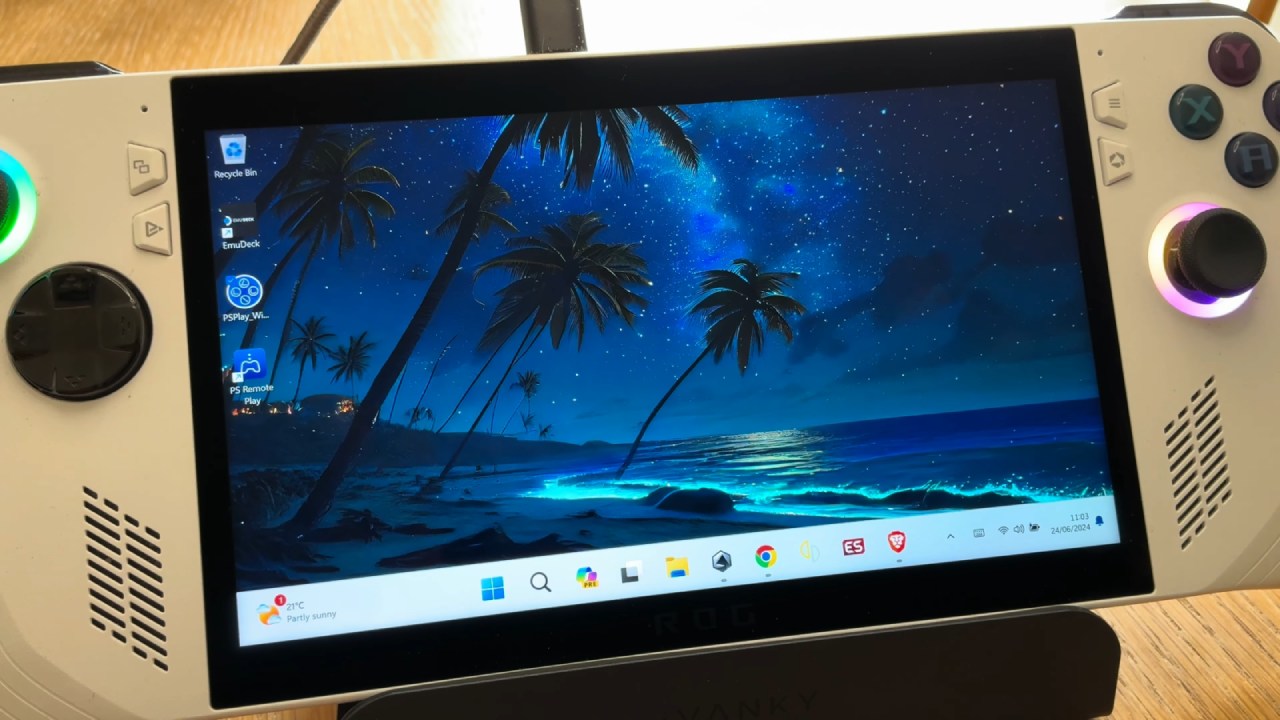
Begin by accessing PlayStation's official Remote Play website and selecting the Windows PC download option. After the installer arrives in your Downloads folder, launch it and approve any security prompts that appear.
You will be guided through the language option and the conditions acceptance via the installation wizard. Click Next through each screen until the "Install" button appears.
With an ROG Ally, featuring its fast SSD, the entire process completes in under one minute, and a Remote Play shortcut will appear on your desktop once the installation is finished.
Signing In and Two Factor Authentication
When you open PS Remote Play for the first time, you will be prompted to enter your PlayStation Network email and password.
If you have enabled two factor authentication—which is highly recommended for protecting your account and any stored funds—you will receive a code via your authenticator app or email.
Enter that code when requested. This extra security measure guarantees that nobody else can enter your library without the required permission.
Setting up the PS5 for Remote Play
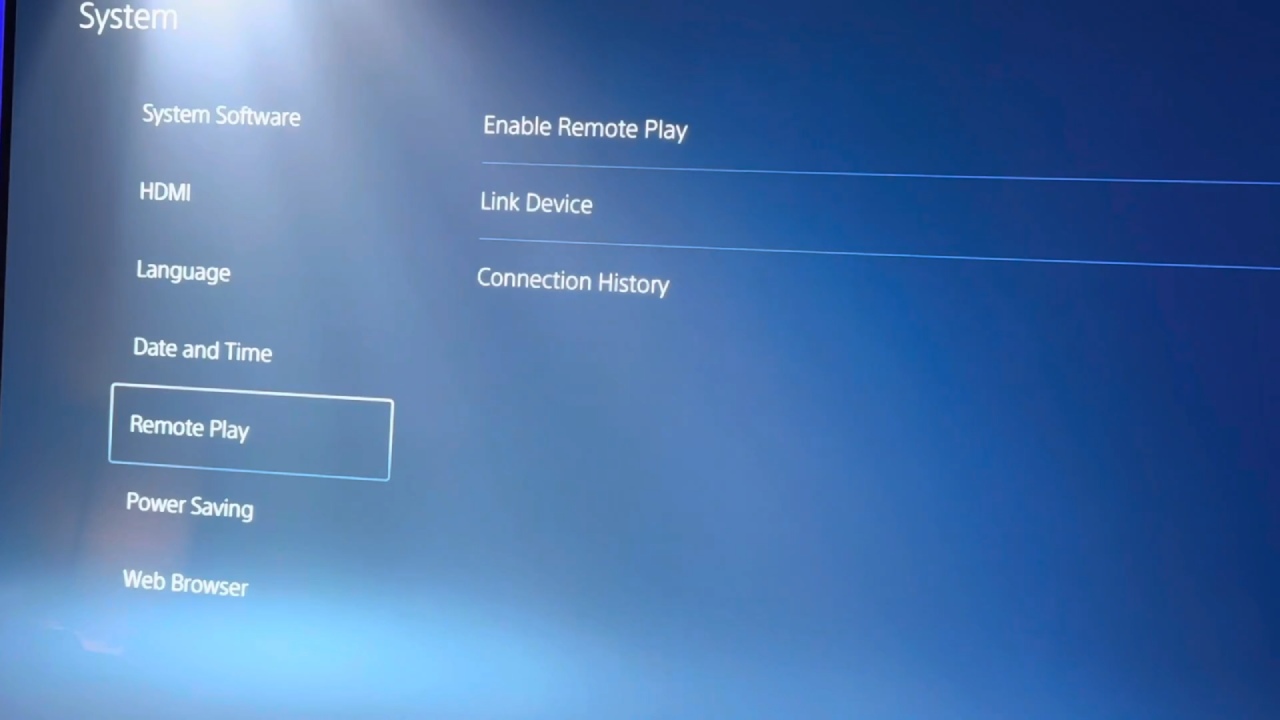
Go to Settings > System > Remote Play on the PlayStation 5. Ensure that "Enable Remote Play" is enabled.
Next, select "Link Device" to view a 10-digit code. Return to the ROG Ally's Remote Play app and enter the required code.
This link allows the console to recognize your device and to wake from Rest Mode over the network, provided you have enabled "Stay Connected to the Internet" and "Enable Turning On PS5 from Network" under Settings > System > Power Saving.
Connecting Your DualSense Controller
Although the Ally's touchscreen can navigate menus, actual gameplay requires a DualSense controller. To pair wirelessly, put the controller into pairing mode by holding the PS and Create buttons until the light bar flashes.
Then open Windows Bluetooth settings on the ROG Ally, find "Wireless Controller," and complete the pairing. For a wired connection, simply plug in a USB C cable. Once connected, input latency is minimal, and button mapping mirrors the console experience exactly.
Optimizing Streaming Quality
The quality of your remote session depends on both your home network's upload speed and your Ally's connection. We recommend using a 5GHz Wi-Fi network for the PS5 and, if possible, an Ethernet connection for the console itself.
In the Remote Play app's settings, you can adjust the resolution and bit rate. While the app supports up to 1080p, we find that streaming at 720p with a 30 45Mbps bit rate yields the most consistent performance on the ROG Ally.
Higher resolutions can introduce stuttering or audio static, whereas 720p remains smooth, even during action-packed scenes.
Troubleshooting Common Issues
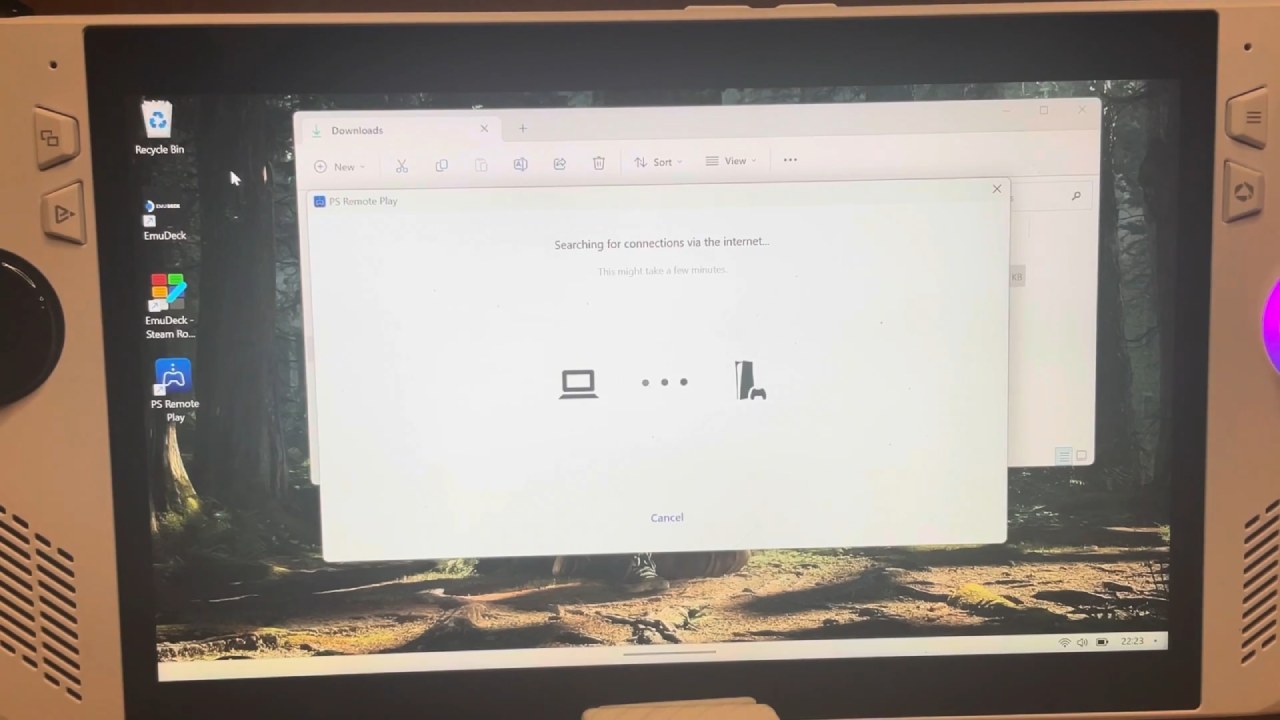
Ensure both devices are connected to the same network and restart PS Remote Play if the app is unable to detect your console.
Re-enter your credentials and verify that Remote Play remains enabled on the PS5. Should you encounter audio artifacts, open Windows Sound Settings and disable any audio enhancements for the Remote Play application.
For dropped connections, double-check the power-saving options to prevent the PS5 from fully powering down during periods of inactivity.
Final Thoughts on the Official App
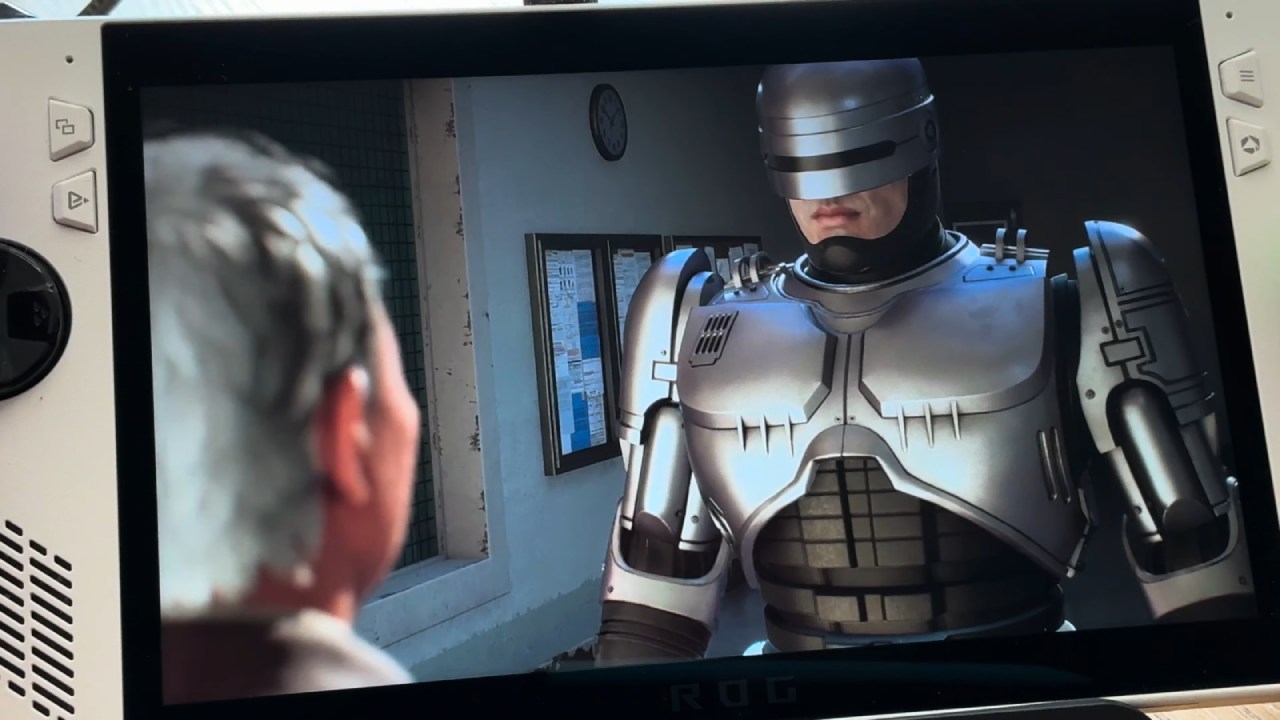
Using the official PS Remote Play application on the ASUS ROG Ally offers a stable, supported solution for handheld PS5 streaming.
Although gameplay requires a DualSense controller, anyone with basic PC skills can use this approach due to its easy installation and setup process. Once configured, the library on your console is portable.
Check our Other Handheld Articles :
- Nintendo Switch 2 Vs. Original Switch 1: A Full Comparison
- How To Connect A Camera And Join Voice Chat With Nintendo Switch 2
- Nintendo Switch 2 Review: Handheld Performance, Features & Value Breakdown
- Lenovo Legion Go S Review: The Ultimate Steam Deck 2 Alternative
- ROG Xbox Ally X Vs. ROG Ally X: Display, Battery & Controls
- ASUS ROG Ally X vs. Steam Deck OLED: Display, Battery & Gaming Benchmarks
- MSI Claw 8 AI+ Review: Display, Controls & Gaming
- Nintendo Switch 2 vs. Steam Deck OLED: Gaming, Performance, Battery, Display and Value
Editor, NoobFeed
Gaming Hardware Updates
No Data.