
Steam Controller Features that Improve PC Gaming
Proper calibration and firmware updates improve Steam Controller responsiveness and prevent setup issues during early gameplay sessions.
Hardware by Naheyan Tahmin on May 16, 2026
The new Steam Controller is coming for early adopters, and plenty of gamers are already determining whether it will fit in their games. It includes trackpads, gyro aiming, back buttons, and an enhanced Steam Input customization that makes PC gaming easier from the couch than with a traditional controller. The best experience can be achieved from the beginning by performing proper setup (firmware update, calibration, controller tuning, and layout customization).
With the right setup, the Steam Controller can also be used with strategy games, shooters, media controls, and even games that aren't on Steam. With the right setup, the Steam Controller even offers a level of flexibility usually not found in standard controllers.
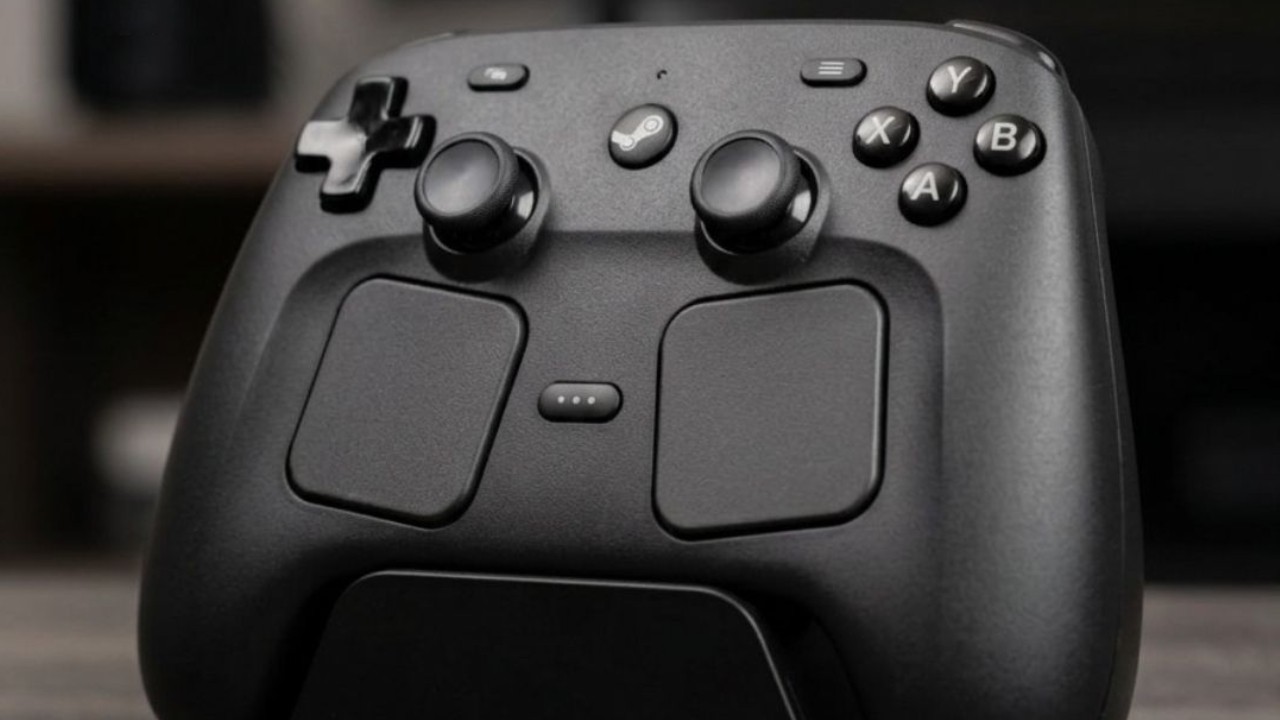
Install the Latest Firmware Version
The first step after the unboxing of the Steam Controller is to upgrade the Firmware and tune the hardware. Valve suggests connecting the Controller to a computer, opening Steam, and letting the auto-updater do its job. The upgrade also upgrades the wireless dongle firmware.
After that, it's very important to adjust. To ensure a simple setup, the joysticks and gyro devices need to be calibrated. Any problems that happen later can't be fixed or replaced under the protection.
Besides the joysticks and trackpads, calibration is even more important. They're also key aspects of the Steam Controller experience, and if they're set up correctly from the start, there will be fewer headaches down the road.
Use the Trackpad Haptic Feedback Setting to Fine-tune
Steam Controller's main component is the trackpads. Used to play those games you enjoy playing on a PC, but can't with the mouse, particularly strategy games and games that require fine control of the mouse.
Haptic rumble feedback is inside the trackpads. The default haptic feedback effect is quite intense, so it may be desirable to open the Steam Input settings and tweak the haptic feedback intensity slider. A large number of users tend to use it at 40% to 60%, as it strikes a balance between responsiveness and comfort.
Once again, a few minutes are needed to test the trackpad settings, as they significantly alter the trackpad feel. As you begin to use them regularly, the Controller feels vastly different from a standard console controller.
Make Sure to Set up the Gaming Pad in Advance
Steam controller is easiest to use if the rest of the surroundings are set up as well. No one wants to have to take the Controller, walk back to the PC, and click confirmation boxes. The Controller feels more like a console experience in a living room or home theater setup. The example configuration is a Steam Deck plugged into a JSAUX dock and connected to the TV. Steam Deck powers on when the Controller is switched on, and the display is automatically powered on via HDMI CEC.
This configuration may vary depending on the standard gaming PC, but it is planned to be supported directly by upcoming Steam Machine hardware. This means that the Controller can be picked up, and the TV and gaming system can be started automatically (without extra input). Typically, it will take less than 20 minutes to set up, but always verify compatibility before installation.
.jpg)
Try these Games that Benefit from the Trackpads
After calibration and connection of the Controller, the next step is to start playing games. Some games are better suited to the Steam Controller than others. It's an obvious fit for strategy games, as the trackpads offer a more natural way to move a mouse. Navigating the cursor is easier to learn after a little practice.
Trackpads also come in handy for first-person shooters. Unlike traditional thumbsticks, Steam Controller trackpads offer more precise movement and targeting. You can try several games for about 30 minutes to see if the Controller is right for you.
Set up Back Buttons
One of the best features of the Controller is the back buttons. Many users simply neglect them, but they are soon incorporated into regular play after proper setup.
The rear buttons can be used to perform actions such as running, switching weapons, or communicating with other characters. This alleviates some of the strain on the thumbsticks and on the fingers during play. The back buttons also help reduce awkward hand positioning while using controls in shooters such as Doom or multiplayer games that demand rapid reactions.
Understand the Operation of Gyro Controls
Steam Controller features gyro sensors in its grips. Gyro mode automatically turns on when the Controller is in your hand, and allows for motion-based aiming adjustments. In first-person shooters, the joystick can move the camera around more, and gyro aiming allows you to make more subtle adjustments. After getting used to it, a comfortable couch aim is more precise than normal controller aim.
Doom and Team Fortress 2 are among the games that get a huge boost from the gyro controls, as small changes will be made faster and more accurately. Add games to Steam that are not listed on Steam. Upload Non-Steam Games into Steam. Many players are concerned about playing non-Steam games on it, but Valve says it works as a normal controller when not in Steam.
To access the advanced Steam Input features, we just have to add non-Steam games to the Steam library. In Steam, go to games and pick the " Add a non-Steam game option. Once the game is installed via Steam, the Controller will support community layouts, gyro aiming, customization of the back button, and advanced control features, as with native Steam games.
.jpg)
Utilize the Controller to Navigate Around the General PC
Steam Controller can be used for more than just games. The dual trackpads provide improved web and media navigation over traditional trackpads. An on-screen keyboard to type faster and to navigate through menus, which works with trackpads. This configuration provides both mouse and controller input on the same device, making it convenient to operate while sitting on the couch, whether enjoying movies, playing games, or browsing the web.
One of the hidden features of the Steam Controller is the use of TMR joysticks. They work similarly to Hall-effect sticks, using magnetic technology rather than contact methods. This design will reduce stick drift over time. The joysticks also offer extremely responsive control with little to no "dead space. The joystick's sensitivity should be checked right after setup and can be adjusted to preference based on the dead zone setting. Joysticks are calibrated for very accurate movement in competitive and precision-based games.
At first, it may seem complex, but Steam has community layouts to make the process easy. The player needs to download other player-made layouts instantly, without having to manually build configurations. Steam Deck's Controller also shares a similar layout to the Steam Deck, which means that Steam Deck community profiles function in the Steam GUI just as they do in the Steam Deck.
Steam Deck has been around for years, and there are already tons of layouts for various genres and playstyles.
This lets you try out various setups right away without spending hours on control mapping. Steam Controller is about customization and flexibility. There are also options like trackpads, gyro aiming, back buttons, TMR joysticks, and community layouts, which allow for a different gaming experience on PC than the standard Controller.
It is a big deal whenever starting with firmware updates, calibration, correct setup configuration, and setup layout customization. With everything properly set up, the Controller can now play strategy games, shoot, browse the web, play media, and even run Steam games from a couch.
Editor, NoobFeed
Latest Articles
No Data.