
NVIDIA GeForce RTX 5070 Performance in Avatar Frontiers of Pandora at 1440p, 1080p and 4K
DLSS Quality improves performance at 1440p but introduces softness and occasional stutter in demanding settlement areas.
Hardware by Shinji Okazaki on Jan 19, 2026
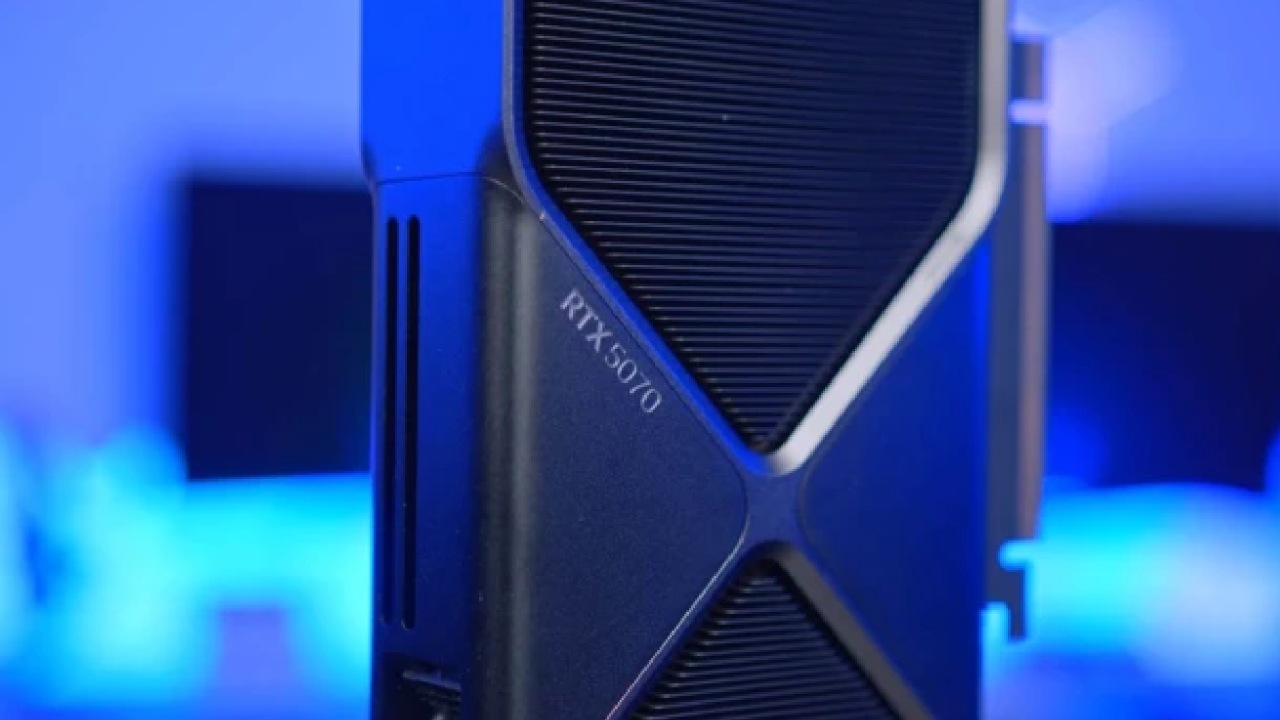
Avatar: Frontiers of Pandora is one of the hardest PC games to play right now since it uses a lot of ray tracing and complex lighting. RTX 5070 Founders Edition was tested with a Ryzen 9 7980X3D and 32GB of RAM.
It was running the latest NVIDIA drivers and was not overclocked manually. We tested the game at 1440p, 1080p, and 4K to see how the GPU handles different settings and resolutions.
Initial Settings and Test Setup
The system had a 1440p resolution and high graphics settings. Ray reconstruction was turned on, and DLSS was set to LAA, the image wasn't getting bigger. Ultra isn't the highest preset, but performance was already low. RTX 5070 averaged about 30 fps, but it often went below that. The amount of VRAM used increased to around 12GB, and the amount of system RAM used increased to about 17GB. This means that some data was being moved from VRAM to system memory.
Even though it didn't work well, the graphics were still quite good. The texturing, lighting, and environmental details were good, but the shadows flickered a lot. In this game, ray tracing couldn't be disabled, which made it consistently hard to run.
DLSS Quality at 1440p
Changing DLSS to Quality mode made a big difference in performance. Frame rates reached about 69 fps in lighter areas, and VRAM use dropped to about 10–11 GB. But in hard places, such as settlement areas, performance still declined to around 40 fps. There were frame time spikes and micro-stuttering, which were probably caused by a lack of VRAM.
Turning off ray reconstruction made frame rates a little better, but reflections, especially on water surfaces, looked worse. Even without ray reconstruction, the frame rate decreased to roughly 40 fps in busy regions, which showed that the GPU was still under a lot of stress.
Creating frames at 1440p
Turning on 2x frame generation made things look smoother, and frame rates rose to 70–120 fps depending on the situation. Input lag went up to about 40–50ms, and the game was still fun to play. DLSS Quality rendering at an internal 960p resolution, together with frame creation, made visual softness more visible.
Settings that work best at 1440p
When you used the best settings, certain options went from ultra to high or medium, but ray reconstruction stayed on. Even with these changes, frame rates still dropped to about 30 per second in hard-to-reach areas. Turning off ray reconstruction improved performance, but the graphics got worse, especially shadows and reflections.
Performance at 1080p
It wasn't a good idea to use DLSS Quality at 1080p because it made the game look like 720p, resulting in a softer, less clear image. Native 1080p and frame generation together made the visuals look better and the gameplay smoother, often going above 100 fps. Input lag was still adequate for a game with only one player.
Performance at 4K
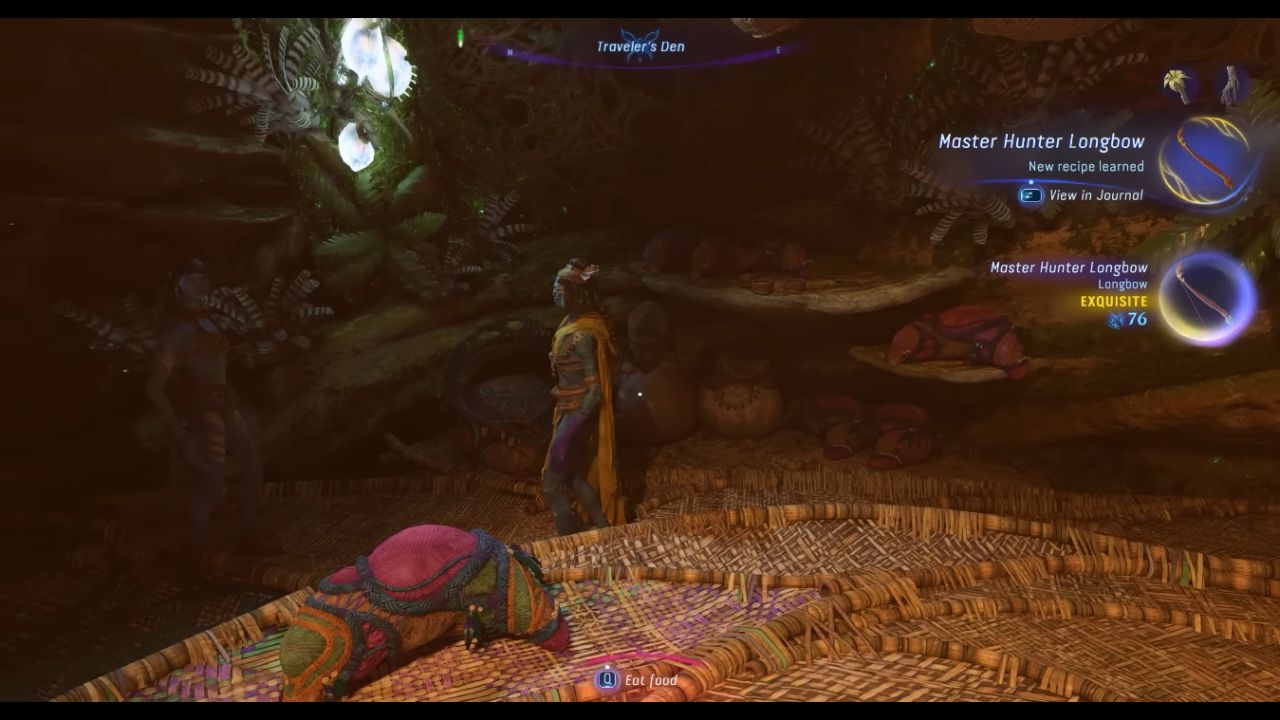
With optimal settings and no DLSS, frame rates dropped below 30 fps at 4K. The graphics were very sharp and detailed, but the game was unplayable.
DLSS Quality adjusted the game to 40 fps, which made it playable, but it still wasn't smooth. Adding frame generation raised the frame rate to 60 fps, while the input lag increased to 60–70 milliseconds. It felt like the keyboard and mouse were less responsive, but the controller gaming was easier to handle.
The baseline frame rate increased to 45–50 fps when DLSS Performance was enabled. When 2x frame generation was enabled, the game ran at roughly 70 fps, a decent balance between performance and graphics quality. There were some soft places and a little shimmer, but the experience remained the same.
Final Thoughts
At 1440p and 4K, Avatar: Frontiers of Pandora really tests the RTX 5070's limits. Ray reconstruction and ray tracing have a big effect on performance, yet the game doesn't let you turn them off completely. The 12GB of VRAM capacity causes some scenes to stutter from time to time.
At 1440p, DLSS Quality with 2x frame generation delivers the best balance between performance and visuals. At 1080p, frame creation at native resolution allows you play without losing visual quality. You need DLSS Performance and frame generation to get decent frame rates at 4 K. You can see the input lag more clearly.
The game looks the same at all resolutions, but to achieve smooth performance on the RTX 5070, you need to use DLSS, tweak the settings, and enable frame generation.
Also, check our other NVIDIA articles below:
- NVIDIA GeForce RTX 5080 Review (2025): Still A 4K Gaming Powerhouse?
- NVIDIA RTX 5070 Review: Mid-Range Muscle or Marketing Hype?
- RTX 5070 Ti Review: Performance, Thermals & Power Efficiency Tested
- ASUS GeForce RTX 5090 LC Liquid Cooled GPU Review: Unmatched Silence & Speed
- MSI GeForce RTX 5090 32GB SUPRIM SOC Review: Power Efficiency, Cooling, and Gaming Performance
- INNO3D RTX 5060 Ti 16 GB X2 Review: Gaming Benchmarks, Temps, and Power Efficiency
- HP Omen 45L Review: RTX 5090 Performance, Thermals, and Value Analysis
- ASUS TUF Gaming GeForce RTX 5060 Ti Review: DLSS 4, Power Efficiency, and Gaming
- ASUS Prime RTX 5060 Ti OC 16GB Review: DLSS 4, Ray Tracing, & Thermals Tested
- NVIDIA GeForce RTX 5060 Review: Specs, Gaming, and Cost per Frame
- MSI GeForce RTX 5090 GAMING TRIO OC Review: A Monster Power GPU
Editor, NoobFeed
Latest Articles
No Data.