
Hidden Steam Input Features for Steam Controller Users
Hidden Steam Controller features improve connectivity, customization, and gameplay controls across Steam Deck and desktop environments.
Hardware by Shinji Okazaki on May 17, 2026
Some features of the new Steam Controller won't be fully explained during setup. The controller offers standard controls, advanced Steam Input options, desktop controls, secret connection modes, and customization options. Valve also added features such as a backpack lock mode, HDMI CEC support, haptic adjustments, and MIDI playback to make the controller more useful across a variety of setups.
There are 2 modes to switch: Dongle Mode and Bluetooth Mode. The standard setup is to use the included dongle, though the Steam Controller also supports Bluetooth. The dongle connection can only operate when the dongle is connected to the device, whereas Bluetooth offers greater flexibility across devices.
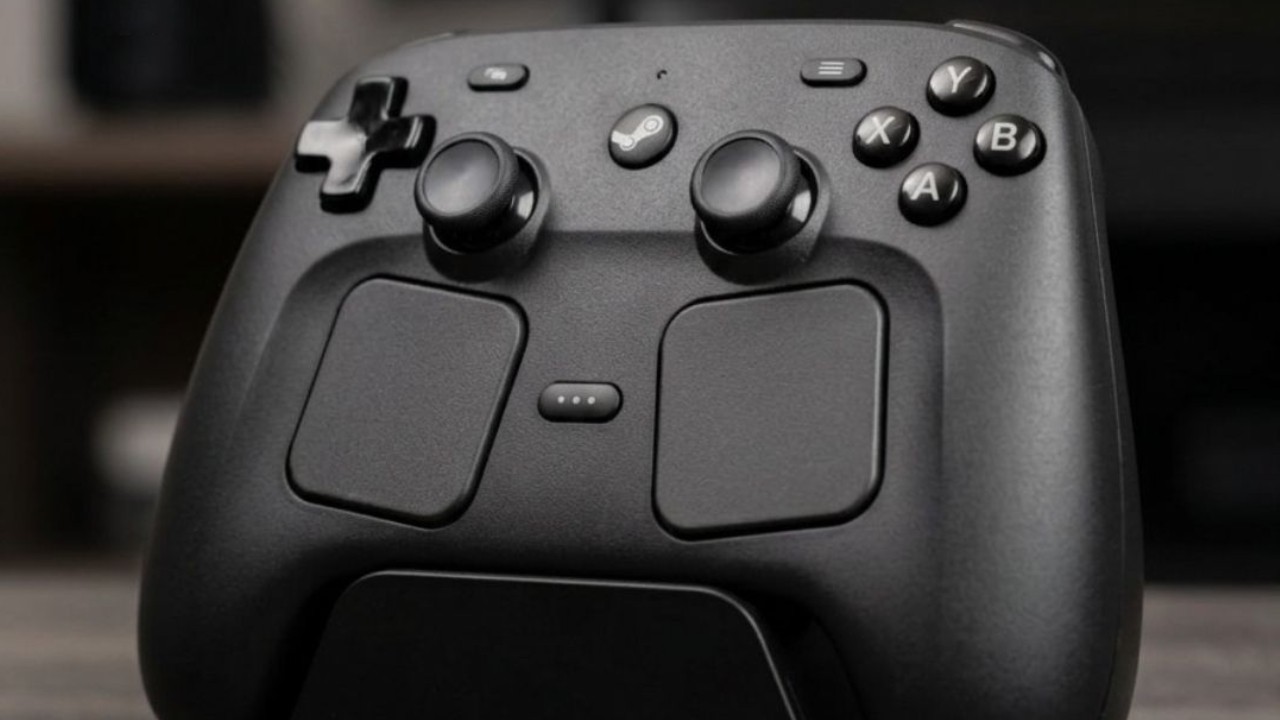
Turning On the Pairing Mode
You must press Steam and B together for at least a second until the controller begins to flash, indicating it is in pairing mode. After it starts flashing, open Steam settings, select “Add Device,” and pair the controller from the available devices list. Upon receiving a pairing, the blue light will indicate that the controller is paired via Bluetooth.
If you prefer to go back to dongle mode for lower latency, hold down the Steam button for approximately 6 seconds, and the controller will turn off. Then, using the Steam button, right bumper, and A simultaneously will reconnect the controller to the dongle. When the controller is in dongle mode, a white light is on.
This Feature Lets You Use Lock Mode from the Backpack
The controller may be accidentally turned on inside a backpack or carrying case, particularly when other devices are inside the Backpack. Valve added a lock mode to avoid inadvertent activation when traveling. To activate the Lock mode, you must press all four rear buttons and Steam while the controller is off. After being enabled, pressing the power button only blinks without turning on.
To turn off the lock mode, repeat the same steps: hold down four back buttons and the Steam button until the controller comes back on normally. This can be helpful for the Steam Deck or other connected devices when carried in an enclosed area to avoid accidental wake-ups.
The Controller Makes Sounds When Dropped
In fact, the Steam Controller emits an unannounced sound when dropped. Some users thought that there would be an in-built speaker in the controller, but the sounds are probably from the haptic motors. The effect really shows the power and sensitivity of the haptics, which can provide more than just rumbles. Users report that the haptic feedback is not strong enough by default, but can be customized using the controller.
You can access the controller settings page in Steam settings, click on Steam Controller details section, and then go to the calibration and advanced settings section. Under haptics, you can adjust the strength on both the left and right sides.
It normally works at level 7, but can be ramped up to level 12, which is what the controller offers. Another way is to check the haptics directly using the controller's ping feature, which generates much stronger haptic feedback compared with the standard haptic feedback during gameplay.
.jpg)
Automatic ON/OFF for Steam Deck and TV.
One of the more seamless features works when Bluetooth mode is enabled. The Steam button will automatically power on a connected Steam Deck, including powering on a TV when HDMI CEC is enabled. Currently, this feature isn't fully supported by the dongle, but some settings enable the controller to automatically communicate with the Steam Deck and compatible displays when in Bluetooth mode. When it's plugged in, the TV turns on at the same time as the system, and the display will be official.
This is particularly handy for gaming setups in the living room, where "wake up" is important. Other controllers with characteristics similar to those of the one in question. A few other controllers have capabilities similar to those of the Steam Controller. The 8BitDo Ultimate 2 Wireless comes equipped with TMR joysticks, Hall effect triggers with switchable trigger modes, rear back buttons, software customization, and a charging dock.
The 8BitDo Ultimate 2C Wireless is the lower-priced version with Hall-effect sticks, Hall-effect triggers, and additional bumpers. Both controllers support Bluetooth and 2.4GHz dongles, allowing them to be used with Steam Deck and PC systems.
The Controller Becomes a Mouse and Keyboard
When Steam is completely closed, the Steam Controller still works in desktop mode. It switches to mouse-and-keyboard mode rather than a normal gamepad. The mouse cursor is controlled by the right trackpad, and the D-pad is used like the arrow keys.
The A button is used as the Enter key, and the B button is used as the Escape key. This means that even if no mouse or keyboard is attached to a system, it can still be navigated using folders and menus. This feature comes in handy when setting up for the first time or when using a system without Steam installed.
Using the Controller Outside of Steam
Some users do not wish to rely on Steam Input full-time to use the Steam Controller. The controller inputs are now processed by background software, which interprets them as a standard game controller using community-made software. The following tools enable the Steam Controller to support games and applications that do not support Steam Input out of the box.
An advanced AUTO-REPEAT option in Steam Input is available to many users, though they may not know about it. Automatic repeated button action can be set up in the controller layout's settings.
We can tweak how many inputs are required to trigger a repeat by opening the back button settings, setting the input, setting the gear icon, and then enabling “Hold to Repeat”. It also provides haptic feedback when activated and supports toggle operation.
.jpg)
In-game, the controller's grip sensors may also be too responsive.
Sensitivity and responsiveness can be manually adjusted in the Steam settings. In calibration and advanced settings, there are sliders for grip sensor range and responsiveness that adjust the controller's sensitivity. Lower settings require more contact to activate; higher settings require lighter contact.
You can also change these settings to make the gyro do other things. Some players like to turn on gyro aiming only when they press down with their pinky fingers, while others like to turn it on right away when they don't touch the ball much.
One of the secret features is that the haptic motors can be used to play MIDI audio. It was found that MIDI files could be used to generate identifiable sounds and melodies from the controller hardware.
The feature highlights how the haptic motors can go beyond vibrations. It also hints at the potential for future functionality that games or applications might be able to create custom audio-like effects right through the controller.
Editor, NoobFeed
Gaming Hardware Updates
No Data.