
Xbox Series X|S Guide: Best Features and Hidden Settings You Need to Know
Adjusting the brightness of Xbox logos enhances late-night gaming comfort and creates a sleek, distraction-free setup.
Hardware by Tanvir Kabbo on Nov 06, 2025
The Xbox Series X and S offer numerous features and hidden options that many users are unaware of. There are many things you can do in 2024 to get the most out of your Xbox experience. You can adjust the brightness and sound, enhance the picture quality, and utilize voice commands to control your system. Let's look at some of the top tips and features that every Xbox owner should know.
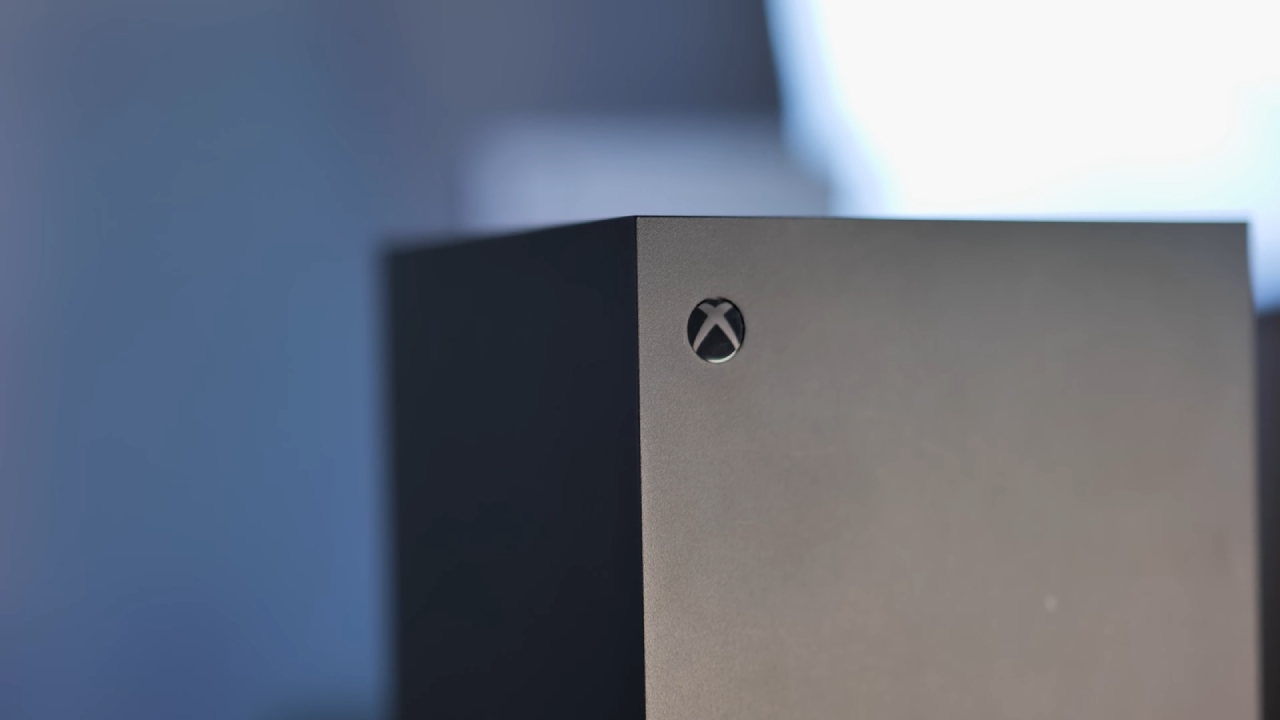
Adjust the Brightness of Xbox Logos
If you often play at night or find the Xbox icon on your controller or console too bright, you can easily adjust it. Simply go to Settings → TV & Display → Night Mode, and there you'll find options to change the brightness for both the controller and power button. Move the sliders up or down to set your preferred brightness or turn the lights off completely for a stealthy setup.
Enable Stealth Mode with Silent Startup
We've all had moments when we want to game quietly at night, but the startup sound gives us away. Fortunately, you can turn it off. Head to Settings → Accessibility → Audio, then change the Power Chime setting from "On" to "Off." From now on, your Xbox will power on silently without alerting anyone nearby.
Use Co-Pilot for Shared Control
Helping a friend or child with a game can be a hassle when passing the controller back and forth. With the Co-Pilot feature, you can link two controllers to function as a single unit. Go to Settings → Accessibility → Controller, and enable Co-Pilot on the second controller. Both controllers will now control the same game simultaneously.
It's especially helpful when assisting children—you can step in without taking over completely.
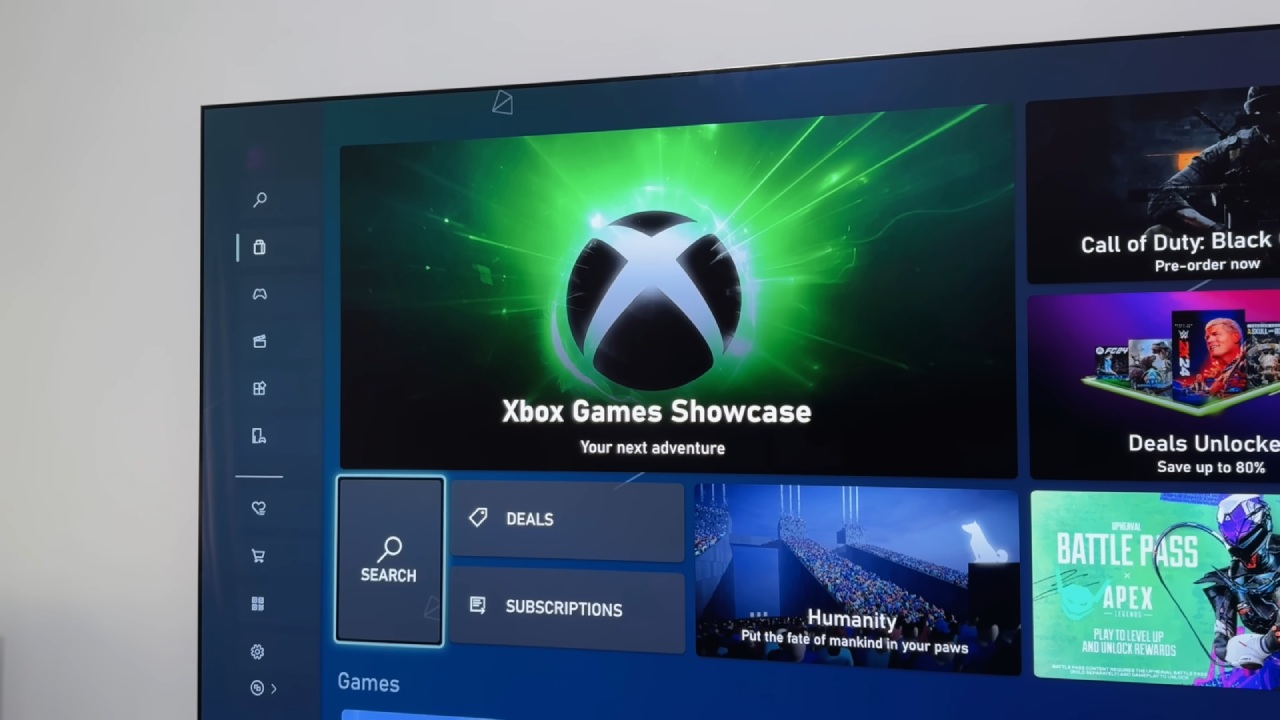
Control Your Xbox with Voice Commands
Although the Xbox doesn't have a built-in microphone, you can use smart speakers or digital assistants to control it with your voice. First, enable this feature under Devices → Digital Assistant on your Xbox. Then, connect it with your Google or Alexa app. After setup, you can say commands like "Turn on Xbox" or "Play Hypercharge Unboxed" to launch games or power the console on hands-free.
Navigate Faster on the Dashboard
When on the home screen, instead of using the D-pad or thumbstick to scroll, pressing RT or LT moves you up or down a full row at a time. It's a small but useful shortcut that speeds up navigation. In the quick menu, tapping RT will also jump directly to notifications and the search bar.
Hide Your Email Address from the Dashboard
By default, Xbox displays your email address in the top-left corner beside your gamertag. This can be a privacy issue, especially if you stream or share screenshots. To hide it, go to Settings → Account → Sign-In & Security, and untick the box displaying your email. This ensures your address stays private while gaming or sharing your dashboard.
Optimize Display and Calibrate HDR
Make sure the output from your console matches the capabilities of your TV to achieve the finest visual quality. Ensure that both the 4K and 120Hz options are enabled by navigating to Settings> General> TV & Display.
To check if your TV is compatible with 4K, click on '4K Details'. Follow the on-screen directions to calibrate your HDR while you're there. Adjust brightness and shadow levels to achieve the most accurate and vibrant image possible.
.jpg)
Quickly Switch Between Paired Devices
If you use your controller with multiple devices, such as an iPad and Xbox, you don't need to resync each time. Once both devices are paired, double-tapping the Pair button on your controller instantly switches between them. It's a convenient way to move from console to mobile gaming without setup delays.
Customize the Dashboard and Backgrounds
It's easy to personalize the Xbox dashboard. You can set solid colors, accomplishment graphics, or screenshots as backgrounds by going to Settings and then Personalization. You can also use Dynamic Backgrounds, which add effects or game-inspired images to your home screen. If you prefer the old style, simply click Restore Defaults to restore the game art wallpapers.
Enhance Audio with Dolby Atmos
You may find several sound formats, such as Stereo Uncompressed, DTS, and Dolby Atmos, under Settings → Audio. If your home theater or headset supports Dolby Atmos, enable it for improved sound quality. The home theater option works immediately, but you must purchase a Dolby license once for the headsets.
You can try it out for free, but if you purchase the complete license, you'll have access for life,, and the sound quality in supported games will be significantly improved.
Use Mouse and Keyboard Support
The Xbox Series X and S support wired mouse and keyboard input. You can plug them directly into the console's USB ports to use them in games that support it or while browsing the web. It's also much easier for typing messages or searching compared to using the on-screen keyboard. Please note that wireless peripherals are not supported—only wired devices are supported.
Preload Games Before Launch
Preloading your games is a good idea so you don't have to wait for them to download on launch day. If you purchased the game or obtained it through Game Pass, go to the shop and install it as soon as it becomes available. This ensures that the game and its updates are ready to play immediately upon release.
Use the Xbox Mobile App
The Xbox App on your phone is an essential companion. It lets you message friends, join parties, and even install games remotely. To enable this feature, go to Settings → Devices & Remote Features on your console and turn on Remote Features. You can then download and queue games to install directly from your phone. It's a great way to manage your console while away from it.
Manage Notifications for Distraction-Free Gaming
If you prefer to game without interruptions, customize which notifications appear. Head to Settings → Preferences → Notifications, and review the list. You can disable unnecessary pop-ups entirely or selectively mute those that disrupt your sessions. It's also useful for recording gameplay to avoid unwanted notifications appearing on screen.
Take Advantage of Game Pass and Free Games
Game Pass is one of the best benefits you can get with an Xbox. With the membership, you can play hundreds of games and get new ones every month. It doesn't cost much to play just a few games a year.
If you're not a subscriber, check out the Store's list of the best free games. Select Top Free, then enable the Optimized for Series X|S filter to see all free, optimized titles available for download.
.jpg)
Expand Your Storage Efficiently
Running out of space is a common issue, especially with massive titles like Call of Duty. While external SSDs are an option, they occupy USB ports and extend behind the console. Instead, Xbox Expansion Cards by Seagate or Western Digital fit neatly into the dedicated rear slot, offering extra storage without clutter. Options range from 512GB to 2TB, instantly expanding capacity for your growing library.
Final Thoughts
These tips and features will help you get the most out of your Xbox Series X or S. They enhance gaming by improving graphics and sound quality, making the console easier to use, and optimizing storage management.
These tips can help you get the most out of your Xbox, whether you're setting it up just the way you want, helping a family member play, or maximizing your Game Pass library.
Also, Check Our Other PS5 Pro Articles:
- PS5 Pro vs. PS5 Slim: Frame‑Rate, Graphics & Performance
- PS5 Pro vs. Radeon RX 9060 XT vs RTX 5060 Ti: Ultimate $700 Gaming Showdown
- ASUS ROG Ally PS5 Remote Play | How to do Remote play on PS5 Using Sony's Official Remote Play App
- Stream PS5 Games on Steam Deck OLED: Step-by-Step Installation and Configuration
- AI Upscaling on PS5 Pro: Can PSSR Finally Match DLSS?
- PS5 Pro vs. PS5 Slim vs. PS5 — Design, Storage, Specs, and Gaming
- PS5 Pro vs. Xbox Series X: Specs, Price, Storage, Customization, and Gaming
- PS5 Pro vs. PC Gaming: Comparison of Graphics, Frame Rates, and Price
Senior Editor, NoobFeed
Gaming Hardware Updates
No Data.