
Forza Horizon 6 Guide | How to Apply Vinyls and Decals
Here's a guide on how to apply vinyls and decals in Forza Horizon 6.
Game Guide by Navid Kabbo on Aug 17, 2026
Applying vinyls and decals in Forza Horizon 6 is handled through the Livery Editor, which lets you customize individual areas of your car with shapes, logos, lettering, and saved Vinyl Groups. The editor can be accessed from a Home or Horizon Festival venue.
How to Access the Livery Editor
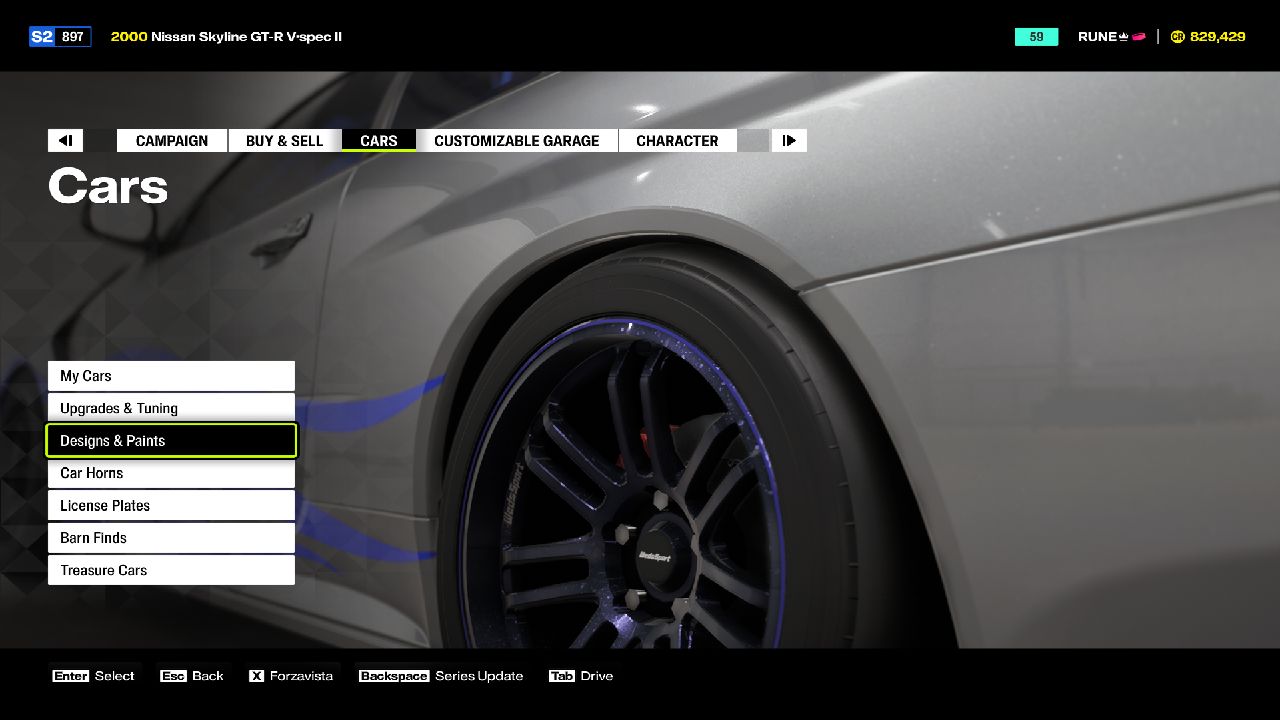
Open the Vinyls and Decals Menu
To start customizing your car:
- Open the Garage menu.
- Select Cars.
- Choose Design & Paints.
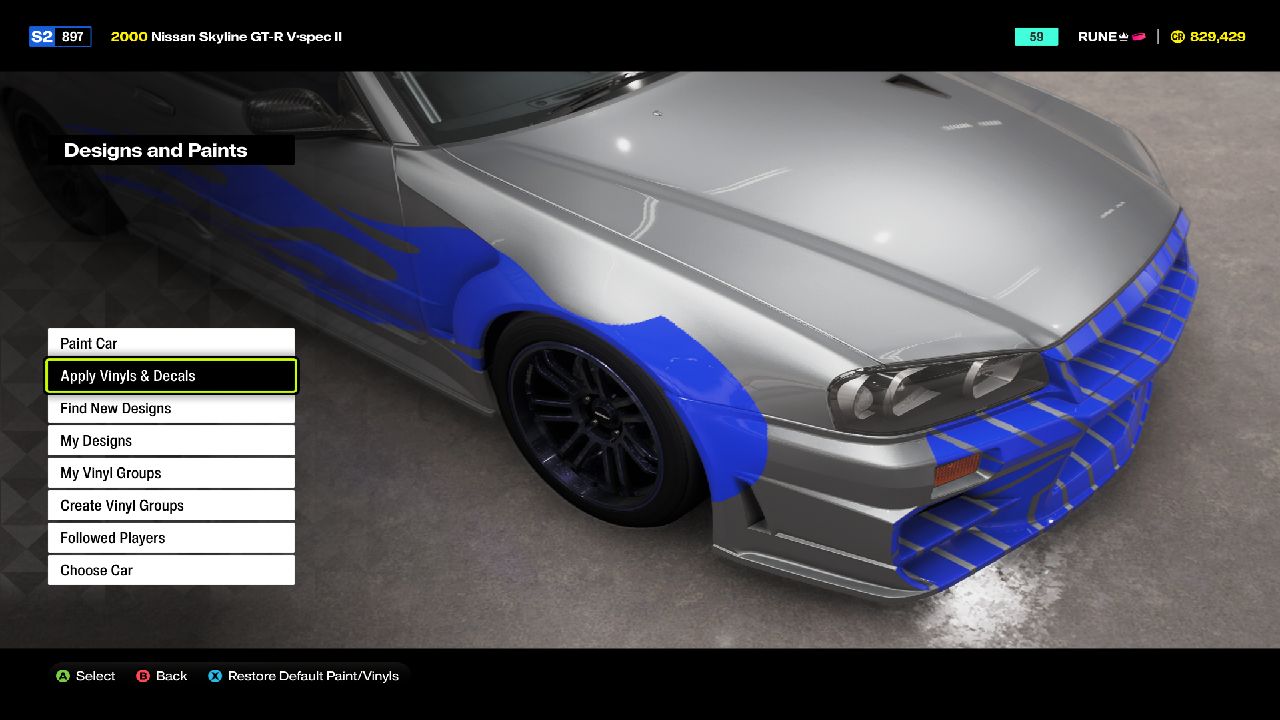
- Select Apply Vinyls & Decals.
- Enter the Livery Editor for your current car.
From here, you can select different areas of the vehicle and begin adding vinyl layers. FH6 also allows players to apply liveries to windows, giving you additional surfaces for decals and custom designs.
How to Apply a Vinyl or Decal
Once inside the Livery Editor, you can add individual vinyl shapes or use existing Vinyl Groups to decorate your car.
Add a New Vinyl Layer
Select an available layer and choose Apply a Vinyl Shape. You can then browse the available shapes, lettering, graphics, and other options before placing the selected vinyl on the car.
After choosing a vinyl, you can adjust its:
- Position
- Size
- Rotation
- Skew
- Color
- Transparency
Each vinyl is placed as its own layer, allowing you to build more complex designs by stacking multiple shapes.
Use Manufacturer and In-Game Decals
FH6 also includes pre-made decals and in-world branding that can be placed directly onto your car. These include options such as PI Class logos and Wristband-related graphics, giving you ready-made designs without having to create them manually.
How to Apply Saved Vinyl Groups
If you have already created a Vinyl Group, you can use it instead of placing individual shapes one at a time.
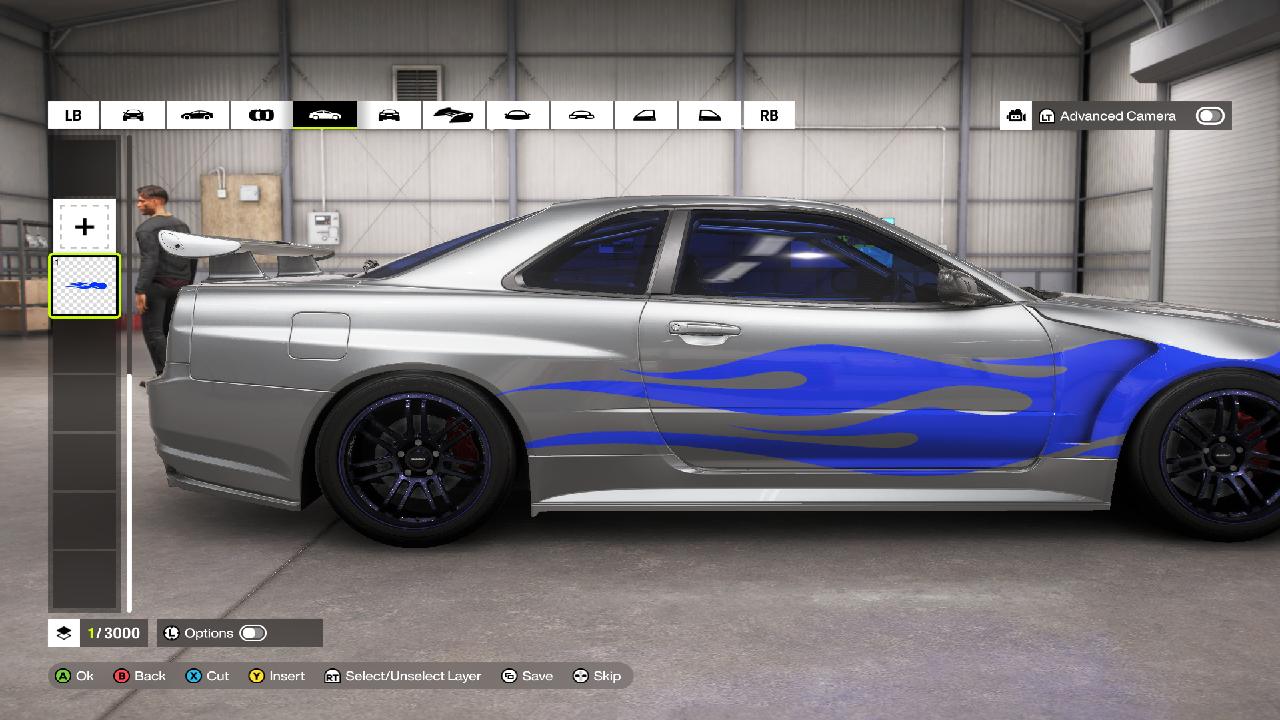
Load a Vinyl Group
Inside the Livery Editor, select an available layer and choose the option to Load a Vinyl Group. Browse your saved creations and select the group you want to apply.
Vinyl Groups are particularly useful for logos, racing numbers, sponsor designs, stripes, and other detailed graphics that contain multiple layers. Applying the group lets you place the entire design onto the car at once rather than rebuilding every layer individually.
You can then reposition, resize, rotate, or otherwise adjust the group to fit the selected area of the vehicle.
How to Change the Position and Size of Decals
Correct placement is important when applying decals because different parts of a car have different shapes and angles.
Adjust Vinyl Placement
After selecting a vinyl layer, use the Livery Editor's transformation controls to position it as desired. Move the decal across the body panel, adjust its size, and rotate it until it lines up correctly.
For larger designs, use multiple layers and align them carefully. Grouping related layers can also make it easier to move or edit several parts of a design together.
Apply Decals to Different Surfaces
FH6 allows players to customize more than just the main body panels. Window livery support provides additional surfaces for graphics, enabling more detailed race-inspired liveries and custom designs.
How to Transfer Existing Vinyls to Forza Horizon 6
Players who created Vinyl Groups in previous Forza games can transfer compatible vinyl creations into FH6. According to Forza Support, Vinyls/Decals can be transferred to Forza Horizon 6, but complete liveries and tuning setups cannot.
Import Vinyls From Forza Horizon 5
To import your existing FH5 Vinyl Groups:
- Make sure the Vinyl Groups you want to transfer are shared in Forza Horizon 5.
- Open Forza Horizon 6.
- Go to Cars > Design & Paints > Apply Vinyls & Decals.
- Select Create Layer.
- Choose Apply a Vinyl Shape.
- Scroll through the available vinyl categories until you reach your FH5 creations.
- Select the option to import your FH5 Vinyl Groups.
- Once the import is complete, select the transferred Vinyl Group and apply it to your car.
Forza Support confirms that Vinyls and Decals can be transferred even though complete liveries cannot.
How to Save and Use Your Custom Decals
After finishing a design, you can save it to reuse on the appropriate vehicle.
Save Your Vinyl Group
If you have created a multi-layer design that you want to reuse, save it as a Vinyl Group rather than rebuilding it every time. This is especially useful for logos, numbers, racing stripes, and other designs that you want to place on multiple cars.
For more complex liveries, group related layers before saving. This makes it easier to move or modify sections of your design without changing every individual layer.
Save the Complete Livery
When the entire car is finished, save the completed design through the Livery Editor. Your custom livery can then be selected and reapplied whenever you want to use the same design on that vehicle.
Final Thoughts
Applying vinyls and decals in Forza Horizon 6 is one of the easiest ways to personalize your cars. The Livery Editor gives you control over individual layers, saved Vinyl Groups, colors, positioning, and additional surfaces such as windows.
With the ability to transfer compatible Vinyl Groups from FH5, players can also bring existing designs into FH6 instead of recreating them from scratch.
Whether you are adding a simple racing number or building a complete custom livery, learning how to manage vinyl layers and Vinyl Groups will make car customization much faster and easier.
Editor, NoobFeed
Latest Articles
No Data.