

How to Install FSR 4.1 on Steam Deck Using OptiScaler?
OptiScaler enables FSR 4.1 support in compatible SteamOS games that already include DLSS integration.
Hardware by Okazaki on Jun 26, 2026
FSR 4.1 is now available on SteamOS via OptiScaler, enabling supported games to benefit from AMD's newest upscaling technology on RDNA2 and RDNA3. It requires adding OptiScaler content to the game, setting SteamOS options, and configuring the correct upscaling in the game. FSR 4.1 can also be used with lossless scaling frame generation to boost performance and deliver higher quality images than previous versions of FSR.
The first step in the Gaming Mode is to press the Steam button, select Settings, then System, and ensure that SteamOS is up to date with the latest Stable or Beta version. After the update process, press Steam once again, select Power, and then enter Desktop Mode.
Make sure you have the software installed on your computer before downloading and extracting OptiScaler. In Desktop Mode, we need to download the latest OptiScaler FSR 4.1 files. Download the package, right-click the archive, and extract it here to create a new folder.
Prepare SteamOS for FSR 4.1 Installation
Always remember that not all games are compatible with FSR 4.1 before installing it. OptiScaler will need to hook into games' DLSS functionality, which means they'd need to already be compatible with DLSS 2 or later. Ideally, games should be DirectX 12, but some DirectX 11 games can work as well. In this installation, we'll take a quick look at two installations, namely, Stellar Blade and Cyberpunk 2077.
Once you are ready, open the OptiScaler FSR 4.1 folder and copy everything inside. Afterward, click the Steam icon on the taskbar, then click Library, locate the game you would like to install FSR 4.1 for, click the cog icon, select Manage, and then select Browse Local Files. This will open the game's installation folder. The OptiScaler files should be pasted into the same directory as the primary game file for most supported games.
Installing FSR 4.1 in Stellar Blade
On the Stellar Blade, go to SB, Binaries, and Win64 folders. Within this directory, you'll find the game executable and the already-installed DLL for FSR 3.1. For many supported games, the correct location for OptiScaler installation is a folder structure with the following subfolders: Binaries, Win64, and Executable. Place all the OptiScaler FSR 4.1 files in this folder. Then close any open folders and return to Gaming Mode.
Return to Gaming Mode, find the game with FSR 4.1 installed, then select Controller Configuration. Enable Buttons on the back grip and set the Insert key to L4. The Insert key is located on the Numpad tab. This assignment will enable us to access the OptiScaler interface and adjust upscaling parameters as needed. This version of the OptiScaler is pre-configured with FSR 4.1 enabled.
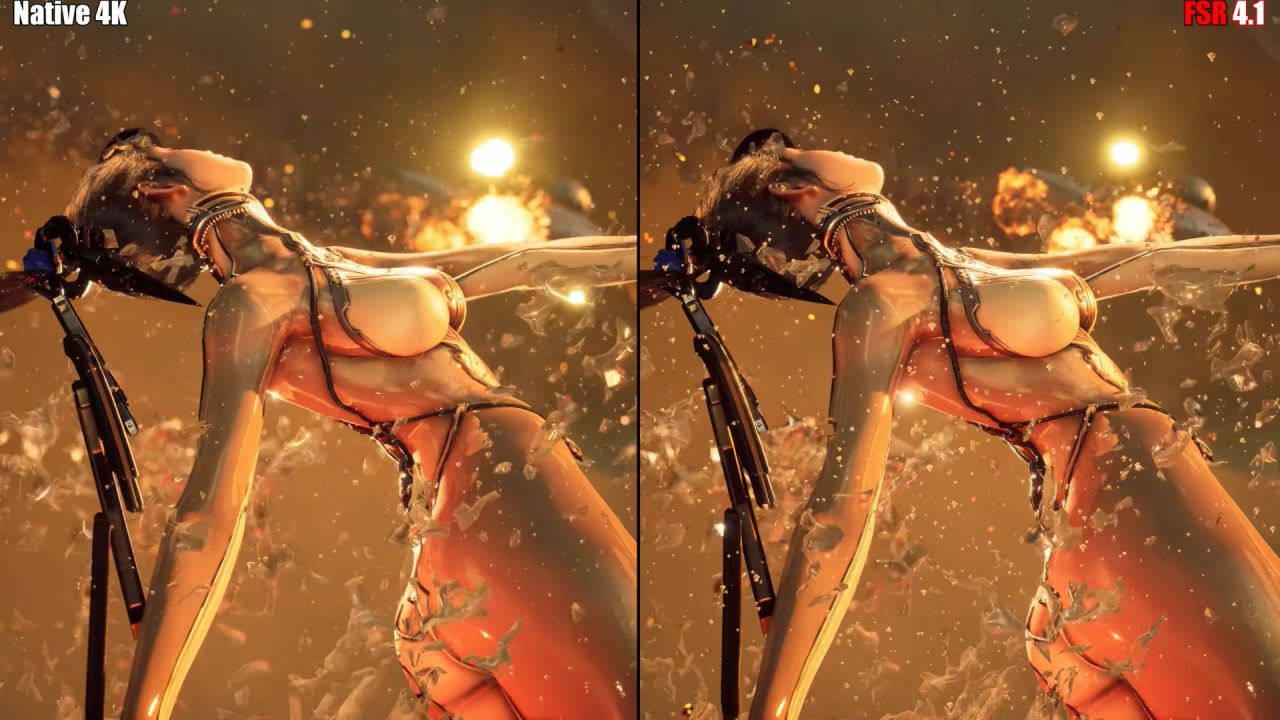
Enable FSR 4.1 in Stellar Blade
After loading the game, click on the graphics settings. On AMD hardware, the resolution scaling mode should most often be set to DLSS, which is available with OptiScaler. One exception to this is the game 'Stellar Blade,' where you might think DLSS is enabled, but it isn't. If that's the case, adjust the resolution scaling mode to FSR 3 and set Quality as the upscaling preset.
Press the Insert key (L4) to open OptiScaler when returning to the game. We will see that FSR 4.1 has already been checked. The resulting image will look cleaner than FSR 3.1. FSR 4.1 is combined with Lossless Scaling Frame Generation.
When you have the Decky LS FG VK lossless scaling plugin installed, we can copy the required option and add it to the command's properties to launch the game. Once the game is restarted, changes will be enforced. Starting from here, the lossless scaling frame generation can increase the frame rate by up to 2x, 3x, or 4x, in addition to FSR 4.1 upscaling.
With FSR 4.1, Cyberpunk 2077 is Supported
The gameplay of Cyberpunk 2077 is pretty much the same. If you are using Desktop Mode, make another copy of the OptiScaler files. In Steam, click Cyberpunk 2077, then select the cog icon, Manage, and then Browse Local Files. Open the Bin and x64 folders, and find the primary executable for Cyberpunk 2077.
Paste the OptiScaler FSR 4.1 files into this directory. Select Controller Configuration in Gaming Mode. Select the Insert key to be assigned to L4 and enable the back grip buttons. Once Cyberpunk 2077 has been launched, go into the graphics settings menu.
In the Graphics tab, switch the Resolve to DLSS option to DLSS Super Resolution. Press the Insert key, then return to the game. OptiScaler will open, showing that FSR 4.1 has been selected automatically. With RDNA2 hardware, performance will be lower than with FSR 3.1. On RDNA3 devices, it is not as detectable.
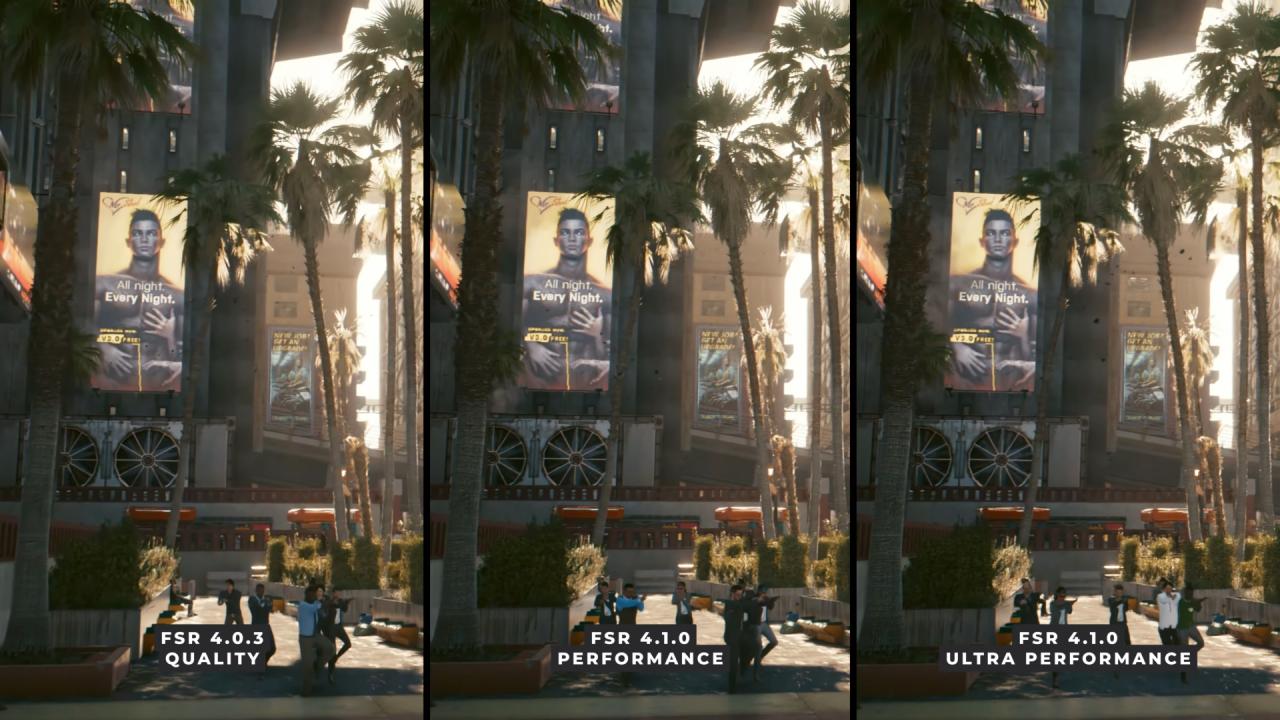
FSR 4.1 and 4.3 versions will take advantage of RDNA2 and RDNA3 Devices.
Now FSR 4.1 supports RDNA2 and RDNA3 hardware and can be installed on SteamOS via OptiScaler. The installation process involves placing the game's executable in the OptiScaler folder and assigning an Insert key shortcut to access OptiScaler and enable DLSS or the required scaling option in supported games.
FSR 4.1, when used in conjunction with lossless scaling frame generation, offers another performance tier and offers a purer image than FSR 3.1. The graphics API being used, DirectX 12 games in particular, as well as game compatibility and DLSS integration, will determine whether support will be successful or not.
Editor, NoobFeed
Latest Articles
No Data.