
SteamOS vs. Windows on ROG Xbox Ally X20: Gaming Performance Compared
SteamOS installation on the ROG Xbox Ally X20 brings a Steam Deck experience with hardware compatibility issues and setup requirements.
Handheld by Shinji Okazaki on Oct 23, 2026
ROG Xbox Ally X20 updates the Ally X lineup with redesigned grips, updated buttons, and an OLED display. However, Windows remains part of the handheld experience, and some users may want to change that. Installing SteamOS offers another way to use the device, with a Steam Deck-style interface and access to OS-supported gaming features.
The installation process requires a USB drive, another computer, and some additional setup to get the hardware working properly. Ever since we got the Ally X20, it felt like the next step in the Ally X line. It seemed like the natural evolution of last year's Xbox Ally X, with better grips, improved buttons, and an OLED screen that delivers deep blacks and contrast.
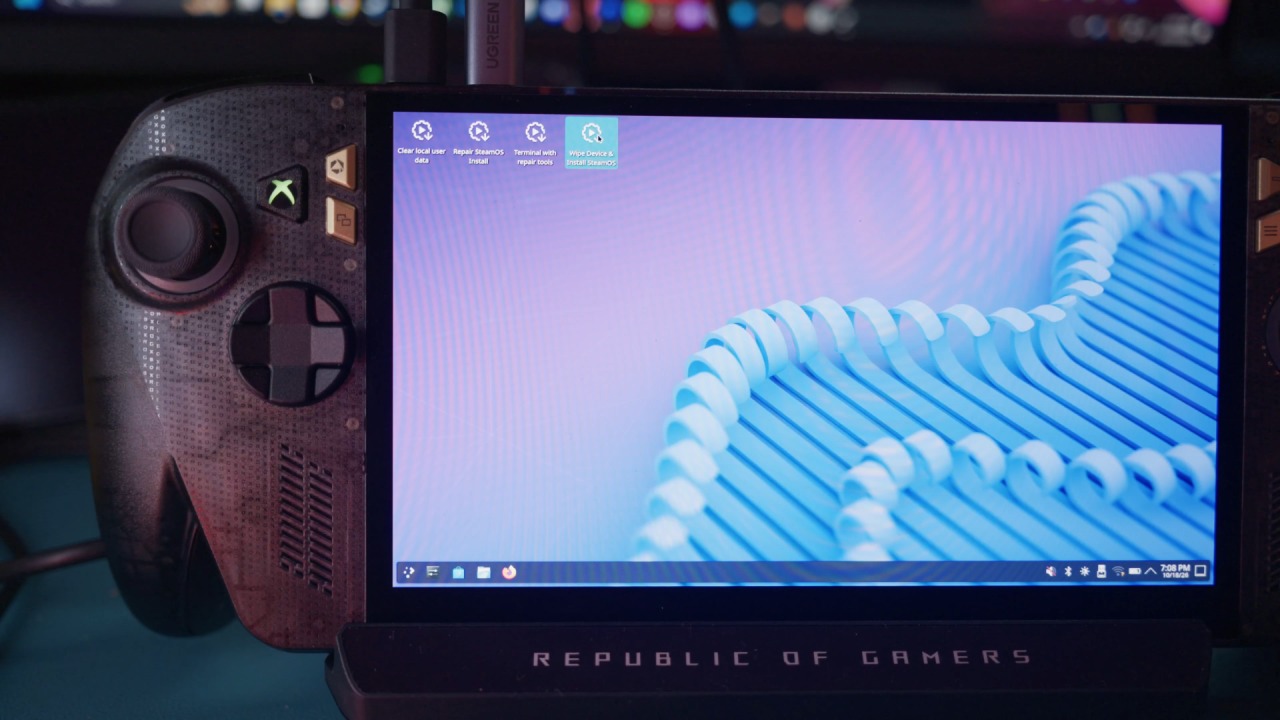
Installing SteamOS on the ROG Xbox Ally X20
However, something was missing that kept it from becoming our main PC handheld: Windows. To see how much the experience could change, we installed SteamOS on the handheld to see whether it was worth the effort. The installation process is straightforward, and you only need a few things to get started. First, you'll need a USB drive larger than 8GB, though we recommend 16GB or larger.
You'll also need another computer and Rufus, software used to flash SteamOS onto the USB drive. You may also need an adapter or dongle to connect the USB drive to the handheld. Several options are available, and a stable internet connection is important because you'll need to download the operating system and your games.
To install SteamOS, download the operating system to your computer and use Rufus to flash it to the USB drive. The process can take a few minutes, depending on the drive and how much data needs to be removed. When Rufus displays warnings or prompts, follow the instructions to continue. Once the process is complete, eject the USB drive from your computer.
With the handheld turned off, connect the USB drive to the ROG Xbox Ally X20. Press the power button and hold the volume button as soon as the ROG logo disappears. Keep holding it until the BIOS screen appears. Once you're in the BIOS, press Y to enter the advanced section. Go to Security settings, find Secure Boot, and turn it off to make the SteamOS installation process easier.
SteamOS Gaming Performance on the Ally X20
After setup, we downloaded several games to compare performance with the Windows experience we tested previously. To keep the comparison consistent, we tested every game at 25W TDP while running on battery power. We set the resolution to 1080p, using the Low preset or Steam Deck preset where appropriate.
For Cyberpunk 2077, we used the Steam Deck preset at 1080p. The benchmark recorded 56.31 fps, while gameplay generally hovered around 60 fps. Performance occasionally dropped to around 55–57 fps, but the game stayed at a relatively consistent 60 fps for most of the test. Blood of Dawn Walked used low settings and FSR Quality.
We also tested 007 First Light during the evaluation. With FSR Quality enabled, performance reached around 42fps during one of the early missions. The result gives us an idea of how the Ally X20 handles the game at 1080p with the selected settings. We tested Baldur's Gate 3 using the medium preset and FSR 2.2 Quality. We ran the test in Act 3, one of the game's more demanding areas, and recorded around 32fps.
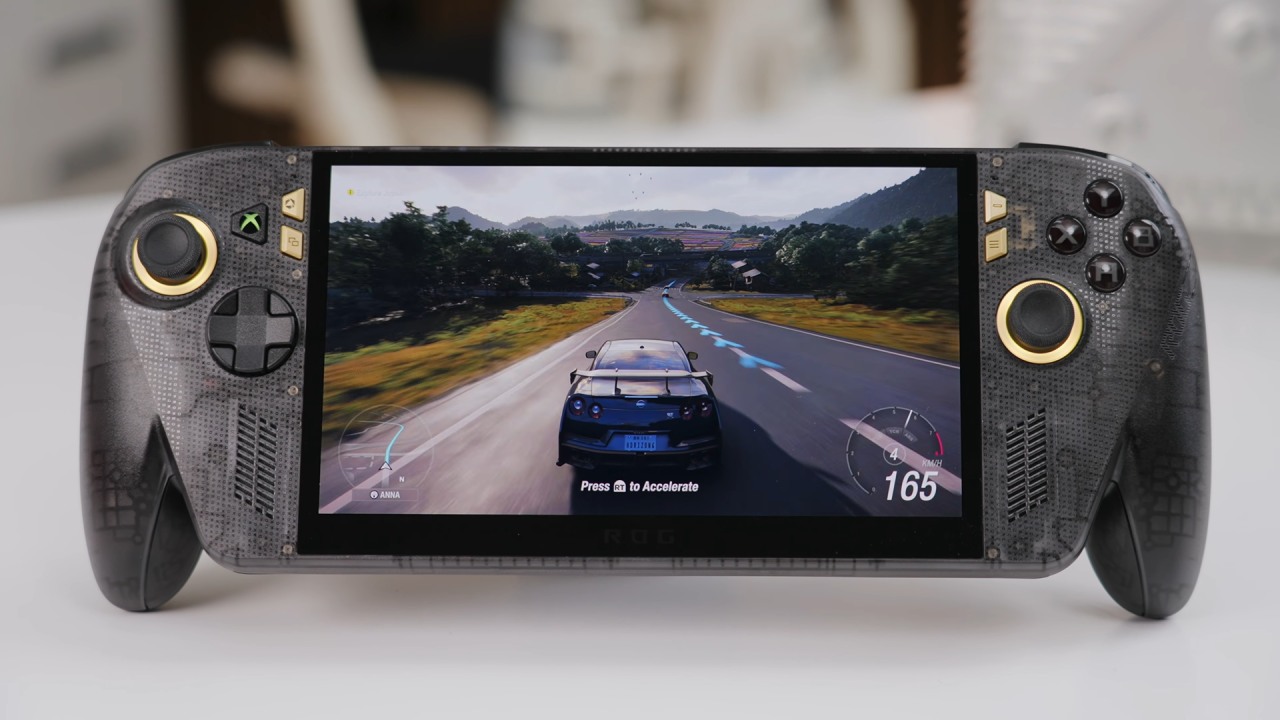
Windows currently provides the better overall experience on the Ally X20.
There are fewer adjustments to make, and you don't have to spend as much time troubleshooting hardware features or dealing with missing functionality. Windows also requires users to manage drivers, software, and updates across different applications and locations. Despite those inconveniences, the ROG Xbox Ally X20 experience was more consistent than SteamOS during our testing.
SteamOS offers a familiar interface for anyone who prefers the Steam Deck experience, and tools such as Decky Loader and Simple Decky TDP provide additional control over the handheld. However, missing out-of-the-box audio support, charging issues, and RGB limitations mean there is still work to be done.
For now, Windows remains the more practical option if you want the Ally X20 to work without spending time on additional setup and troubleshooting. SteamOS could become a more suitable alternative as developers improve hardware compatibility and resolve the remaining issues.
Editor, NoobFeed
Latest Articles
No Data.