

Xbox Full Screen Experience on the Lenovo Legion Go
Xbox full screen experience transforms handheld Windows devices into console-like systems with fluid navigation and broad game compatibility.
Hardware by Katmin on Oct 04, 2025
Xbox's full-screen experience has been spotted running on the Lenovo Legion Go, offering a streamlined way to navigate and play across different launchers.
Once enabled, it transforms the device into a more console-like system where controller support is deeply integrated into the interface. Instead of relying on touch or hotkeys to get around Windows, you can manage most tasks directly with a gamepad, making the Legion Go feel far closer to a true handheld console.
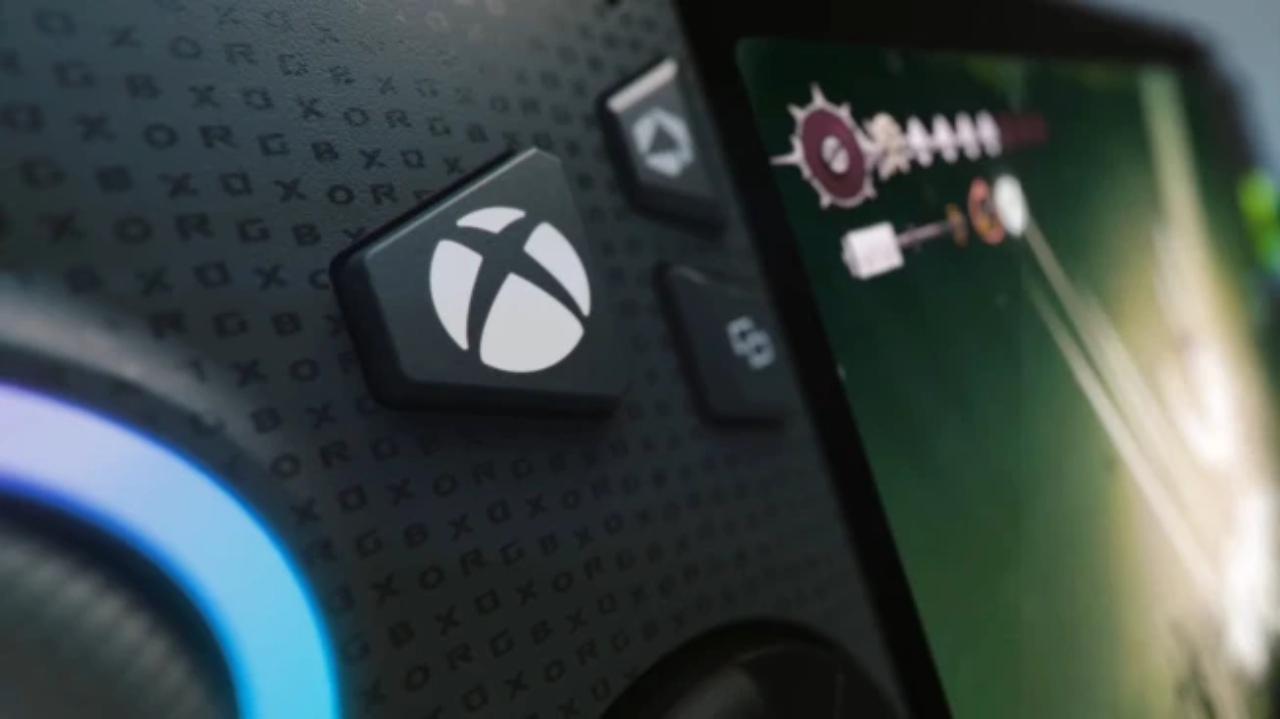
While the setup process can be tricky, requiring Insider updates and some extra steps, the result is a smoother and more intuitive experience. With this new mode, the Legion Go takes a big step toward feeling like a dedicated Xbox handheld, bridging the gap between PC flexibility and console-style accessibility.
Preparing the Installation
When we decided to test the Xbox full-screen experience, the first concern was avoiding risks to the current Windows installation. Instead of taking chances, we swapped in a spare 1TB SSD, which allowed us to switch back easily if anything went wrong.
We used an older laptop to download the Windows 11 ISO from the Insider Preview page. Here, it is essential to keep in mind a key disclaimer: unexpected PC crashes could damage or even delete your files. Build number 26200 contains the Xbox full-screen mode.
There were two options available: the Windows 11 Insider Preview release preview channel and the dev channel. Initially, we chose the release preview channel, which later turned out to be a mistake.
Using Rufus, we burned the ISO onto a thumb drive. After connecting it to the Legion Go, the installation began immediately. At the drive selection screen, we pointed it to the 1TB SSD. Although it initially gave an error, deleting the partition allowed the process to continue.
Driver Setup and Early Configuration
During setup, the installer requested a Wi-Fi connection, but the necessary drivers were missing. To resolve this issue, we downloaded the correct drivers from Lenovo's support page on another system, transferred them via USB, and then installed them. Once complete, we could move forward.
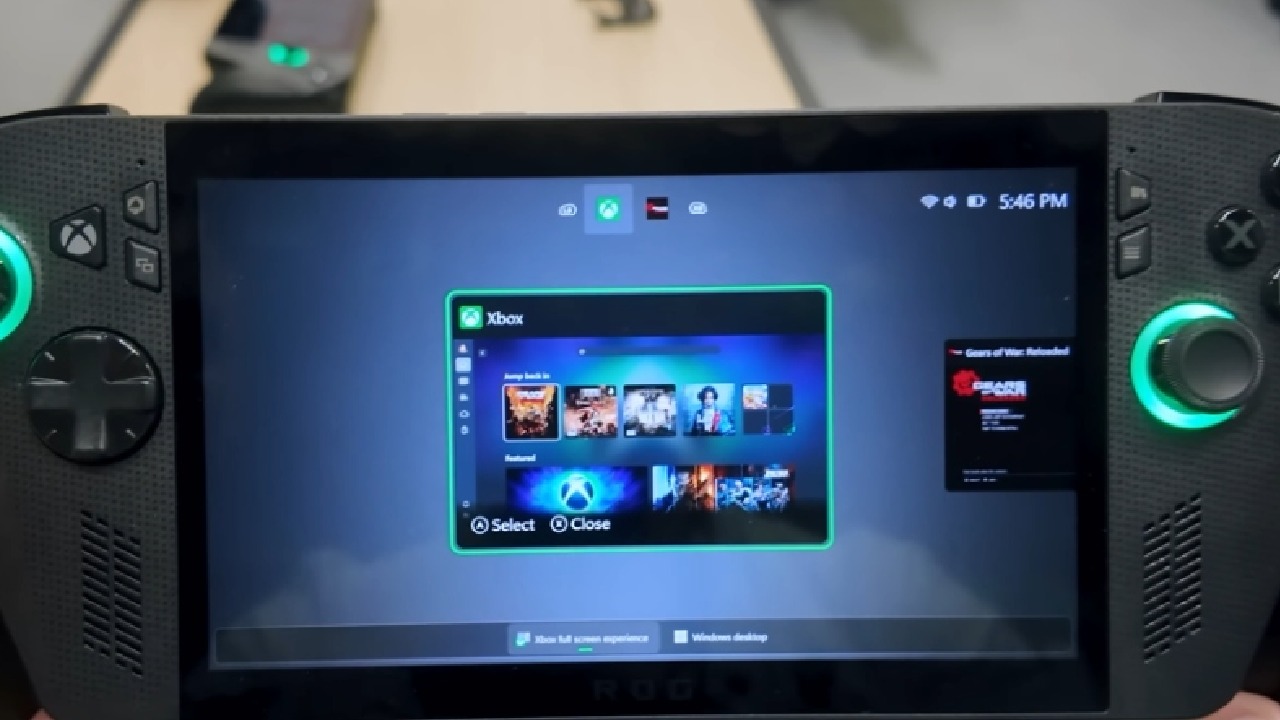
After Windows was installed, we searched for the Xbox full-screen option under gaming settings, but it wasn't there. At this point, we turned to Vive Tool.
By running commands in the Administrator Command Prompt and adjusting registry values under the OEM folder, the Xbox full-screen option finally appeared. We enabled Xbox as the home app and set it to launch full screen on startup.
Fixing Controller Compatibility
On the first attempt, the Legion Go's controls didn't work. Even switching into desktop mode failed. Installing all recommended drivers and Legion Space didn't fix the issue. The solution came when we switched Insider channels from beta to dev.
After restarting, the Legion Go recognized the controls right from the PIN entry screen. From there, the Xbox full-screen mode launched automatically, and the controls worked seamlessly across the interface.
Swiping left opened quick settings, swiping right showed notifications, and swiping up allowed switching between screens. Desktop mode also became functional.
Testing Games and Controller Use
We tested whether the controllers would work across multiple launchers. From the Xbox app, we played Call of Duty Modern Warfare. We tested Fortnite from Epic Games. And from Steam, we launched Marvel Rivals. In every case, the Legion Go's controls worked perfectly.
Using FPS mode with the controllers detached also worked. While detached, the touchscreen could be used to navigate Xbox functions, and switching between launchers was seamless directly from the Xbox dashboard. For example, launching Borderlands 4 from Xbox in full-screen mode automatically opens Steam. It started the game without requiring any additional steps.
Quick settings were accessible in-game, although not always consistently. Features like screen recording worked, but performance monitoring did not.
Performance Benchmarks
We wanted to determine if playing Xbox full-screen games in mode had any impact on gaming performance. Benchmarks were run for Cyberpunk 2077, Black Myth Wukong, and Doom: The Dark Ages with the Legion Go set to performance mode, fan mode on Smart, OS power mode on Performance, resolution at 1280x800, and a refresh rate of 60Hz. All tests were done on battery power.
- Cyberpunk 2077: With AMD Super Resolution 2.1 on performance and most settings low, Xbox full screen averaged 63fps compared to 59fps on standard Windows.
- Black Myth Wukong: With FSR frame generation and low settings, Xbox full screen hit 97fps compared to 87fps on standard Windows.
- Doom: The Dark Ages – Averaged 67fps on Xbox full screen vs 64fps on standard Windows.
Across all three tests, Xbox full screen provided slightly better performance.
Pros and Cons of the Experience
We really liked that the Xbox's full-screen mode made the Legion Go feel more like a dedicated Xbox handheld dashboard. Switching between game launchers was easy, and performance gains were noticeable, even if small.
However, the installation process felt long and clunky, with too many unnecessary setup screens. Another issue was that the Legion Go did not enter proper sleep mode when the power button was pressed mid-game—it dropped to the lock screen but kept the game running in the background.
Still, this feels like a step in the right direction. With refinements and updates, the Xbox full-screen experience could evolve into something even closer to a true handheld Xbox.
Check our Other Handheld Articles :
- ASUS ROG Ally X Handheld Review: Double the Battery, Double the Comfort
- Nintendo Switch 2 Vs. Original Switch 1: A Full Comparison
- How To Connect A Camera And Join Voice Chat With Nintendo Switch 2
- Nintendo Switch 2 Review: Handheld Performance, Features & Value Breakdown
- ROG Xbox Ally X Vs. ROG Ally X: Display, Battery & Controls
- ASUS ROG Ally X vs. Steam Deck OLED: Display, Battery & Gaming Benchmarks
- MSI Claw 8 AI+ Review: Display, Controls & Gaming
- Nintendo Switch 2 vs. Steam Deck OLED: Gaming, Performance, Battery, Display and Value
- PlayStation Portal Review: Remote Play, Cloud Streaming & Travel Gaming
- PlayStation Portal vs. Lenovo Legion Go: Best Portable Gameplay
- Cyberpunk 2077 Patch 2.3 FPS Test on MSI Claw 8 AI+
Senior Editor, NoobFeed
Latest Articles
No Data.