
Laptop Buying Guide 2026: Avoid These Common Buying Mistakes
Choosing the right laptop in 2026 requires evaluating specifications, portability, battery life, and long-term value before making a purchase.
Hardware by Masaru Hoshino on Oct 24, 2026
In 2026, buying a laptop isn't just about comparing pricing and processing speeds. Even a $1,500 laptop can be a bad deal if it has insufficient RAM, a subpar screen, few upgrade options, and a short battery life. Those who understand the differences between processors, graphics, memory, storage, and displays can choose a laptop that matches their workload without spending money they don't need.
Identify Your Needs and Budget
Writing essays and watching lectures aren't the same as running engineering software. Before you buy a laptop, check what software you will need for your course or profession. If everything works on Windows and Mac, choose the platform you are most comfortable with.
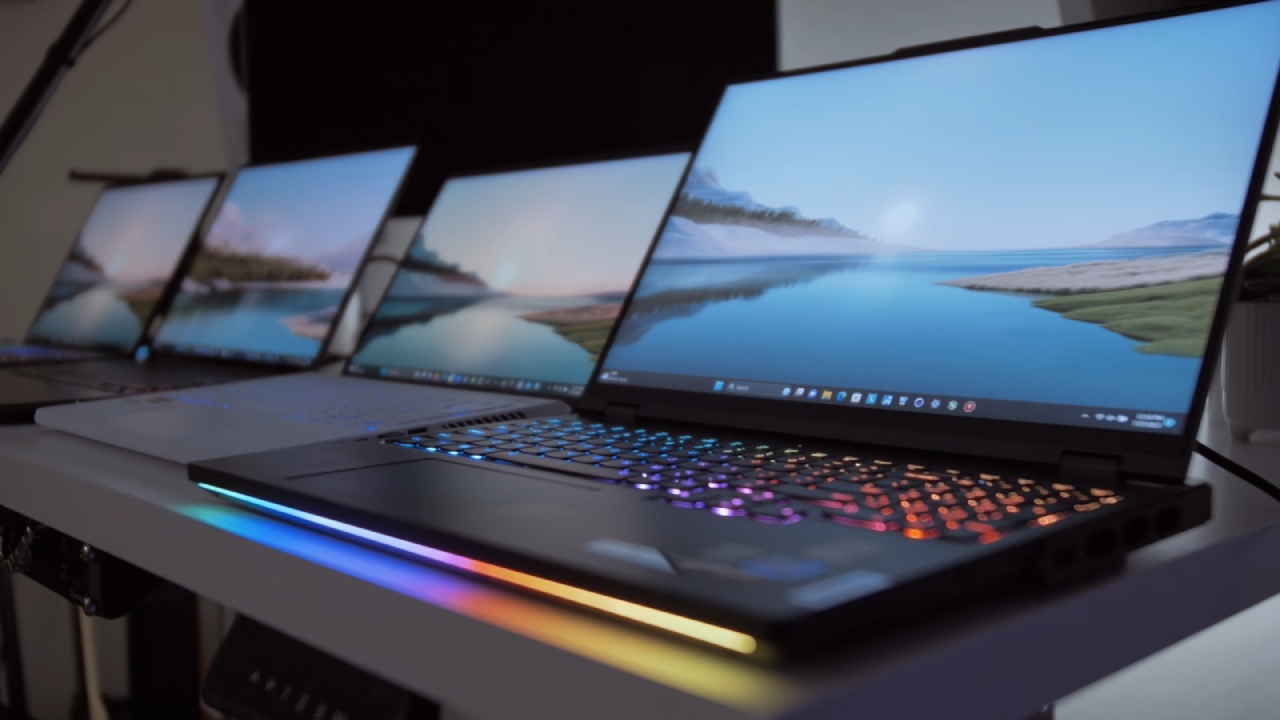
Determine a budget for the whole setup, including accessories like a dock, additional storage, or a monitor. More spending doesn't mean better results. Instead, pay for a lighter body, a better keyboard, or a better screen.
Balance Portability and Build Quality
If you travel a lot, a 13-inch or 14-inch laptop is perfect, while 16-inch and 17-inch laptops offer more workspace. But before you buy, evaluate the laptop's weight, charger, hinges, and keyboard build.
The 2026 LG Gram Pro 16 contains an OLED display and weighs about 1.2kg. The LG Gram Pro 17 tips the scales at roughly 1.74kg and has a bigger IPS touchscreen. Both use LG's aluminum-magnesium alloy, and the Gram Pro 17 lasted more than 16 hours in our battery tests. Secure Lock also lets you lock your laptop remotely through the LG ThinQ app if it's connected to the internet.
Choose the Right Processor and Graphics
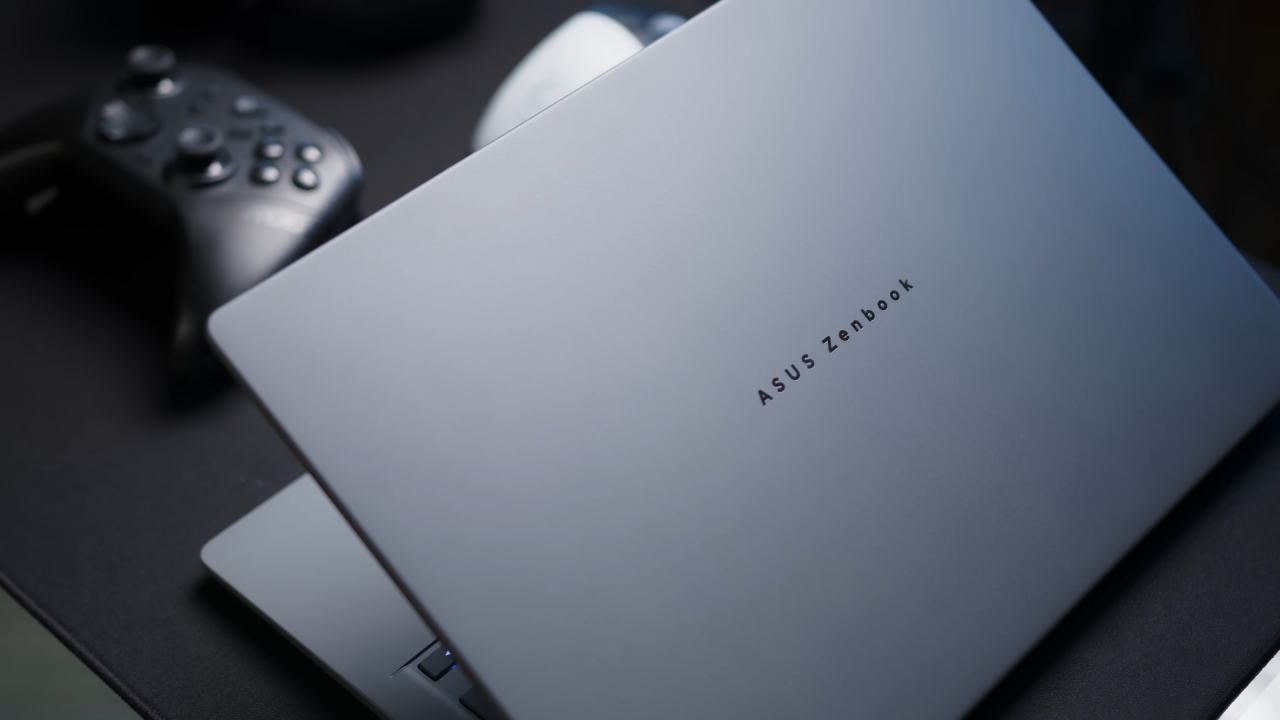
Intel Core 5 or Core Ultra 5 processors with 16GB of memory are a reasonable place to start for daily work. The Dell XPS 13 and ASUS Zenbook 14 provide a different mix of performance and screen quality. Mac customers should look at the M5 MacBook Air instead of jumping straight to the MacBook Pro.
If you're a creative worker doing video editing, rendering, or large development projects, consider a more powerful processor, such as the Ryzen AI 9 HX 370 or Intel Core Ultra 9 386H. Gaming laptops should prioritize graphics performance.
Integrated graphics are fine for browsing, business applications, and lighter games. Dedicated GPUs are better for high-end gaming and 3D tasks. The NVIDIA RTX 5060 laptop GPU has 8GB of VRAM, and the RTX 5070 Ti has 12GB. Don't just compare model names; compare GPU power limits and gaming benchmarks at the same resolution and settings.
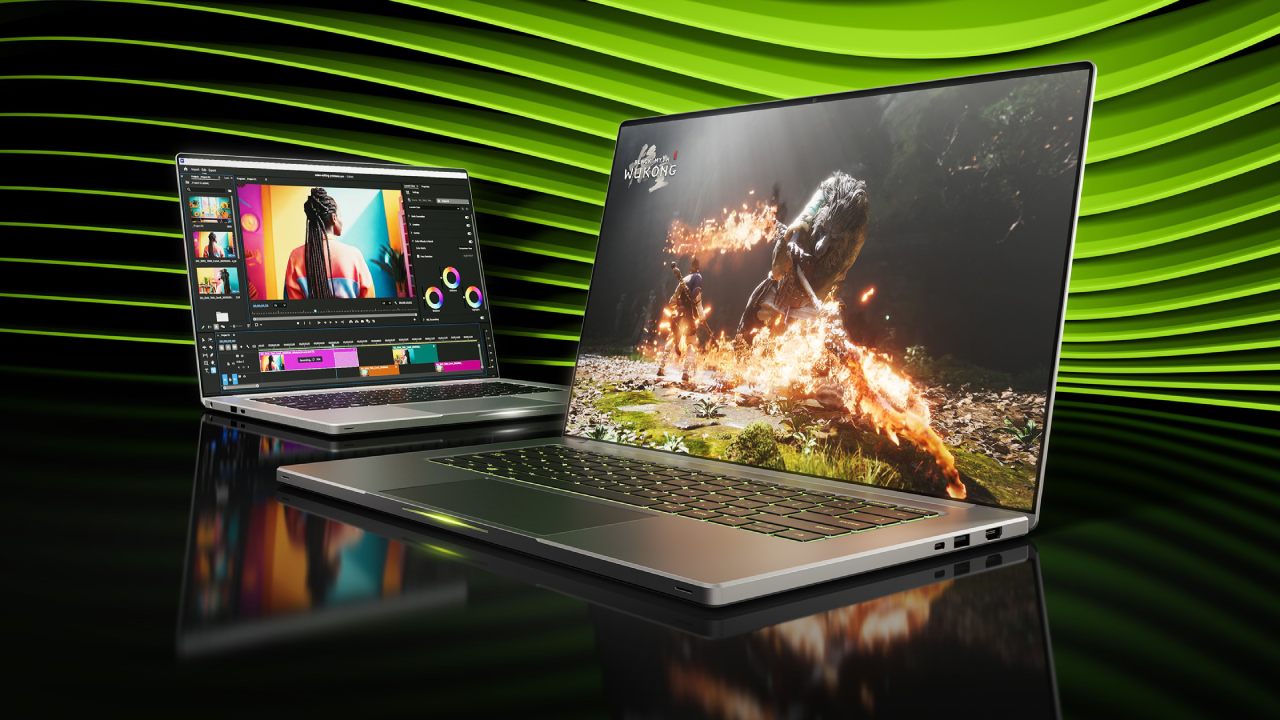
Prioritize RAM and Storage
For most new laptops, start with around 16GB of RAM. If you do heavy lifting like multitasking, editing, or virtual machines, consider 24GB or 32GB. 64GB or above is best left for very particular, demanding workloads.
Verify that the memory is soldered or upgradeable. The ASUS Zenbook 14 with Ryzen has a fixed 16GB RAM, while the Lenovo Legion 5 has two detachable SO-DIMM slots. If you can't upgrade, it's especially crucial to buy enough RAM from the start.
512GB is a good starting point for storage, but if you have a gaming library or a big video collection, you might need 1TB or more. If you have to choose between 8GB RAM with a 1TB SSD or 16GB RAM with a 512GB SSD, the latter is usually better if you can't upgrade the memory. You can add external SSDs for storage. They cannot replace system RAM.
Invest in a Better Display
Once you meet your performance criteria, seriously consider display quality. IPS panels offer solid everyday performance, while OLED delivers deeper blacks and higher contrast. Mini LED can deliver brilliant HDR highlights, but it may show blooming around bright objects.
1920 × 1200 resolution is good enough for inexpensive laptops. Better 14–16 inch models will benefit from 2560×1600 or 2880×1800 displays. The 16:10 aspect ratio gives you more vertical real estate, and 400 nits or more helps in brighter surroundings.
Look for 100% sRGB for good everyday color. Creative professionals should verify color accuracy and color-space coverage. A 60Hz display is fine for everyday tasks, while 120Hz or more offers smoother scrolling and better gaming. The higher cost of touchscreens and stylus support is justified only when you really need it.
Evaluate Battery Life and Everyday Features
Since advertised hours may not reflect your actual workload, look for battery tests that simulate your job. Watt-hours don't guarantee runtime. Processors, displays, and applications all drain power.
If feasible, test the keyboard and trackpad. Check webcam quality, Microphone Performance, Fan Noise, Speakers, and Connectivity. USB-C doesn't guarantee the same capabilities from port to port; therefore, check charging, video out, and data transfer support. Thunderbolt and USB 4 can deliver useful bandwidth for docks and external drives.
Consider Older Models Before Buying
If last year's laptop suits your needs, it might be a better value. Compare battery life, screen quality, connectivity, and app performance before spending more on a newer model.
For everyday use, you'll want 16GB of RAM, enough storage, and a comfortable display. If you're gaming, focus on graphics performance. For creative workloads, consider RAM, GPU capabilities, and display accuracy. Ultimately, the best laptop is the one that gives you the capabilities you need without wasting money on features you don't need.
Editor, NoobFeed
Gaming Hardware Updates
No Data.