
Xbox Ally X Gets AMD Auto SR Quality and Performance Modes
AMD Auto SR expands to internal displays on Xbox Ally X, bringing system-level upscaling to games without native support.
Handheld by Nahe Yan on Nov 12, 2026
AMD Auto SR has received an update that lets it work on the Xbox Ally X's internal display. Previously, the feature was limited to external displays, but the latest update brings AI-powered upscaling directly to the handheld's built-in screen. The update also introduces Quality and Performance modes, giving users more control over image quality and performance.
With support for games that don't have built-in upscaling, ASR offers another way to improve image quality on handheld devices. When the Xbox Ally X launched at Gamescom last year, Auto SR drew strong interest. At the time, the feature was limited to the Z2 Extreme AI variant, which was available with the Xbox Ally X. The expectation was that it would use the NPU to handle upscaling and the processing involved.
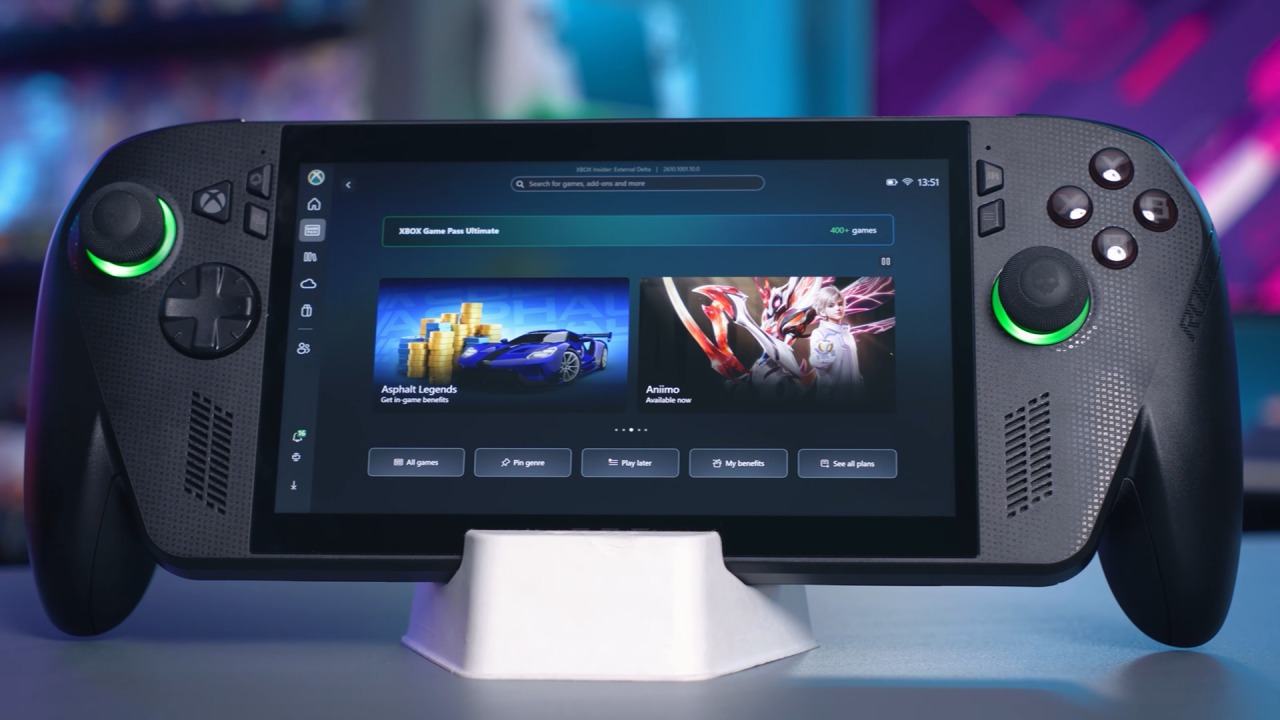
AMD Auto SR Now Works on the Xbox Ally X Internal Display
However, it was initially limited to external displays rather than the handheld's internal screen. That limitation eventually became a reality, and the feature received little attention afterward. Now, the situation has changed. Auto SR can now be used on the Xbox Ally X's internal display, using the Z2 Extreme AI's NPU to upscale games that don't even support upscaling.
This is important because you no longer need to rely on games having an existing upscaler. You also do not need to force FSR4.1.2 through the available options or use OptiScaler to inject FSR4 in place of DLSS or XeSS. Auto SR works at the driver and system level, so you can use it in games regardless of whether they have built-in upscaling support.
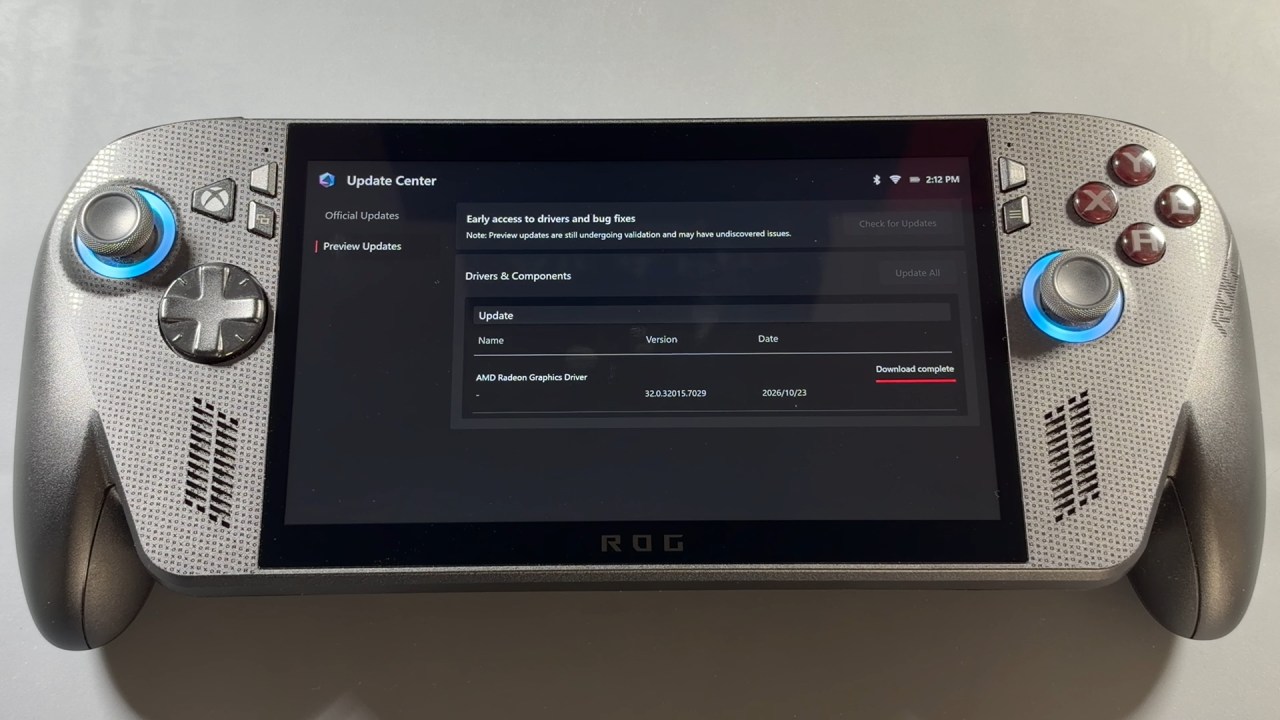
This makes it particularly useful for older titles that do not offer any upscaling options. To test the update, we are using Gears of War E-Day to compare native resolution, Auto SR, and FSR4. After updating the Xbox Ally X through Windows Update and installing the available updates across the system, you can find the new Auto SR options under the Display section.
Under Graphics, the Auto SR section now includes an option called Auto SR Xbox, which enhances details and smoothness in supported games. A drop-down menu also lets you choose between Let Windows Decide, Quality, and Performance modes. Previously, Quality mode was the only option, with frame rates generally in the 60–70 fps range.
Previously, when using a 1440p external monitor or TV, you had to set the game's resolution below 1440p so Auto SR could upscale the image. With the internal display, you can leave the resolution at 1080p and enable Auto SR. However, simply enabling the feature at the same resolution does not mean it is actually doing anything.
Auto SR Performance Compared to Native 720p
After changing the internal display resolution to 720p, we launched Gears of War E-Day. The game displayed a notification asking whether to enable Auto SR, but we initially left it disabled to establish a performance baseline. At native 720p, without ASR or FSR, the game runs at around 40–43fps while moving through the same area.
After enabling Auto SR and restarting the game, the in-game indicator confirms that the feature is active. With Performance mode enabled, the frame rate drops to around 37–38fps. This represents approximately a 10% performance reduction compared to native 720p. This is expected because NPU-based upscaling still requires system resources.
The processing comes at a cost, as power is allocated away from other parts of the APU, including the GPU or CPU, to handle the upscaling workload. Switching from Performance to Quality mode improves image clarity, although it can further reduce performance. During the same test, the frame rate remained around 38fps, with occasional peaks near 40fps. Overall performance still dropped by around 10%.
Performance is only part of the comparison, so we also need to look at the image quality.
At native 720p, the image is acceptable on a small handheld display, but some details appear fuzzy because of the lower resolution. Enabling Auto SR Performance immediately improves image clarity. Switching to Quality mode provides another improvement, with details appearing sharper than they do in Performance mode.
FSR4 Quality produces the best result among the tested options. Since all the upscaling options use a 720p rendering resolution for this comparison, we can see how each technology handles the same image. In Marcus' jacket, native 720p looks fuzzy, with several details missing. Auto SR Performance improves the clarity and makes the image look closer to a higher resolution.
Auto SR Quality takes it further by adding detail. However, FSR4 Quality still leads both Auto SR modes. The difference is especially noticeable in finer details, where FSR4 produces a sharper image. The taxi provides another example of the differences between these technologies.
FAQ
Q. Does AMD Auto SR now support the internal display of the Xbox Ally X?
A. Yes. The latest update lets AMD Auto SR upscale games directly on the Xbox Ally X's internal display using the Z2 Extreme AI's NPU.
Q. What is the performance difference between AMD Auto SR and native 720p?
A. AMD Auto SR results in approximately a 10% performance reduction compared to native 720p, with frame rates dropping from around 40–43fps to 37–38fps.
Q. What is the difference between Auto SR Quality and Performance modes?
A. Quality mode prioritizes image clarity, while Performance mode targets higher frame rates of up to 120fps with lower image quality.
Q. Is AMD Auto SR better than FSR4 on the Xbox Ally X?
A. No. FSR4 delivers better image quality than both Auto SR modes. However, Auto SR is useful for games without built-in upscaling support.
Editor, NoobFeed
Latest Articles
No Data.