
PS5 Tips & Tricks: 30 Secret Features
Essential PS5 optimizations covering audio, controllers, storage management, accessibility, and advanced social features.
Hardware by Tanvir Kabbo on Dec 16, 2025
Whether someone is joining the PS5 family for the first time or has been here since release and just needs a refresher, the console is packed with tiny quality-of-life tweaks and game-changing features that often go unnoticed. From sound and privacy settings to storage, controllers, and social tools, there is a lot to get through.
Mute the Controller Mic by Default
When you join a multiplayer game, PS5 controller mic is on by default, so everyone can hear you talk, food sounds, or off-key music. To make this a lasting change, go to Settings > Sound > Microphone, then select Microphone Status When Logged In. Change this setting to Mute. The microphone is muted every time you log in now. The remote light will show you that this is true.
Holding the mute button for about 1 second is another great feature. Instead of tapping it, hold it down, and everything will mute at once: the microphone, the controller speaker, and the TV audio. Everything falls silent instantly.
Disable or Quiet the PS5 Beep and Lights
The default startup beep is loud enough to alert the entire house, which is not ideal late at night or during study time. To fix this, go to Settings > System> Beep and Light, then either lower the volume or mute it completely. While there, you can also dim the console light if it feels distracting when playing close to the screen.
Appear Offline Anytime
If you want to play without friends knowing you are online, press the Options button on the login screen and select Appear Offline. You can now game without interruptions. This is perfect for big releases when you just want peace and quiet.
Check Total Playtime for All Games
Recent updates show playtime for installed games, but to see everything ever played, press the PlayStation button, go to your Profile, move across to Games, and scroll. Every game from the early PS4 days to now is listed with total hours played. You can even compare your stats with other players if you dare.
Share Games Between Accounts
Console sharing allows two accounts to share games and PlayStation Plus benefits. This is useful for families or secondary accounts. Go to Settings > Users and Accounts > Console Sharing and Offline Play, then follow the prompts. The main account can download games and PS+ titles, then switch to the second account to play without buying another subscription.
Use the PlayStation App for Captures
The PlayStation app is more useful than it looks. In the console Settings, go to Captures and Broadcast, then enable Auto Upload. In the app, switch to the Captures tab to see the last 14 days of screenshots and clips. As long as the console is online, everything is there and ready to download. This works great for sharing clips or even creating thumbnails.
Turn On and Update Games Remotely
With the PlayStation app, you can turn on the PS5 while away from home as long as it is in rest mode. Choose a game in the app and boot it remotely. Updates will start downloading automatically, which is perfect for live-service games. When you get home, everything is ready to play.
Manage Storage from Your Phone
The PlayStation app also lets you manage console storage. Tap the settings icon, go to Storage, and view how much space is left. You can switch drives if an extra one is installed and see exactly how much space each game takes, making it easier to delete unwanted titles.
Earn Rewards with PlayStation Stars
PlayStation Stars is a loyalty program that offers monthly challenges and campaigns. Completing them unlocks digital collectibles and earns points. Points also come from store purchases and trying monthly PS+ games. Over time, these points can be redeemed for store credit, which makes it worth checking in occasionally.
Improve DualSense Battery Life
The DualSense battery drains quickly due to its advanced features. To improve battery life, go to Settings > Accessories> Controller. If you use headphones, lower the vibration strength, weaken trigger input, dim the controller light, and turn off the controller speaker. Every change makes things better.
Power Off the Controller Quickly
The controller turns off fully when the PlayStation button is held for 10 seconds. For watching movies or shows, tap the PlayStation button, go to the controller icon, and select Turn Off to avoid returning to the menu.
Watch Movies with Sony Pictures Core
PlayStation Plus members should download the Sony Pictures Core app. Depending on the subscription tier, movies and TV shows are available at no extra cost. It is not extensive, but it is a decent option for a gaming break.
Auto-Turn Off Controllers
To save battery, go to Settings > Power Saving and set the time until controllers turn off automatically. The timer can be set as low as 10minutes, which helps conserve battery during idle moments.
Reduce Input Lag with a USB Cable
The DualSense uses Bluetooth by default, but Bluetooth adds a tiny amount of input delay. For faster response in competitive games, go to Settings > Accessories > Controller, then switch the communication method to Use USB Cable. Inputs register faster, but the controller will stop working if the cable disconnects.
Disable Home Screen Music
The ambient home screen music sounds great at first, but after years it can become annoying. Go to Settings > Sound > Audio Output> General, then turn off Home Screen Music for instant silence.
Keep Favorite Games on the Home Screen
Recently used apps slowly disappear from the home screen. To prevent this, highlight a game, press Options, and select Keep in Home. That game will always stay visible.
Organize Games with Game Lists
In the game library, you can create Game Lists to organize titles. This is perfect for grouping PSVR games, PS+ titles, or specific genres. It also shows the total number of games owned.
Use Gyro Typing and the Touchpad
The DualSense includes a gyroscope. Press L3 and R3 together while typing to enable gyro input. It is tricky but usable. The touchpad also acts like a laptop trackpad, allowing finger swipes for text input.
Control the PS5 with Your Voice
Voice commands can be enabled in Settings under Voice Commands. Saying "Hey PlayStation" allows you to launch games and navigate menus. It is basic but surprisingly useful.
Customize the Control Center
Pressing the PlayStation button brings up the Control Center. Press Options here to customize shortcuts. Unused icons, such as PSVR, can be removed, while favorite tools can be prioritized.
Find PS5 Pro Enhanced Games
The PlayStation Store now includes a dedicated section for PS5 Pro Enhanced games. Scroll down in the store to find it. You can also sort games by supported features, including PS5 Pro enhancements.
Enhance PS4 Games on PS5 Pro
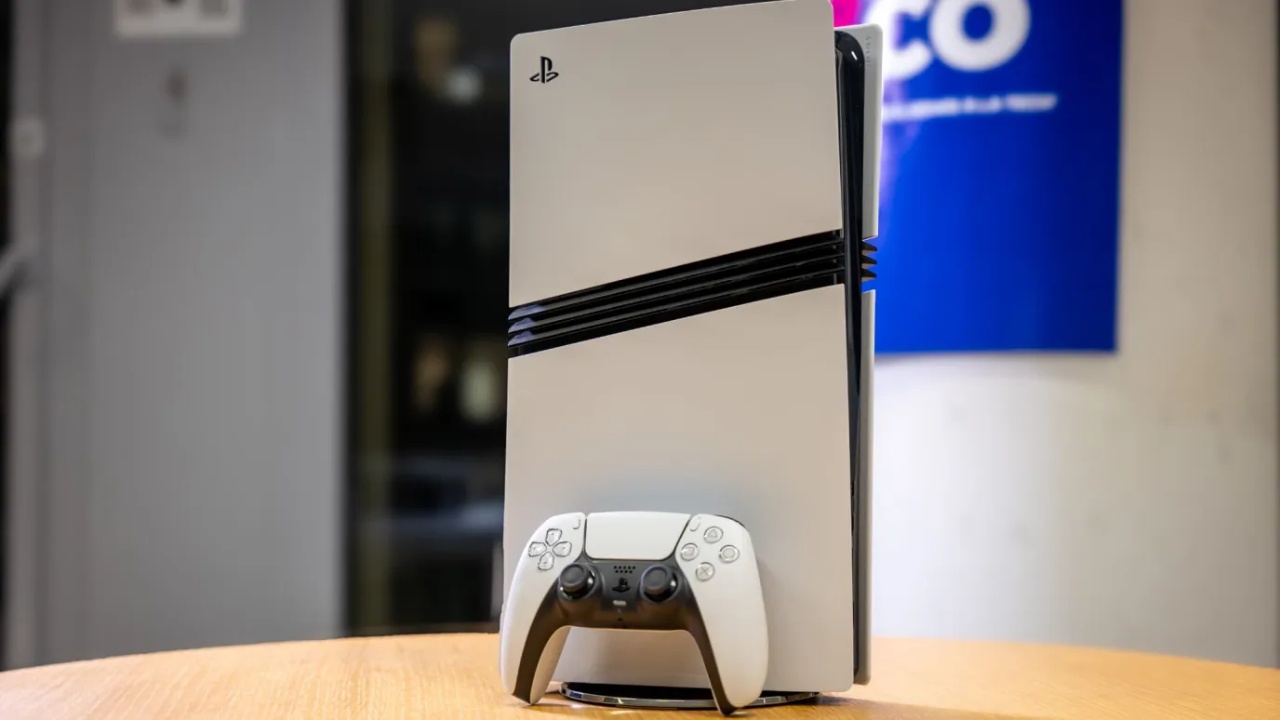
PS5 Pro can enhance PS4 games, but the option must be enabled manually. Go to Settings > Screen and Video, then toggle Enhance Image Quality for PS4 Games. If your TV supports it, extra power is automatically applied.
Manage Trophy Visibility
If a game has 0% trophies, you can remove it from your trophy list by pressing Options and selecting Delete. For games with trophies you want hidden, go to Privacy Settings and hide them from other players.
Use the Wishlist Feature
The wishlist system lets you mark games you are interested in. Wishlisted games appear on the welcome dashboard, and notifications are sent when they go on sale. This helps me wait for price drops more easily.
Use Discord Voice Chat on PS5
You can now use Discord live chat on the PS5. Users and Accounts, then Linked Services, is where you link your Discord account. After that, go to Discord and approve it under Connections. Open Game Base on the console, then pick Discord to join speaking calls. You can also join by clicking Join on PlayStation from the Discord mobile app.
These features together make the PS5 much more flexible and powerful. With a few minutes in the settings, everyday use becomes smoother, quieter, faster, and far more personalized.
Also, check our other Console articles:
- PS5 Pro vs. PS5 Slim: Frame‑Rate, Graphics & Performance
- PS5 Pro vs. Radeon RX 9060 XT vs RTX 5060 Ti: Ultimate $700 Gaming Showdown
- ASUS ROG Ally PS5 Remote Play | How to do Remote play on PS5 Using Sony's Official Remote Play App
- Stream PS5 Games on Steam Deck OLED: Step-by-Step Installation and Configuration
- AI Upscaling on PS5 Pro: Can PSSR Finally Match DLSS?
- PS5 Pro vs. PS5 Slim vs. PS5 — Design, Storage, Specs, and Gaming
- PS5 Pro vs. Xbox Series X: Specs, Price, Storage, Customization, and Gaming
- PS5 Pro vs. PC Gaming: Comparison of Graphics, Frame Rates, and Price
Senior Editor, NoobFeed
Gaming Hardware Updates
No Data.