
Battlefield 6 Guide | Best Settings for Coop & Online Gameplay
Battlefield 6 Beta has just dropped, but we wasted no time getting you started with settings you will want to apply for EA's new blockbuster FPS.
Game Guide by Mahi Araf on Aug 11, 2025
EA is taking the gaming world by storm with its newest installment in the Battlefield franchise by releasing the beta on August 9. We have got you sorted with the best settings you should know as you start the game. Let's quickly go over what you need to know as you start playing it.
The settings apply to all platforms, but for your knowledge, we tested the settings out on PS5 Pro, but they also apply to Xbox and PS5 as well as PC.
Controller Vibration
Turn off controller vibration because you don't want anything getting in the way of your aim. You don't need to worry about anything else if you've got that sorted.
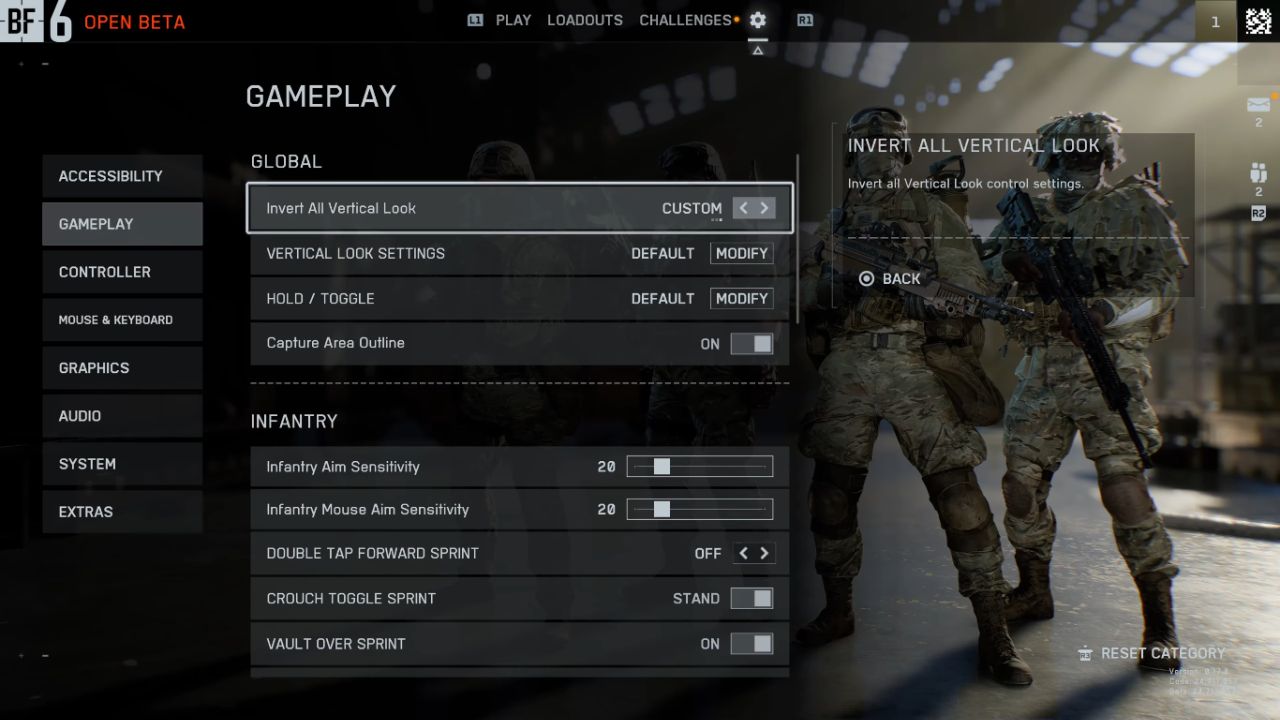
Gameplay Settings
You'll want to go to Infantry Aim Sensitivity. The default is set to 20, but for your benefit, adjust it according to your liking.
Somewhere in the 40's range could be ideal. The setting depends on how you play the game and how you aim, but this is more of a piece of advice than an absolute must.
Sensitivity settings for vehicles can also be altered if that's something you care about. The rest of the infantry settings you can adjust according to personal preference. You can double-tap forward for sprint or auto-sprint.
You can tamper with these settings to your heart's content.
Graphics Settings
Check the performance preset. If you want an upper hand over your opponents, we urge you to choose Performance Mode; you'll get higher frame rates.
Depending on what display you are playing on and if you have VRR, it's better for you. 120fps is standard on PS5 Pro.
On Xbox or PS5, you'll see around 60fps, or a bit higher, depending on external factors, of course. That's the best you can reach on base consoles for Battlefield 6.
.jpg)
Field of View
Another important setting you will want to adjust is Field of View. Again, experiment according to what suits you best.
On a close-up monitor, 120 may be the sweet spot because it allows for expanded vision. Maybe lower, too, but whatever sails your boat.
For vehicle third-person FOV, I crank it all the way up, but again, that's a personal choice.
World Motion Blur, Weapon Motion Blur, and Camera Shake
For the sake of a competitive advantage, you'd want to turn these all the way down. These effects might look cinematic, but they add no real value to gameplay.
Also, turn off Chromatic Aberration, Vignette, and Film Grain for better clarity.
Interface and HUD Settings
You may keep them on, but some players prefer turning them off, we will have you know, for better immersion in Battlefield 6.
.jpg)
Controller Settings
Head over to Edit Settings, then Control Settings, and then lastly Infantry Controls.
You'll see Uniform Infantry Aiming; turn it off. This slows you down when aiming down sights. You can expect to have a more efficient aim with it off.
Aim Input Curve, Zoom Aim Input Curve, and Stick Input Acceleration presets, as well as Left/Right Aim Acceleration, are some other settings you can play around with.
Higher numbers for higher turning, but don't go overboard because it will affect accuracy. Gradually increase sensitivity until you find a comfortable speed.
Whenever you make a settings adjustment, test it out in the Firing Range and then jump ship to a match.
With that, we can wrap up the essential settings adjustments you should make on Battlefield 6.
Also, check out our Battlefield 6 Review and other guides below:
- Battlefield 6 Beginner's Guide | Tips & Tricks
- Battlefield 6 Guide | How to Fly Helicopter
- Battlefield 6 Guide | How to Fly Jets
- Battlefield 6 Guide | Best Classes
- Battlefield 6 Guide | Best L110 Loadout
- Battlefield 6 Guide | Best SGX Loadout
- Battlefield 6 Guide | Best Low Recoil Early Weapons
- Battlefield 6 Guide | How to Level Up Player & Gun Fast
- Battlefield 6 Guide | Best M433 Loadout
- Battlefield 6 Guide | Best M4A1 Loadout
- Battlefield 6 Guide | Best PW7A2 Loadout
- Battlefield 6 Guide | Best Low Rank Weapons List
- Battlefield 6 Guide | How to Improve Aim Accuracy
- Battlefield 6 Guide | How to Stop Dying
- Battlefield 6 Guide | Best M2010 ESR Loadout
- Battlefield 6 Guide | Best Current Meta Weapons
- Battlefield 6 Guide | 10 Hidden Mechanics
- Battlefield 6 Guide | How to Get End of an Era Trophy
- Battlefield 6 Guide | How to Use Tanks
- Battlefield 6 Guide | One Stone Trophy
- Battlefield 6 Guide | Best Battle Royale Weapons
- Battlefield 6 Guide | Best Weapon Attachments
- Battlefield 6 Guide | How to Increase Enemy Visibility
- Battlefield 6 Guide | How to Set Favorite Weapon (Custom Loadout)
- Battlefield 6 Guide | Top 10 Most Accurate Weapons
Senior Editor, NoobFeed
Latest Articles
No Data.