
NBA 2K26 Guide | Best Camera, Controls and Gameplay Settings
Here's a guide on best camera, controls and gameplay Settings for NBA 2K26.
Game Guide by Navid Kabbo on Aug 02, 2026
Whether you're grinding MyCAREER, dominating The City, or competing in REC and Pro-Am, using the right settings in NBA 2K26 can make a huge difference. While skill is still the biggest factor, optimizing your controller, camera, HUD, and graphics settings can improve consistency and help you react faster during games.
In this guide, we'll cover the best NBA 2K26 settings for beginners and competitive players.
Best Camera Settings
Your camera settings play a major role in how well you read the floor and react during a game. A wider camera angle gives you better visibility of teammates, defenders, and passing lanes, making it easier to execute fast breaks, defend pick-and-rolls, and anticipate your opponent's next move.
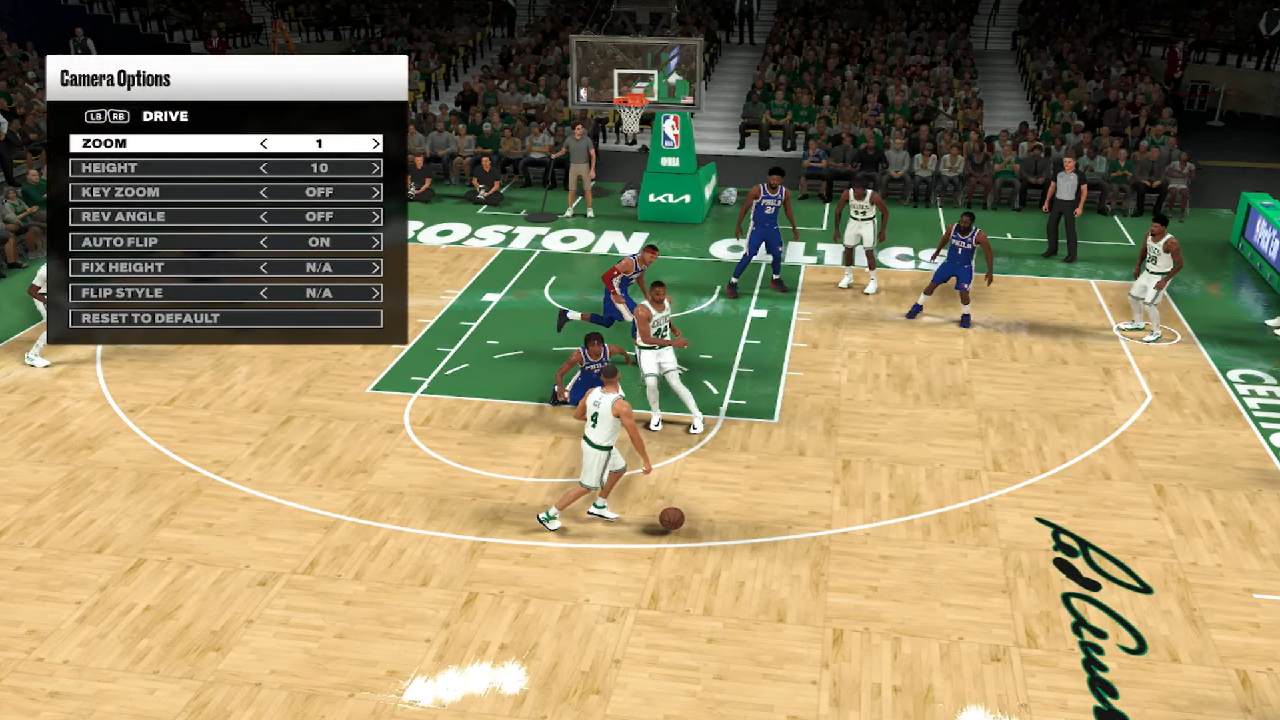
Recommended Camera Configuration
- Camera: 2K
- Zoom: 5
- Height: 10
- Key Zoom: Off
- Rev Angle: Off
- Auto Flip: On
- Fix Height: Off
This setup provides a wider view of the court, making it easier to spot open teammates, defend fast breaks, and read passing lanes. Many competitive players prefer the 2K camera because it balances visibility and player control.
Best Camera for Different Modes
- MyCAREER: 2K camera helps you read defensive rotations and locate open teammates.
- REC & Pro-Am: A wider view improves team defense, transition play, and passing accuracy.
- MyTEAM: Better court vision allows you to control offensive spacing and defend against fast breaks more effectively.
Best Controller Settings
Your controller settings determine how responsive the game feels. While default controls are suitable for beginners, adjusting a few options can improve shooting consistency, passing accuracy, and defensive control.
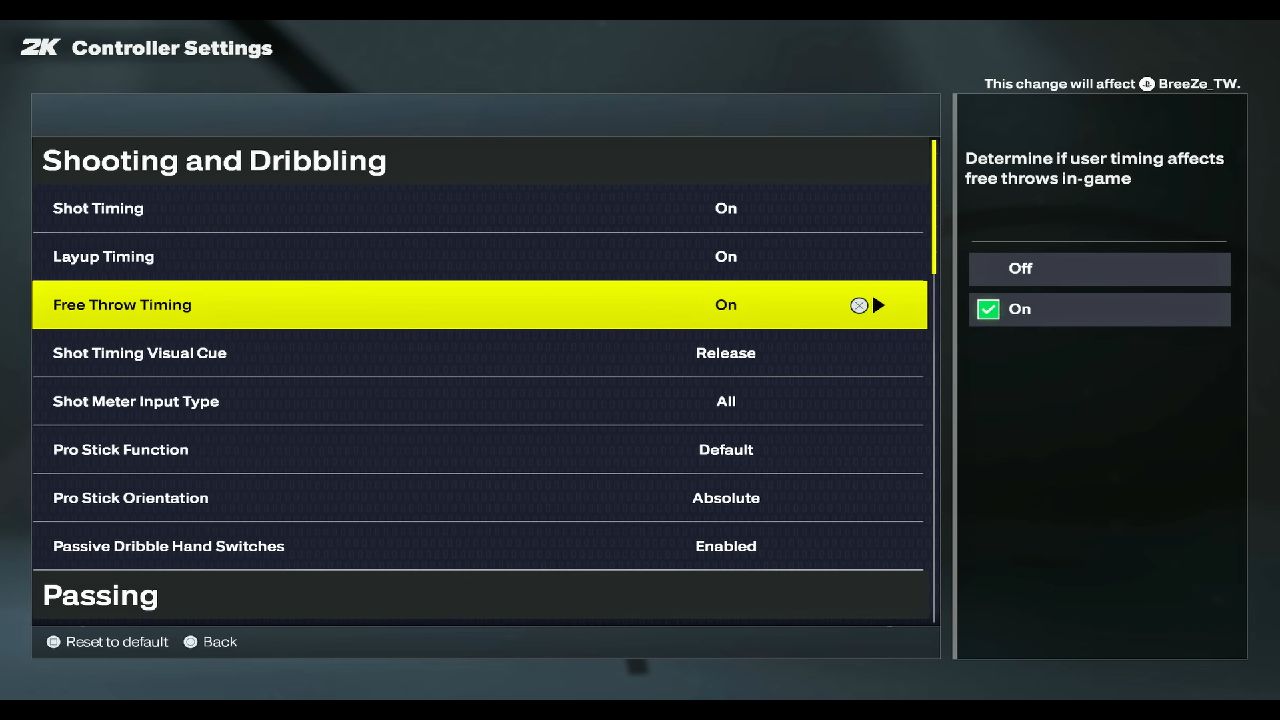
Recommended Controller Settings
- Shot Meter: Off
- Shot Feedback: All Shots
- Pro Stick Function: Default
- Pro Stick Orientation: Absolute
- Vibration: Off
- Icon Passing: On
- Pass Target Openness: High
- Pass Target Direction: Medium
Turning the Shot Meter off rewards players with a larger green window once they learn their jump shot timing. Enabling Shot Feedback lets you identify whether a miss was caused by poor timing or heavy defensive coverage, making it easier to improve over time.
Best Gameplay Settings
Gameplay settings influence how NBA 2K26 feels during every match. While many options come down to personal preference, keeping your settings simple and consistent helps build muscle memory, which is especially important for online competition.
Recommended Gameplay Options
- Camera Shake: Off
- Game Speed: 50
- Shot Feedback: All Shots
- Shot Timing: User Timing
- Auto Timeouts: On
- Adaptive Coaching Engine: Off (optional)
Disabling Camera Shake removes unnecessary screen movement during dunks, blocks, and collisions, helping you stay focused on the action. Keeping Game Speed at the default value provides balanced gameplay and prevents animations from feeling too slow or too fast.
Tips for Better Gameplay Performance
- Stick with one set of settings instead of changing them every few games.
- Practice your jump shot with the Shot Meter turned off to build consistent timing.
- Learn Icon Passing to reduce turnovers during fast-paced games.
- Spend time in practice mode before jumping into competitive online matches.
- Revisit your settings after major gameplay updates, as patches may affect shooting, defense, or player movement.
Best Video Settings (PC)
If you're playing on PC, stable FPS is more important than maximum visual quality.
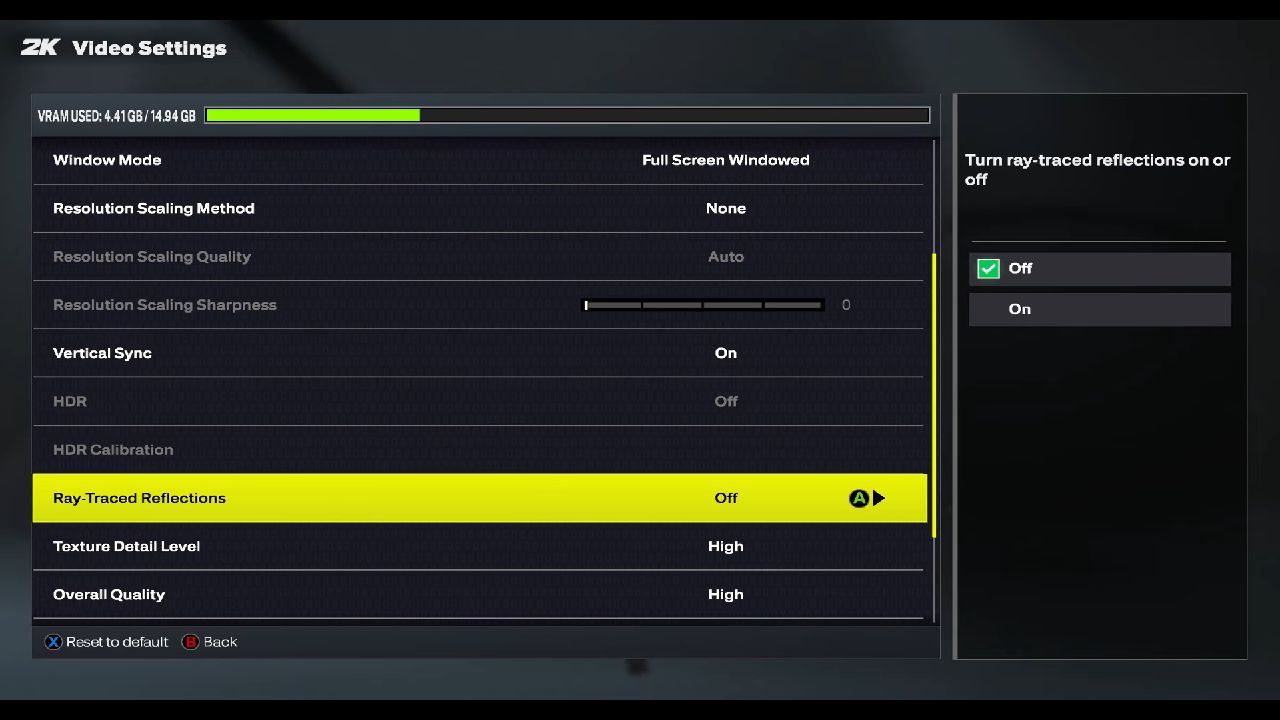
Recommended settings:
- Resolution: Native
- Full Screen: On
- V-Sync: Off (or On if screen tearing occurs)
- Motion Blur: Off
- Crowd Detail: Low
- Shadows: Low
- Texture Quality: Medium to High
- Player Detail: High
Lower-demand effects can improve frame rates while keeping player models looking sharp.
Final Thoughts
Honestly, there's no one "best" settings setup for NBA 2K26; it really comes down to how you play. That said, a few tweaks tend to help almost everyone: use a competitive camera angle for better court awareness, dial in your controller settings to match your reaction speed, cut down on flashy visual effects that can clutter your screen, and keep your HUD simple.
None of these are magic bullets, but together they make your gameplay feel smoother and more consistent.
Also, check our NBA 2K26 Review and other guides below:
- NBA 2K26 Guide | How to Earn VC Fast
- NBA 2K26 Guide | How to Upgrade Card Evolution
- NBA 2K26 Guide | How to Raise Overall in MyCAREER
- NBA 2K26 Guide | How to Earn REP Faster in THE CITY
- NBA 2K26 Guide | How to Get Better Card Packs Without Buying VC
- NBA 2K26 Guide | How to Complete Domination Faster
Editor, NoobFeed
Latest Articles
No Data.