
Planet Zoo 2 Guide | Path Secrets for a Perfect Zoo Entrance
Here’s a guide on how to use path-building tools to create a perfect zoo entrance in Planet Zoo 2.
Game Guide by Jubair Baky on Oct 24, 2026
Knowing how the various path tools work makes creating a perfect zoo entrance in Planet Zoo 2 much easier. Straight paths, curved walkways, open plazas, and habitat viewing areas require different building methods. The wrong tool can create awkward corners, uneven edges,s or unwanted gaps. This guide explains how to use each of the path-building tools, how to create an attractive entrance layout, and how to fix common path problems without having to rebuild everything.
Planet Zoo 2 includes four main path-building tools: Line and Curve Builder, Stamp Builder, Draw Tool, and Border Edit. Each serves a different purpose, and combining them gives you more control over your entrance design.
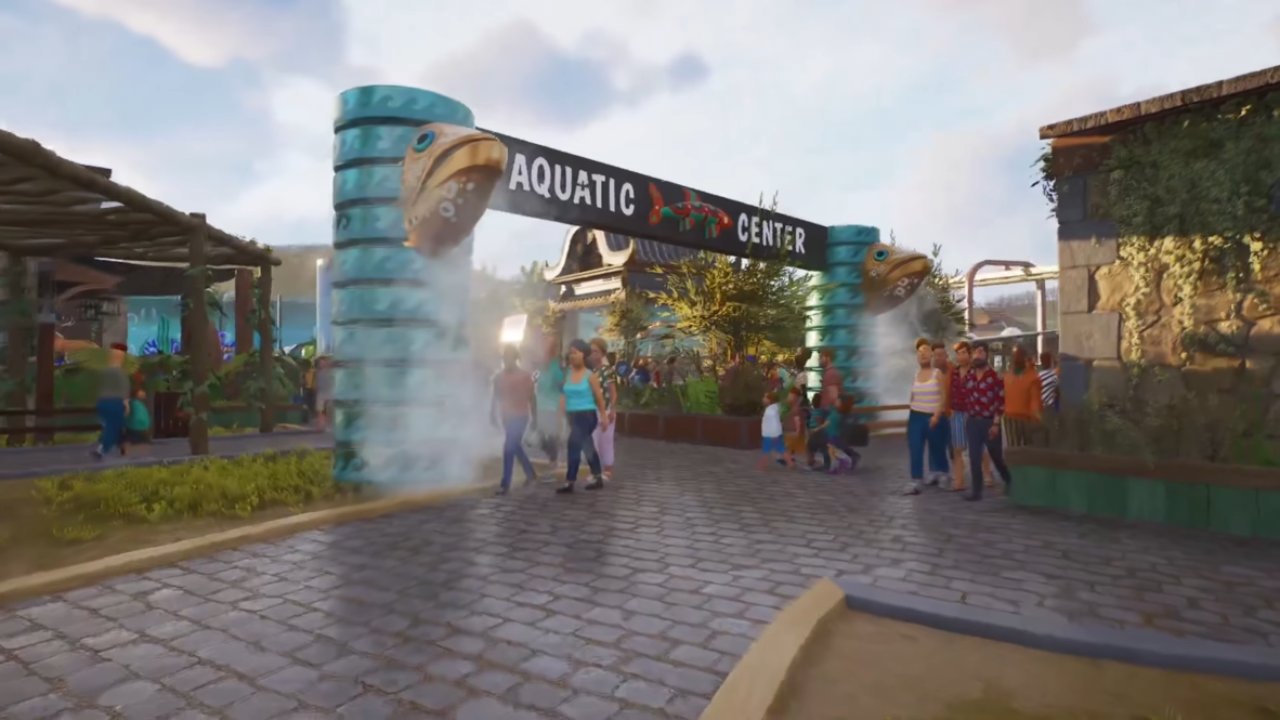
The Line and Curve Builder links different parts of your zoo together. The Stamp Builder is used to place predefined shapes with clean edges; the Draw Tool is used to create custom-shaped paths and larger open spaces. You can use Border Edit to edit the borders of paths you have already placed.
Pick the location for your main entrance walkway, central plaza, shops, and first habitats. It will be easier to keep things connected and in proper alignment if you establish this basic layout before you start decorating.
Create Straight and Curved Paths With the Line and Curve Builder
First, choose the Line and Curve Builder, and select a main path from your zoo entrance to the first habitat.
Adjust path width and snapping settings before placing each section. Guests have more space to move around with the wider entrance path, which also allows for smaller paths branching toward habitats and facilities.
Straight sections are to be used in the main entrance and in areas where buildings need to align. If a path has to follow a habitat barrier or go around an obstacle, choose the curved building option.
Curved paths help prevent the entire zoo from looking like a collection of rectangular blocks. They are particularly useful for natural-looking routes around animal enclosures.
Avoid using this tool to construct an entire plaza. It works best for individual connections, while other tools are more suitable for filling large spaces.
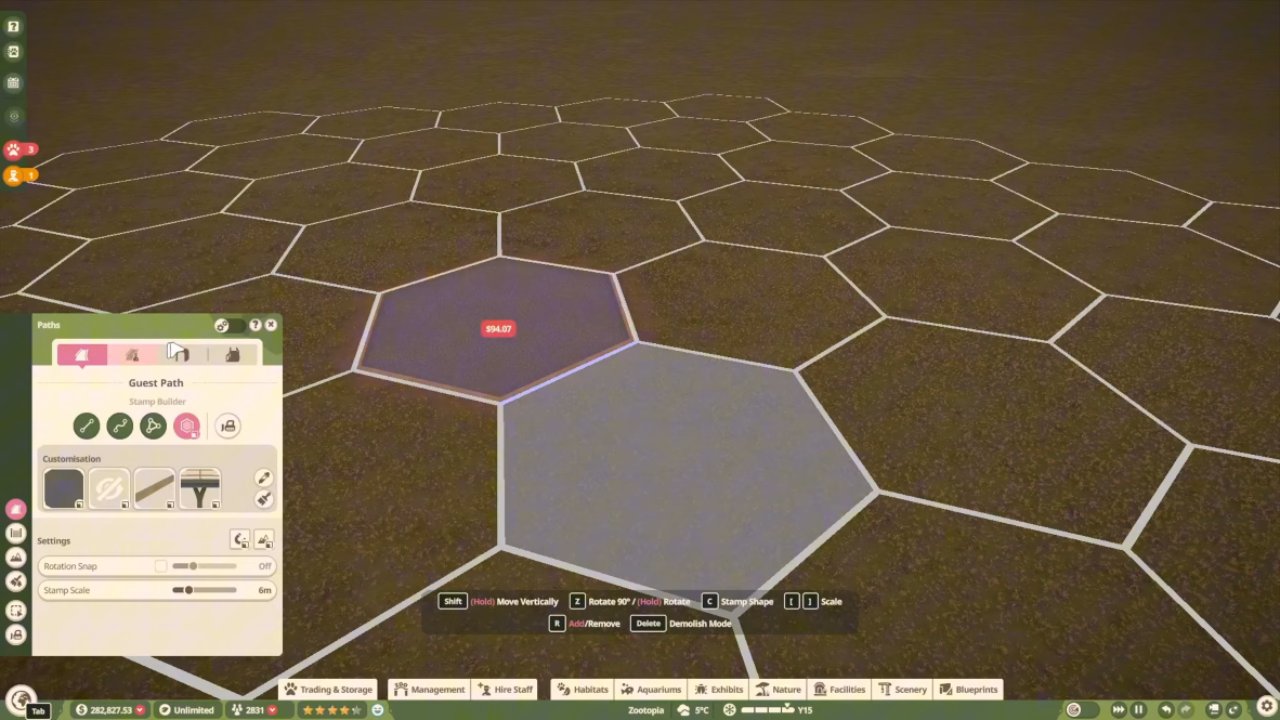
Build a Clean Entrance Plaza With the Stamp Builder
The Stamp Builder is one of the easiest tools for creating a neat zoo entrance. Instead of manually drawing every edge, you can place predefined shapes directly onto the ground.
Select the Stamp Builder and choose a square shape to begin creating your entrance plaza.
Place square sections next to one another to create a larger paved area. This produces straighter edges and makes aligning buildings significantly easier.
If you plan to add shops or other facilities around the entrance, use the grid and snapping settings to establish a consistent layout.
For buildings that need precise alignment, consider placing the building first and constructing the plaza around it. This can be easier than building a large path and attempting to fit everything into the existing layout.
Once the basic plaza is complete, you can connect smaller paths to the surrounding habitats.
Make Natural Walkways With the Draw Tool
The Draw Tool offers more freedom when you want paths that do not follow perfectly straight lines.
Select the Draw Tool and begin outlining the area you want to turn into a path. Continue drawing until the outline forms a closed shape. The game then fills the enclosed area with the selected path surface.
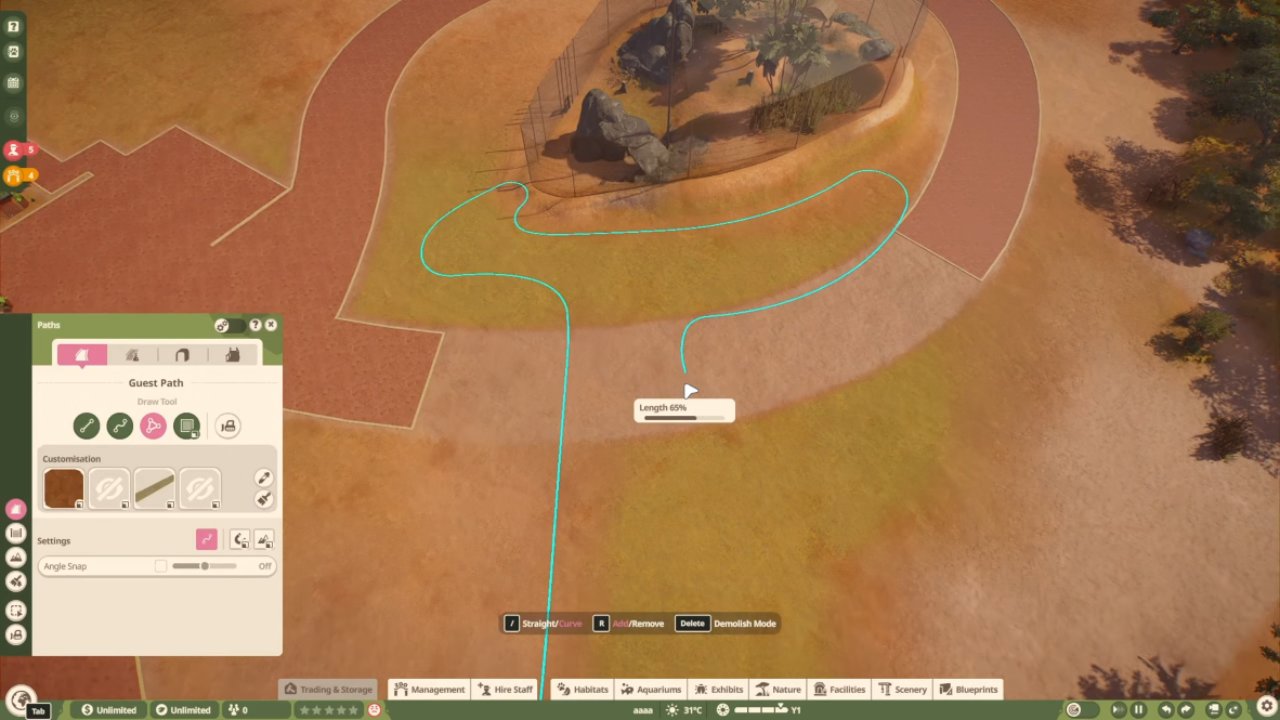
For example, you can start at the entrance plaza, draw a gently curved walkway around a habitat, and connect it back to the main path network.
This tool also works well for custom plazas, seating areas near shops, and wide viewing spaces where guests gather to observe animals.
Avoid creating too many small bends or sharp corners. A simple curved outline generally looks more natural and is easier to adjust.
Combining square plazas with curved walkways helps create an organized entrance without making the entire zoo appear overly rigid.
Remove Unwanted Path Sections Without Rebuilding
If your entrance plaza becomes too large, you do not need to delete the entire structure.
Return to the Stamp Builder and switch to the path-removal option. Choose the area you want to remove and take out individual sections.
This is particularly useful for creating decorative spaces inside large paved areas.
For example, removing a small square from the middle of your plaza creates an opening where you can place plants, trees, rocks, or other scenery.
You can also remove unwanted corners and excess paving around buildings.
Making these smaller adjustments helps break up large paved surfaces while keeping the rest of your entrance intact.
Fix Path Gaps and Seams
One of the most frustrating problems when creating large plazas is the appearance of small cracks or gaps between adjoining path sections.
These problems often occur where different pieces overlap or meet on slightly uneven ground.
Open the advanced path settings and look for the Override Existing Path option. Enable it before placing another Stamp Builder shape over the affected area.
This allows the new section to replace existing path geometry, potentially removing the visible seam.
Check the placement preview carefully before confirming. Overriding existing sections can change parts of the layout you intended to keep.
If the result is incorrect, use Undo and adjust the placement rather than repeatedly stamping over the entire plaza.
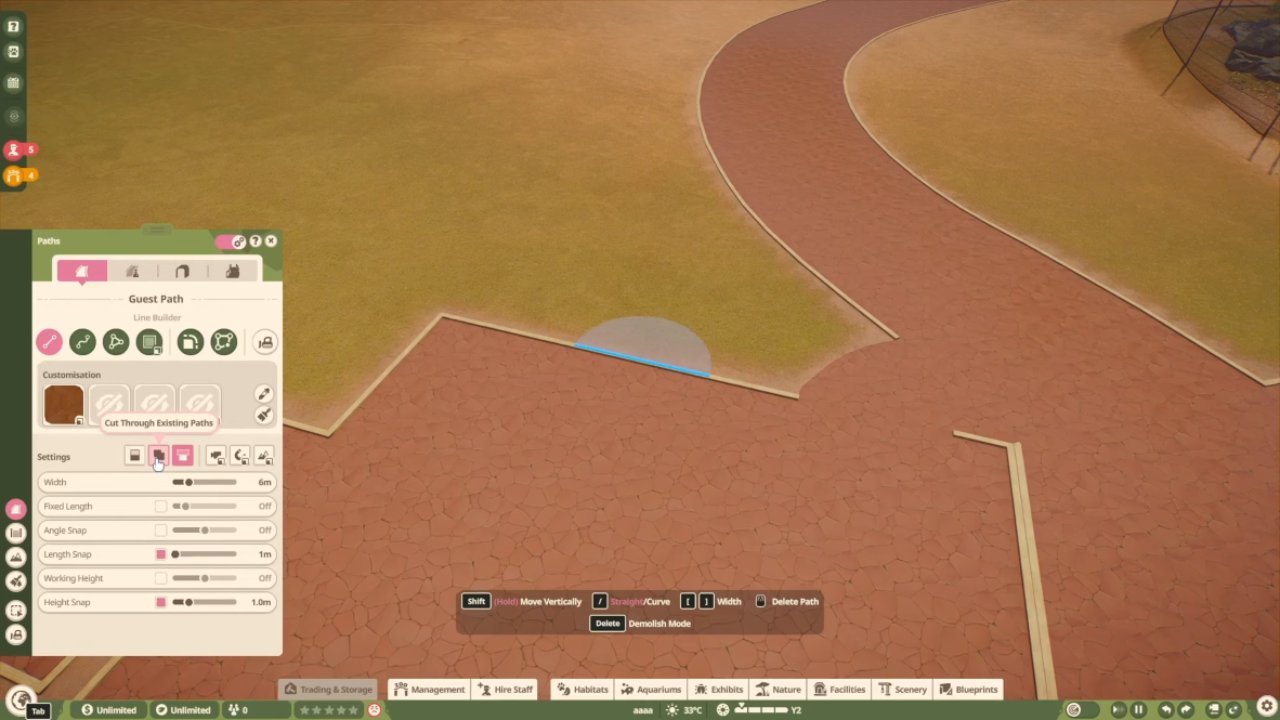
Refine Path Edges With Border Edit
After you finish the main entrance layout, you can use Border Edit to make it look better.
With this tool, you can edit borders of existing paths and plazas without having to rebuild the whole area.
It is especially helpful for custom-shaped plazas with awkward corners or walkways that don’t align neatly with a habitat barrier.
Choose the section you want to enhance and resize its border until the edge matches the desired shape.
Small changes can have a big impact, especially in areas with curved walkways and larger viewing areas.
You can also customize the appearance of paths by changing surface styles, colors, railings, gs and supports where available.
Choose a style for your main entrance, and use the same style for the smaller paths.
Create Paths Along Habitat Barriers
Building walkways next to animal habitats requires some planning.
Before placing decorative objects around an enclosure, decide where guests should stand to view the animals and where the habitat barrier will run.
Use the Stamp Builder when you want a straight viewing area alongside a barrier. For irregularly shaped habitats, the Draw Tool offers more flexibility.
Leave enough space for guests to move comfortably and connect the viewing area to the main path network.
You can also create small gaps between the path and habitat barrier for plants, rocks, or decorative scenery.
If unwanted path sections appear, remove those individual pieces instead of rebuilding the whole walkway.
Make sure habitat gates and staff access routes remain reachable after finishing the guest paths.
Copy Existing Path Styles
If you’ve created a path style that works well, and you want to apply it elsewhere, the Copy Style tool can save you time.
Choose the Copy Style Tool and click on an existing path that you want to reuse the look of.
The settings of the chosen path can be used for your next placement, so you can maintain the surfaces and visual details of the zoo consistently.
This is useful if you want to match smaller habitat walkways to your main entrance, or go back to an earlier design after playing with different styles.
Use the path painting option to apply the current customization settings to existing paths that need a new look.
Test Your Entrance Before Adding Decorations
Once you have the main paths and plazas down, make sure every important area connects correctly.
Imagine the layout from the entrance, all the way through the shops, habitat viewing areas, and staff facilities.
Especially search for narrow links between large plazas and small walkways.
Once the layout is working, add benches, plants, decorative scenery, and other finishing touches.
Sandbox mode is especially helpful when practicing the various building tools prior to you building a detailed zoo.
The easiest way to create a perfect zoo entrance in Planet Zoo 2 is to combine the Stamp Builder for clean plazas, the Line and Curve Builder for connections, the Draw Tool for natural walkways, and Border Edit for precise finishing adjustments.
FAQ
Q. Which path-building tool is best for creating a large entrance plaza?
A. The Stamp Builder is ideal for creating large plazas with straight edges and consistent shapes. The Draw Tool works better when you want an irregular or naturally shaped plaza.
Q. How can you remove cracks between paths in Planet Zoo 2?
A. Open the advanced path settings and enable Override Existing Path before using the Stamp Builder over the affected section. This can correct gaps caused by overlapping path geometry.
Q. Can you change the appearance of paths after placing them?
A. Yes. Use the path painting option to apply different surfaces, colors, and available border settings to existing paths without rebuilding them.
Editor, NoobFeed
Latest Articles
No Data.