
Xbox Full-Screen Mode Guide for Desktops and Laptops
Full Screen Experience Mode reduces background processes while providing seamless game switching across desktops, laptops, and other Windows 11 devices.
Hardware by Tanvir Kabbo on Dec 08, 2025
Full-screen experience mode for Windows 11 was initially launched alongside ROG Xbox Ally X and the ROG Xbox Ally. Over time, Microsoft has rolled out incremental updates that allow more devices to take advantage of the feature.
In late November, Microsoft noted that users could enable full-screen experience mode on any Windows machine through the Xbox Insider Hub. This makes the feature accessible to desktops, laptops, and other devices running Windows 11.
Setting Up Full-Screen Experience Mode
To run a full-screen experience mode, two essential components are required. The first is the Xbox Insider Hub, which you can download from the Microsoft Store. After installation, sign in with a Microsoft or Xbox account. Navigate to Previews, select PC gaming, and opt in by choosing Manage and then Save.
Next, update the system to either the Dev or Beta channel of Windows 11. Open Windows settings, go to Windows Update, then Windows Insider Program. Link an account, choose a channel, and select the Beta channel for more polished updates. Continue through the prompts and restart the system.
After rebooting, return to Windows Update to ensure the system is up to date. Once updated, full-screen experience mode becomes available in the gaming section of the settings.
Entering and Using Full-Screen Experience Mode
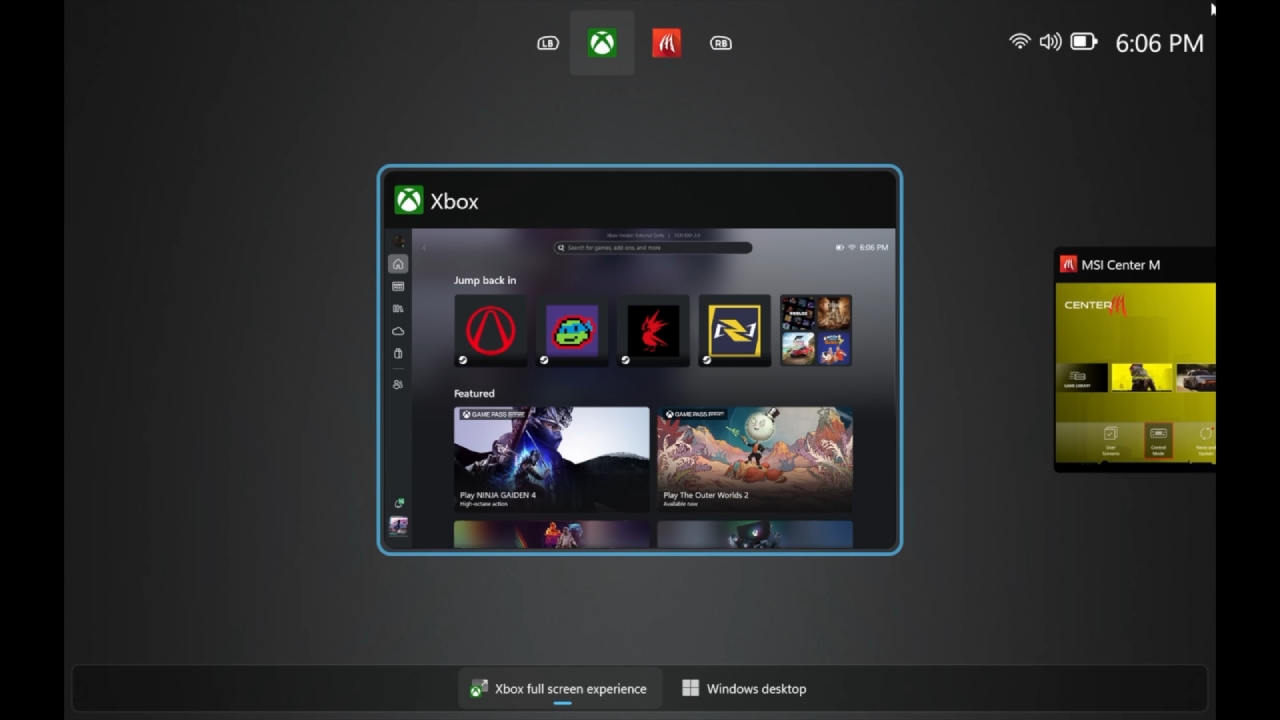
The full-screen experience can launch automatically at startup. You can enable this and choose a home app within the Windows gaming settings. At the moment, the only available home app is the Xbox app. After enabling it, the system can boot directly into full-screen experience mode. Alternatively, you can enter or exit the mode at any time through the Windows Game Bar by pressing the Windows key and G.
A restart is recommended when entering full-screen experience mode for the first time, as it prevents the desktop environment from loading and reduces the number of background applications. Without restarting, you can still enter full-screen mode, but without the optimized performance benefits.
Using an Xbox controller makes navigation easier. Pressing the Xbox button opens the Game Bar, and holding it opens the task switcher, which lets you quickly move between games and apps. You can switch between the Xbox app, Steam, big picture mode, or any game that is currently running. You may easily switch between games, and most of them automatically pause while you aren't playing them.
Game Switching and Application Management
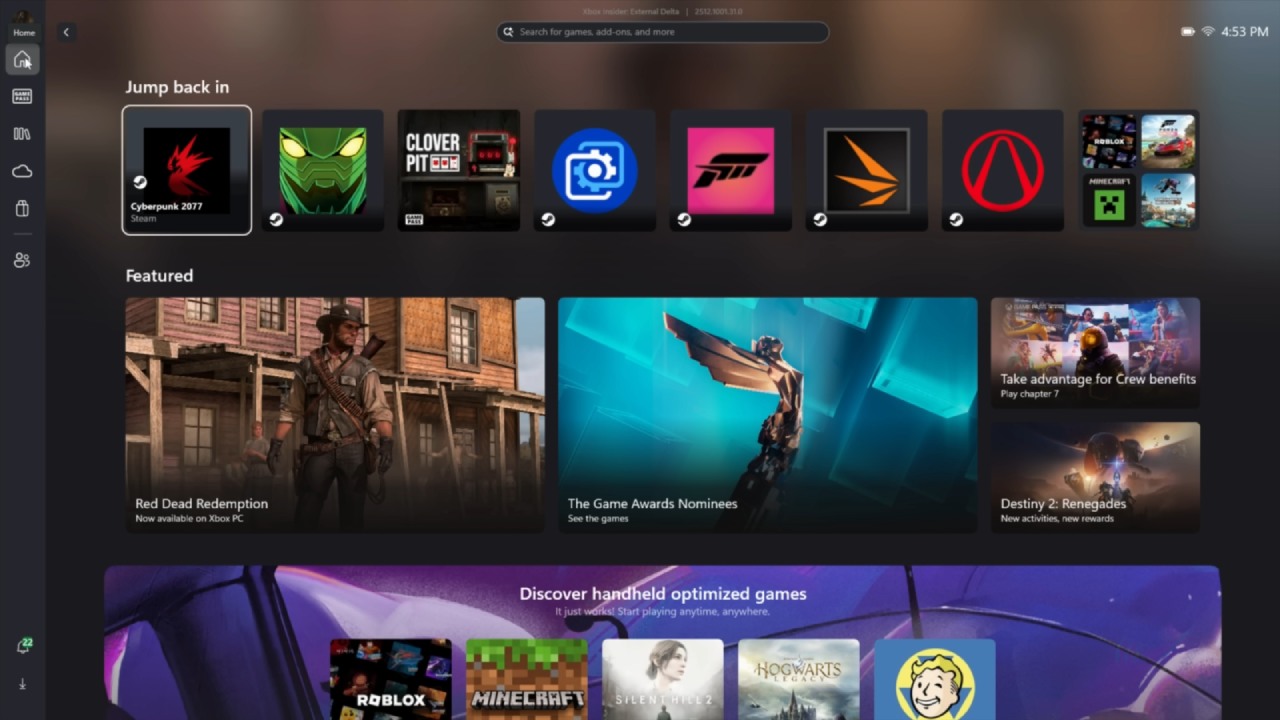
It works perfectly to start games through the Xbox app or Steam. If you try to open a second game when a game is already underway, a warning will pop up. You can choose to go back to the first game, stop it, or start the new one, regardless. If the system is strong enough, you can run two games at once, especially if one of them is light. The task switcher lets you jump between them quickly, and most games pause in the background.
Steam Big Picture mode is also accessible from full-screen experience mode, offering a familiar console-style interface. This makes it convenient for living room setups where a controller is the primary input method.
RAM Usage and Performance Insights
One of the best things about full-screen experience mode is that it uses less RAM. The system can save about 2GB of RAM because the desktop environment doesn't load, and many background apps stay off. When running in full-screen experience mode on a laptop with an RTX 5050 and some pre-installed junk, RAM use was roughly 5.7GB. In normal desktop mode, it was 7.7GB. This cut aligns with what Microsoft said at first.
There isn't much of a performance boost; benchmark differences are usually only 1–2fps in favor of full-screen experience mode. After a lot of testing, the findings usually even out, and there isn't a big performance boost. But lower-end computers or devices with iGPUs may profit a little because background tasks use up fewer CPU and GPU cycles.
.jpg)
Final Thoughts
In a living area, full-screen experience mode can make a Windows desktop or laptop more useful. It is easier to use the controller to move around, switching between games is rapid, and background processes are fewer. There may not be much of a change in performance, but the RAM savings could make a big impact on systems with limited memory.
Using the mode with a dedicated GPU can improve the overall gaming experience, especially when paired with Game Pass, Steam, or other platforms. The features are still changing, and Microsoft may add even more in future updates to make it even better.
Also, check our other articles below :
- ASUS ROG Ally X Handheld Review: Double the Battery, Double the Comfort
- Nintendo Switch 2 Vs. Original Switch 1: A Full Comparison
- How To Connect A Camera And Join Voice Chat With Nintendo Switch 2
- Nintendo Switch 2 Review: Handheld Performance, Features & Value Breakdown
- ROG Xbox Ally X Vs. ROG Ally X: Display, Battery & Controls
- ASUS ROG Ally X vs. Steam Deck OLED: Display, Battery & Gaming Benchmarks
- MSI Claw 8 AI+ Review: Display, Controls & Gaming
- Nintendo Switch 2 vs. Steam Deck OLED: Gaming, Performance, Battery, Display and Value
- PlayStation Portal Review: Remote Play, Cloud Streaming & Travel Gaming
- PlayStation Portal vs. Lenovo Legion Go: Best Portable Gameplay
- Cyberpunk 2077 Patch 2.3 FPS Test on MSI Claw 8 AI+
Senior Editor, NoobFeed
Gaming Hardware Updates
No Data.