
Steam Deck Gets a Visual Miracle With FSR4 AI Upscaling
FSR4 AI Upscaling Instantly Restores Fine Detail, Sharpness, and Long-Missing Image Stability Across the Entire Game
Hardware by Mitsuba Miyu on Jan 29, 2026
Gamers no longer have to put up with disgusting visual noise on the Steam Deck. Thanks to FSR 4 AI-based upscaling, things that looked shaky, fuzzy, and badly damaged can now look clear, detailed, and surprisingly stable.
It used to be that games like Expedition 33 had shimmering artifacts and bad image clarity. Still, now handheld hardware makes the graphics look very different.
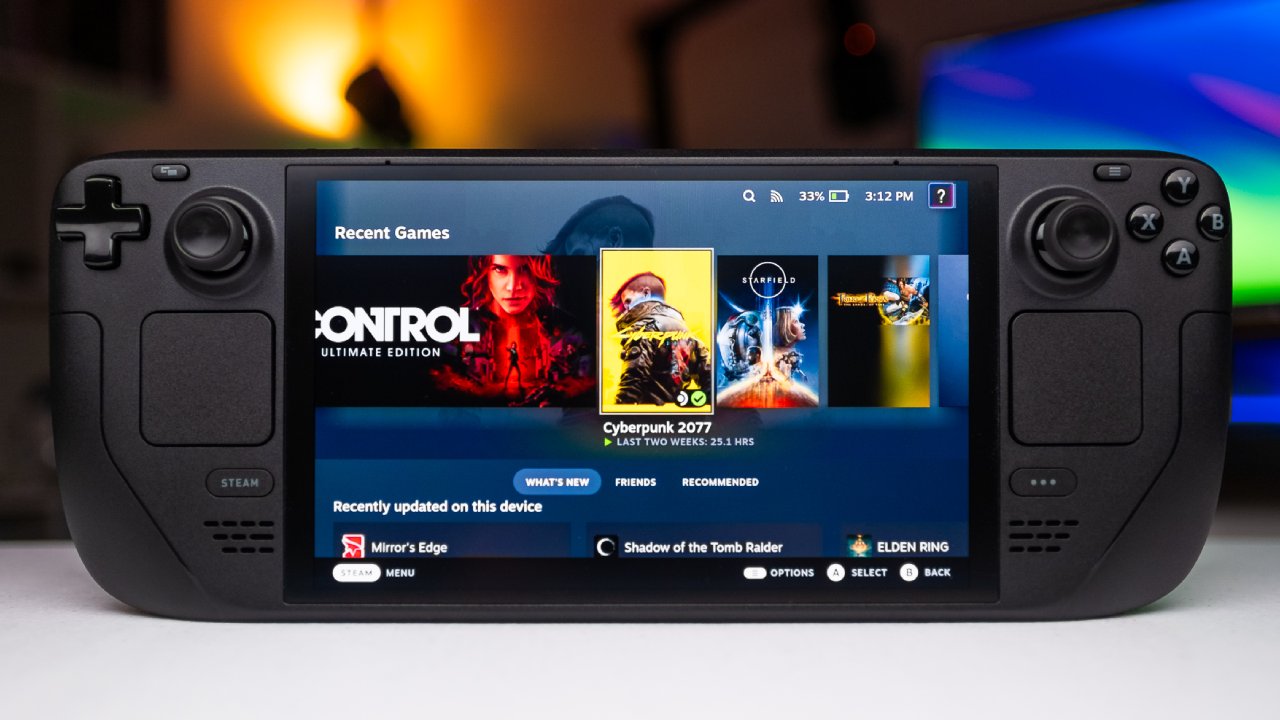
The Problem With Built-In Upscaling
Before FSR 4, noise and imbalance were very bad on Expedition 33 on the Steam Deck. With the built-in FSR3.1.5 turned on, the picture had rough grain, lost details, and a glowing effect that wouldn't go away no matter how the camera moved.
Things like rocks, trees, hair, leaves, and even faraway mathematics lost their shape. If you watched it at 800p with the lowest settings, the picture looked bad and ruined.
Every time the camera turned, there was shimmering everywhere, and important visual information just vanished. The image quality made it hard to enjoy such a beautiful game, even though the gameplay was just about playable.
Switching to FSR 4 Changes Everything
As soon as we switched to FSR 4, we could tell the change. The picture got sharper, clearer, and more detailed. You could see individual hair strands again, the leaves looked real, and you could see details about the surroundings again. Any remaining noise came from the game engine, not the upscaler.
FSR 4 kept the details in rocks, trees, shadows, and faraway landscapes, even when set to 800p and performance mode was off. Compared to FSR 3.1.5, it seemed that all the lost data had been recovered.
Performance vs Visual Quality Balance
When FSR 4 was turned on, performance stayed around 30 fps, fluctuating by 1 or 2 fps. It was well worth the small cost of efficiency. We could see every feature very clearly, and the game looked and felt stable.
It was fine to play Expedition 33 at 30 fps on the Steam Deck because the picture quality was finally stable. It was much more fun to play with stable graphics than with better but unstable frame rates and broken graphics.
How to Enable FSR 4 on Steam Deck
You need to install the necessary plugin via Deki Loader in the Deki Market to use FSR 4. Find the frame generation plugin and ensure you have the latest version loaded. Only the most recent version works with FSR 4.
The plugin shows up in the Deki side menu after it has been launched. Open it up and pick one of the orders. We use the unpatched command most of the time because it always works. Paste the code where it says "launch options" in the game's properties on Steam Deck after you've copied it.
This makes FSR 4 work in the game. Any extra commands related to image settings are game-specific and not part of FSR 4.
Quick Access and In-Game Control
To make things easier, you can set any button to act as the Insert key. It was linked to the L4 back button. This lets you quickly open and close the upscaler menu while you're playing.
Games may offer DLSS after they have been set up. This isn't real DLSS because AMD gear doesn't support it. What you're seeing is FSR 4, which is also built on AI and works similarly.

Image Stability in Real Gameplay
Expedition 33 looked way too good to be a Steam Deck when FSR 4 was set to balanced mode. There was no background noise in the hair; the leaves fell smoothly; the greenery stayed clean; and the shadows stayed the same. Most of the time, the game ran at 30 fps or more and felt fully playable.
The picture remained stable even when exploring, flying, or in scenes with many cameras. Mountains far away could be seen clearly, grass and water made very little noise, and details in the environment stayed put much more often than imagined.
Frame Generation: Useful but Not Ideal
Frame creation is also available in FSR 4, but we don't think it's a good idea for Steam Deck at this time. It can be enabled by saving the options and restarting the game, but it introduces noticeable latency. Changing frame rates from 30 to 40 fps just adds too much delay.
It feels like a mix of FSR frame generation and DLSS frame generation, but it's not very sensitive. Frame generation on Steam Deck isn't great unless a game already goes close to 60 fps. In general, a stable, fast 30 fps experience feels better.
Performance Mode Surprise
Enabling FSR 4 in performance mode increased frame rates by 8-10 fps, bringing them closer to 40 fps in lighter scenes. It's clear that responsiveness got better, and amazingly, image stability stayed great.
There was very little visual noise, and the features stayed the same even in performance mode. This seemed almost impossible on handheld devices for Unreal Engine 5 games.
Heavy Scenes and Unreal Engine Limits
The Steam Deck is still put to the test in some places. New levels and scenes with a lot of water slowed the game down to 25 fps and sometimes stuttered. These problems are caused by limitations in Unreal Engine 5, not by the upscaler itself.
Performance stayed between 24 and 25 fps during combat, but picture quality remained the same. Heavy noise didn't show up, and fights were still doable even though the frame rate was lower.
Broader AMD Device Support
You can use FSR 4 on any mobile device powered by AMD, such as ROG Ally, Legion Go, GPD, and other similar systems. This upscaling method works with anything powered by AMD, making current AAA games much easier to play on portable devices.
This clearly shows that FSR 4 can do more than it's supposed to be able to, as it works so well on older hardware.
Final Thoughts
The way Expedition 33 looks and plays on Steam Deck is completely changed by FSR 4. What used to be noisy and broken now feels safe, full, and really fun. Even though the frame rate drops to 25 fps every once in a while, the experience is still great on small hardware.
It almost seems impossible to play current AAA games with this level of image stability. With the right tools, FSR 4 shows that the Steam Deck can do a lot more than people thought it could. It makes games usable and look good, which wasn't possible before.
Also, check our other articles below :
- ASUS ROG Ally X Handheld Review: Double the Battery, Double the Comfort
- Nintendo Switch 2 Vs. Original Switch 1: A Full Comparison
- How To Connect A Camera And Join Voice Chat With Nintendo Switch 2
- Nintendo Switch 2 Review: Handheld Performance, Features & Value Breakdown
- ROG Xbox Ally X Vs. ROG Ally X: Display, Battery & Controls
- ASUS ROG Ally X vs. Steam Deck OLED: Display, Battery & Gaming Benchmarks
- MSI Claw 8 AI+ Review: Display, Controls & Gaming
- Nintendo Switch 2 vs. Steam Deck OLED: Gaming, Performance, Battery, Display and Value
- PlayStation Portal Review: Remote Play, Cloud Streaming & Travel Gaming
- PlayStation Portal vs. Lenovo Legion Go: Best Portable Gameplay
- Cyberpunk 2077 Patch 2.3 FPS Test on MSI Claw 8 AI+
Editor, NoobFeed
Gaming Hardware Updates
No Data.