
Call of Duty: Modern Warfare 4 Guide | Best PC Graphics and Performance Settings
Here's a guide on best PC graphics and performence settings for Call of Duty: Modern Warfare 4.
Game Guide by Navid Kabbo on Oct 25, 2026
Call of Duty: Modern Warfare 4 features demanding environments and fast-paced firefights, making stable frame rates and clear visibility essential on PC. The right graphics settings can reduce input lag and stuttering without making the game look unnecessarily poor.
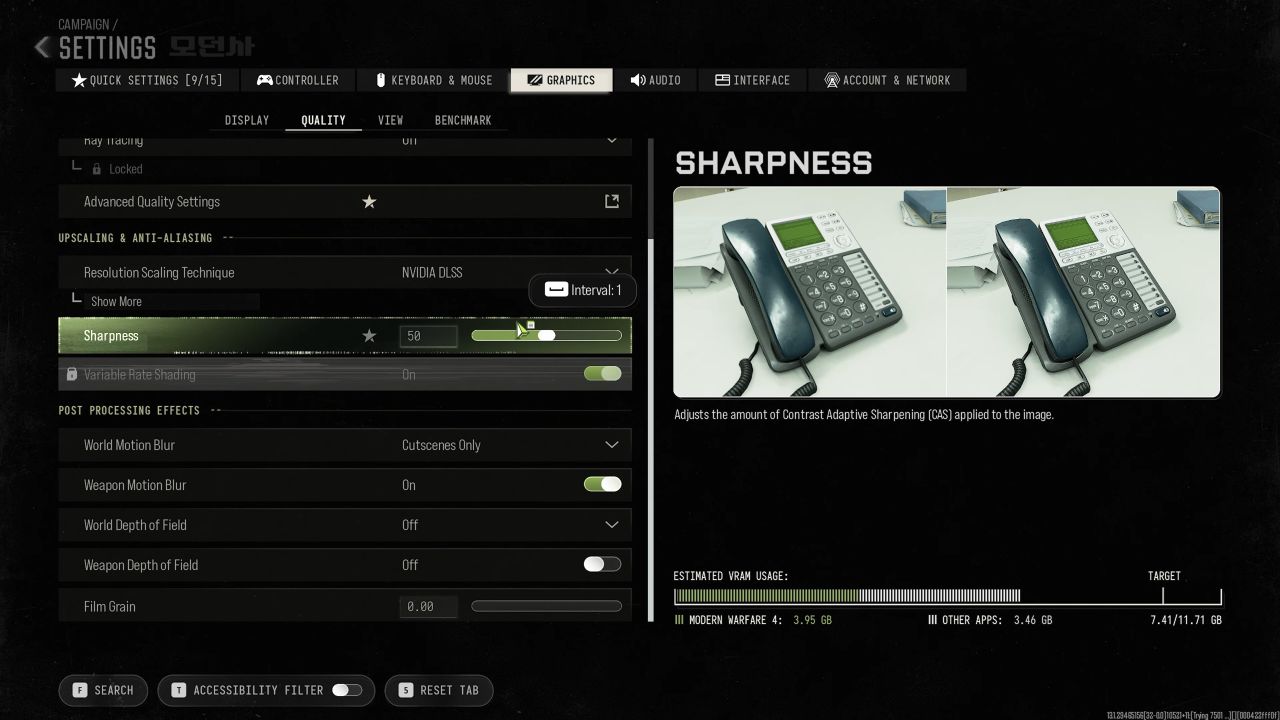
This guide covers recommended display, quality, upscaling, and visibility settings to help you balance smooth performance with image clarity. Your ideal configuration depends on your GPU, CPU, resolution, and monitor.
Best Display Settings for Modern Warfare 4
Start with your monitor's native resolution and highest supported refresh rate. For competitive play, prioritize responsiveness over cinematic effects.
- Display Mode: Fullscreen Exclusive, if available
- Display Resolution: Native
- Refresh Rate: Highest Available
- Gameplay V-Sync: Off
- Menu Frame Rate Limit: 60 FPS
- Gameplay Frame Rate Limit: Your Stable Target
- NVIDIA Reflex: On, if supported
If screen tearing becomes distracting, enable G-SYNC or FreeSync where available. A consistent frame rate is generally more useful than an unstable peak FPS.
Best Graphics Quality Settings
Reducing shadows, reflections, and volumetric effects can improve performance without significantly compromising image clarity.
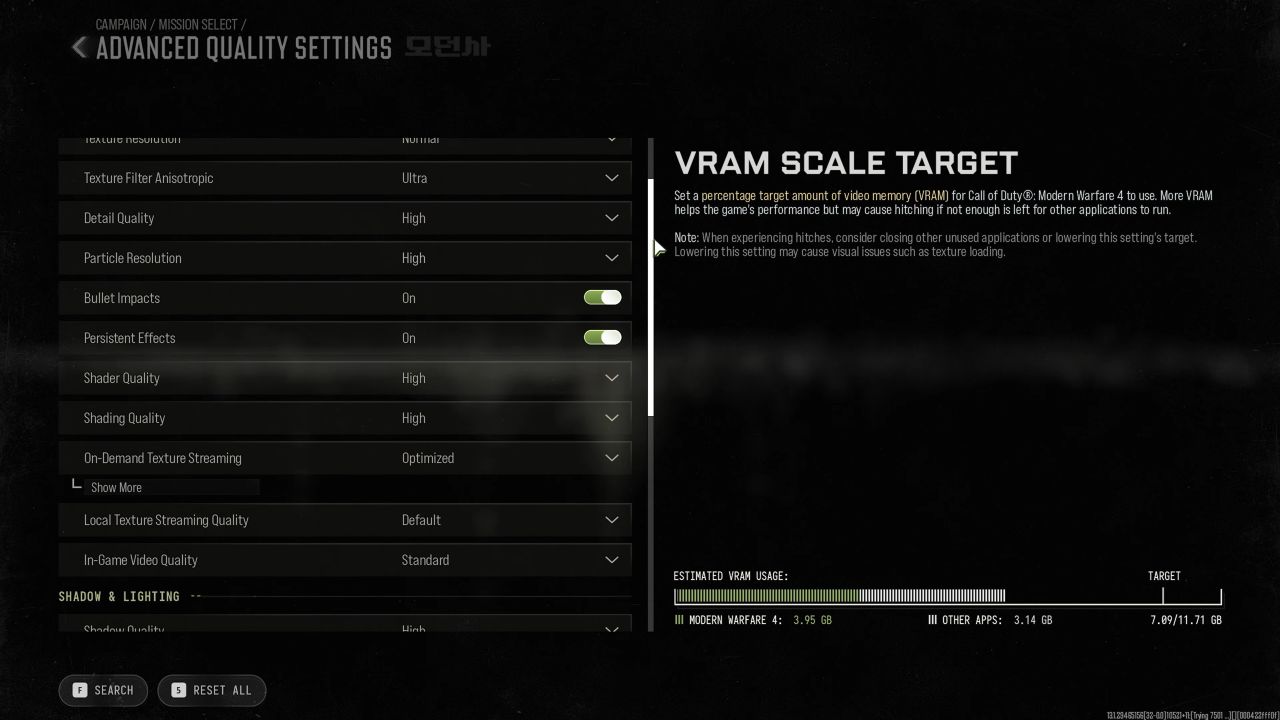
Recommended Graphics Settings
- Graphics Preset: Custom
- Render Resolution: 100%
- Texture Resolution: Normal (Low for limited VRAM)
- Shadow Quality: Low
- Screen Space Reflections: Off
- Volumetric Quality: Low
- Particle Quality: Low
- Motion Blur: Off
- Film Grain: 0
- Ray Tracing: Off, if available
- On-Demand Texture Streaming: Minimal, if available
These settings prioritize Multiplayer performance. Campaign players can increase texture and lighting quality if their hardware maintains smooth gameplay.
Best Upscaling and Visibility Settings
Upscaling technologies improve performance by rendering at a lower internal resolution and reconstructing the image.
Choose the appropriate technology for your graphics card.
- NVIDIA RTX GPUs: DLSS Quality or Balanced
- AMD GPUs: FSR Quality, if supported
- Intel GPUs: XeSS Quality, if supported
- Frame Generation: Off for competitive Multiplayer
- Field of View (FOV): 100–110
- ADS Field of View: Affected, if available
- Camera Movement: Lowest Comfortable Setting
A wider FOV improves peripheral visibility but makes distant enemies appear smaller. Frame Generation can improve displayed FPS, although it doesn't replace higher native rendering performance for responsiveness.
How to Fix FPS Drops and Stuttering
Even optimized graphics settings cannot completely eliminate performance issues.
Try the following adjustments:
- Allow shader compilation to finish before playing.
- Update your graphics drivers.
- Install the game on an SSD.
- Close unnecessary background applications.
- Lower Texture Resolution if VRAM usage is excessive.
- Monitor CPU and GPU temperatures for thermal throttling.
Change one setting group at a time and test performance to identify which adjustments work best for your hardware.
Final Thoughts
The best PC settings for Call of Duty: Modern Warfare 4 depend on your hardware and preferred game mode. Multiplayer players should prioritize stable FPS, low latency, and clear visibility, while Campaign players can increase graphical quality for a more cinematic experience.
Experiment with different configurations until you find a balance between performance and visual fidelity.
FAQ
Q. What Are the Best Settings for Maximum FPS in Modern Warfare 4?
A. Lower shadow quality, reflections, and volumetric effects. Disable ray tracing and use an appropriate upscaling technology.
Q. Should You Enable DLSS in Modern Warfare 4?
A. Yes, DLSS Quality is a useful starting point for compatible NVIDIA RTX GPUs, particularly at higher resolutions.
Q. What Is the Best FOV for Modern Warfare 4?
A. An FOV between 100 and 110 offers a good balance between peripheral visibility and target size.
Q. How Do You Fix Stuttering in Modern Warfare 4?
A. Allow shader compilation to finish, update graphics drivers, reduce VRAM-intensive settings, and close unnecessary background applications.
Editor, NoobFeed
Latest Articles
No Data.