
External GPUs for Laptops: Real-World Performance, Costs, and Upgrade Options in 2026
Thunderbolt5 nearly doubles bandwidth over Thunderbolt4, but PCIe connections still provide superior raw data transfer speeds for GPUs.
Hardware by Tanisha Aria on Jan 24, 2026
eGPUs, which stand for "external graphics processors," have always seemed like the perfect way to improve laptop visuals. Most of the time, desktop GPUs are stronger than laptop GPUs. With an eGPU setup, you can plug a full desktop graphics card into a laptop.
The claim is easy to understand: if you want to improve, all you have to do is replace the GPU with a newer model. This idea has always been a bit tricky because of how things work in the real world.
Testing Platform and Hardware
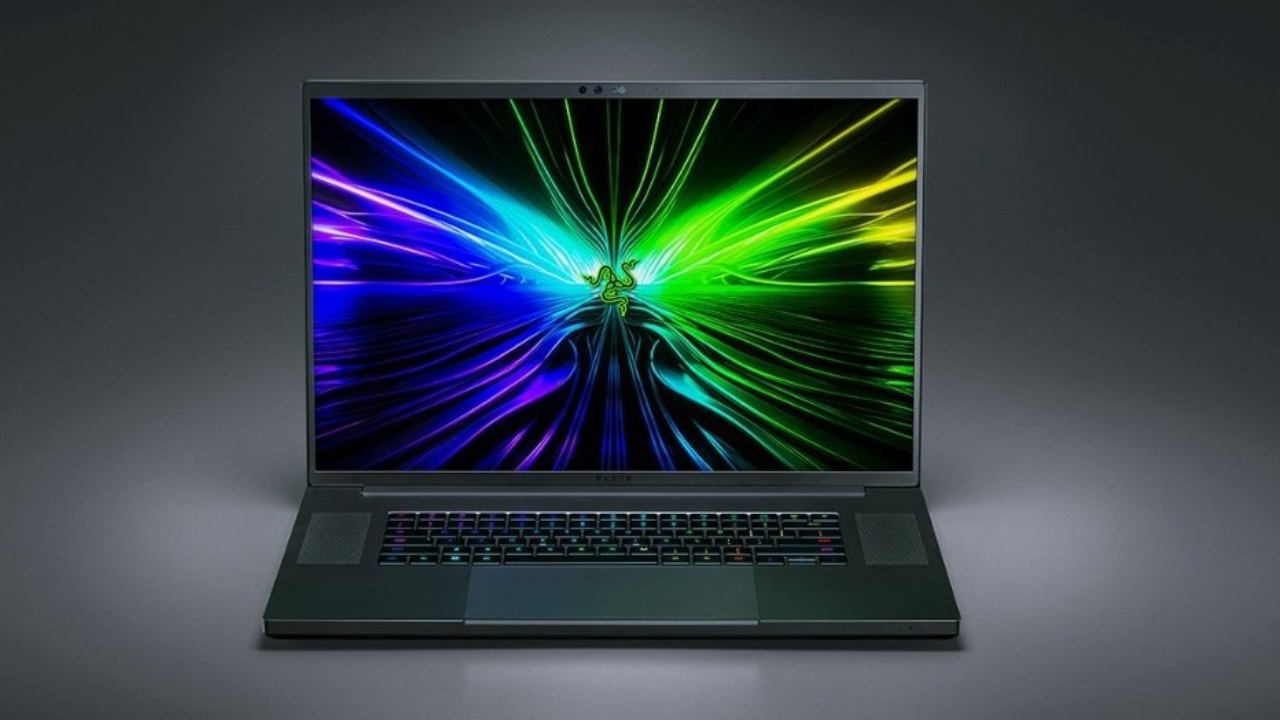
We used Razer's Blade 18, a gaming laptop with both Thunderbolt 4 and Thunderbolt 5 Type-C ports, to test how well modern eGPUs perform. With this setup, you can directly compare the two connection types on the same gear. Razer's Core X V2 eGPU enclosure was used for testing. It supports Thunderbolt 5 and is also backward-compatible with Thunderbolt 4, so it was a reliable place to test.
Understanding Bandwidth Limitations
When it comes to eGPUs, bandwidth has always been the main problem. Thunderbolt 4 offers about 3 GBps, but Thunderbolt 5 almost doubles that speed, which means it could be much faster.
When you connect an external monitor directly to the eGPU enclosure, the display signal doesn't have to travel back to the laptop via the Thunderbolt cable, further reducing latency. PCIe connections still have more bandwidth than any Thunderbolt option, even with these changes.
PCIe M.2 eGPU Setup
Users who are ready to give up convenience for speed can connect a desktop GPU to their laptop through the M.2 slot. There is one PCIe Gen4 M.2 slot and one faster Gen5 slot on the Blade18. By moving the SSD to the Gen4 slot, an ADT-Link F43SG-BK7 adapter can be used to put a GPU in the Gen5 slot.
This approach offers a nearly direct PCIe connection, improving performance. However, the laptop must be turned off to install or remove the GPU, and the panel must often be left open, making it less portable than Thunderbolt solutions.
Real-World Gaming Performance
Testing how well nine games worked showed some interesting patterns.
Performance at 1080p
The laptop's built-in RTX 5090 mobile GPU outperformed all Thunderbolt-based eGPUs at 1080p. When using an external Thunderbolt 5 monitor, speed was about 27% better than on the laptop's screen.
Lightning 4 was 38% slower than Thunderbolt3 because it had less memory. Both PCIe Gen4 and Gen5 links ran about 12% faster than the fastest Thunderbolt 5 setup, but a desktop PC with the same GPU still won overall.
Performance at 1440p
In terms of average frames per second, Thunderbolt 5 setups with an external display started beating the GPU in laptops at 1440p. But the laptop kept its 1% lows higher, which made the game run more smoothly and consistently.
When both used the laptop screen, Thunderbolt 5 was 20% faster than Thunderbolt 4. Still, when both used an external monitor, it was only 8% faster. PCIe setups were still a little better, but there weren't many changes between Gen4 and Gen5.
Performance at 4K
At 4K, the laptop's mobile RTX 5090 began to fall behind. It still managed to get above 60 fps without upscaling, but when attached to an external monitor, even Thunderbolt 4 with a desktop GPU was faster. Only about 6% more speed was achieved with Thunderbolt 5 over Thunderbolt 4.
PCIe Gen5 was the most significant improvement. It had an average frame rate that was about 8% higher than Gen4 and was getting closer to full desktop PC performance. Still, the desktop PC had 27% better 1% lows because it had a faster processor.
Price and Practicality Considerations
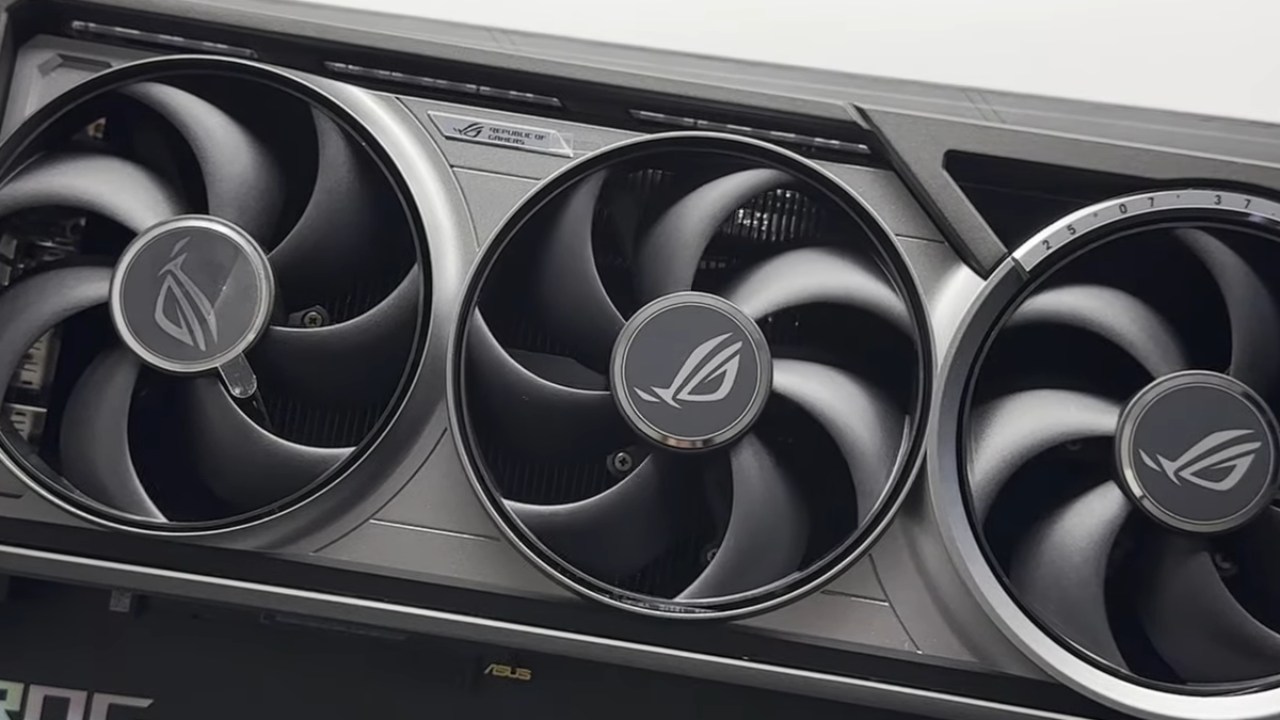
Cost is still a big deal. The PCIe Gen5 adapter costs about $100, and a Thunderbolt eGPU enclosure costs about $350. However, you'll need to buy an extra power source for a desktop GPU.
Desktop GPUs are pricey on their own, and adding the cost of a game laptop to the mix can make eGPU setups very expensive. On the other hand, a modest GPU combined with a laptop that doesn't have specialized graphics can make gaming possible that wouldn't be possible otherwise.
Usability and Convenience
Thunderbolt5 setups are easier to use than PCIe M.2 setups because you can just plug them in and start using them without opening your laptop. PCIe links are faster, but they're awkward and need the laptop to be turned off and the chassis to be changed.
It's exciting that eGPUs offer the option to upgrade graphics. However, they can still experience issues like game crashes and instability that you wouldn't see on a PC or laptop with a dedicated GPU.
Final Thoughts: Are eGPUs Worth It?
Thunderbolt 5 is a big step up from Thunderbolt 4, but even with higher speeds, eGPU setups are still not very common. PCIe M.2 options offer great speed, but make it less portable and easy to use.
Instead of using an eGPU, most people would find it easier and more efficient to get a gaming laptop or desktop. These setups will only really help a small group of people who are willing to deal with the extra difficulty and cost. For everyone else, it's still best to stick with a regular laptop or desktop gaming machine.
Also, check our other hardware articles:
- AMD Ryzen 9 9950X3D Review: Setting The Standard For 2025 Gaming CPU
- Amazon Luna 2025 Review: Is Prime Gaming's Cloud Service Your Go-To For Casual Fun?
- AMD RX 9070 XT Review: AMD's RDNA 4 Champion for 1440p Gaming
- GeForce Now Ultimate: Ditching Your Gaming PC For Cloud RTX 4080 Power?
- NVIDIA GeForce RTX 5080 Review (2025): Still A 4K Gaming Powerhouse?
- Intel Core Ultra 9 285K Review And Performance Breakdown (2025)
- AMD Ryzen 7 9800X3D Review: 3D V-Cache Goes God Mode with Stunning Gaming Performance
- Intel Core Ultra 9 285K vs AMD Ryzen 7 9800X3D: In-Depth Gaming Performance and Benchmark Comparison
- NVIDIA GeForce RTX 5080 Super Performance In Cyberpunk 2077: Path Tracing & DLSS 4.0 Tested
- AMD Radeon RX 9070 XT In Cyberpunk 2077: Ray Tracing & FSR 4.0 Tested
- Intel Arc B580 Review: The $250 GPU Revolutionizing 1440p Gaming
- Intel Arc B570 Vs. B580: Value, Specs, And Real-World Gaming Performance
- RTX 5090 Laptop Vs. M4 Max MacBook Pro: Ultimate Raw Performance Vs. Battery Endurance
- Intel Arc b580 Vs. RTX 4060: Game Performance And Value Analysis
- RTX5090 Hell Is Us Demo 4K Ultra Benchmark: DLSS Vs. Native Performance Guide
- NVIDIA RTX 5070 Review: Mid-Range Muscle or Marketing Hype?
- Nintendo Switch 2 Review: Handheld Performance, Features & Value Breakdown
- RTX 5070 Ti Review: Performance, Thermals & Power Efficiency Tested
- Samsung Odyssey OLED G81SF Review 2025: Ultimate 32-Inch QD-OLED Gaming Monitor
- AMD RX 9070 Performance Review: Thermals, Clocks, and Real-World FPS
- AMD Ryzen 5 7600 Review: Best Budget Gaming CPU of 2025?
- AMD Radeon RX 7800 XT Review: RDNA 3 Power For Midrange Gaming
- Asus ROG RTX 5090 Astral OC Vs. Founders Edition: The 4K Gaming Benchmark
Contributor, NoobFeed
Gaming Hardware Updates
No Data.