
Pokémon Scarlet And Violet Guide | How to Use Photo Mode
Open Photo Mode in seconds, then use filters, camera options, and selfies to capture clean screenshots anywhere.
Game Guide by Jubair Baky on Feb 28, 2026
Taking pictures in Pokémon Scarlet and Pokémon Violet is simple once you know where Photo Mode is. You do not need to open a menu or visit a special spot. You can activate it instantly while exploring, then adjust the camera and settings to get the shot you want.
How To Enter Photo Mode
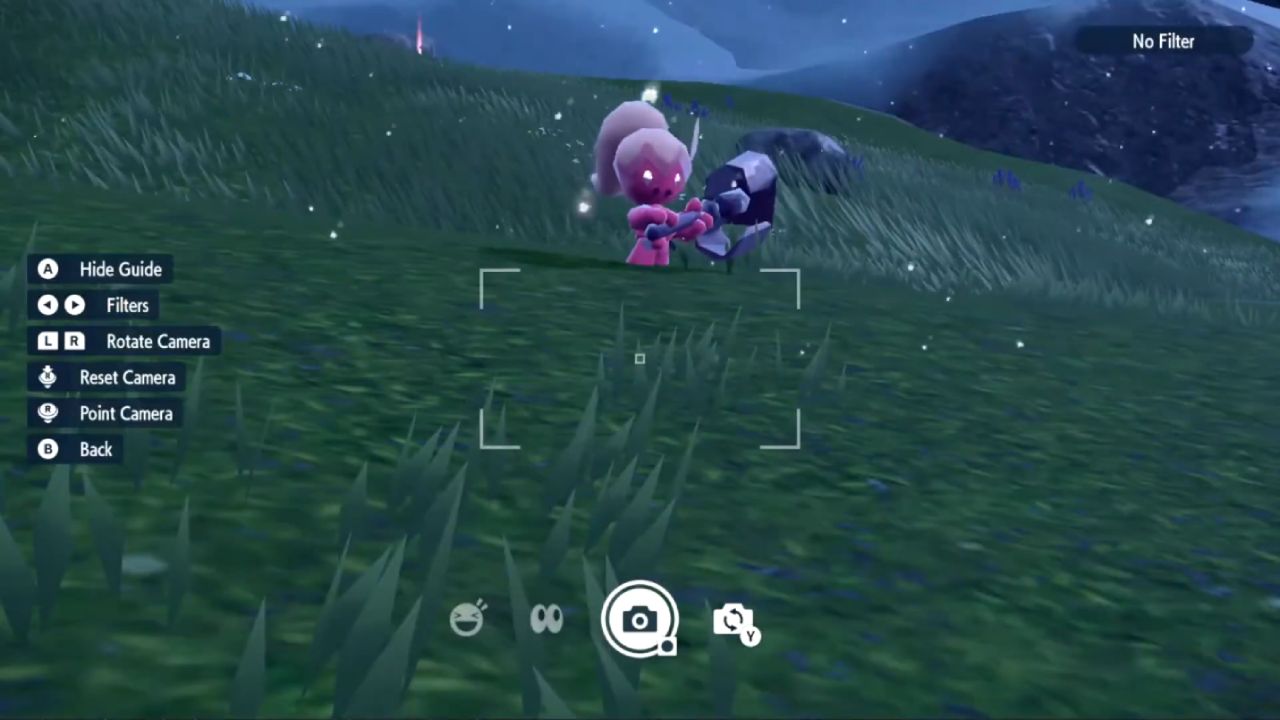
To go into Photo Mode, press Down on the D-Pad. Once you press it, Photo Mode opens right away, and a settings overlay appears on the screen.
Hide The UI For Cleaner Shots
In Photo Mode, you can remove on-screen elements. This is useful if you want a clean picture without icons or text. Toggle the setting until the screen looks clear, then frame your shot.
Use Filters
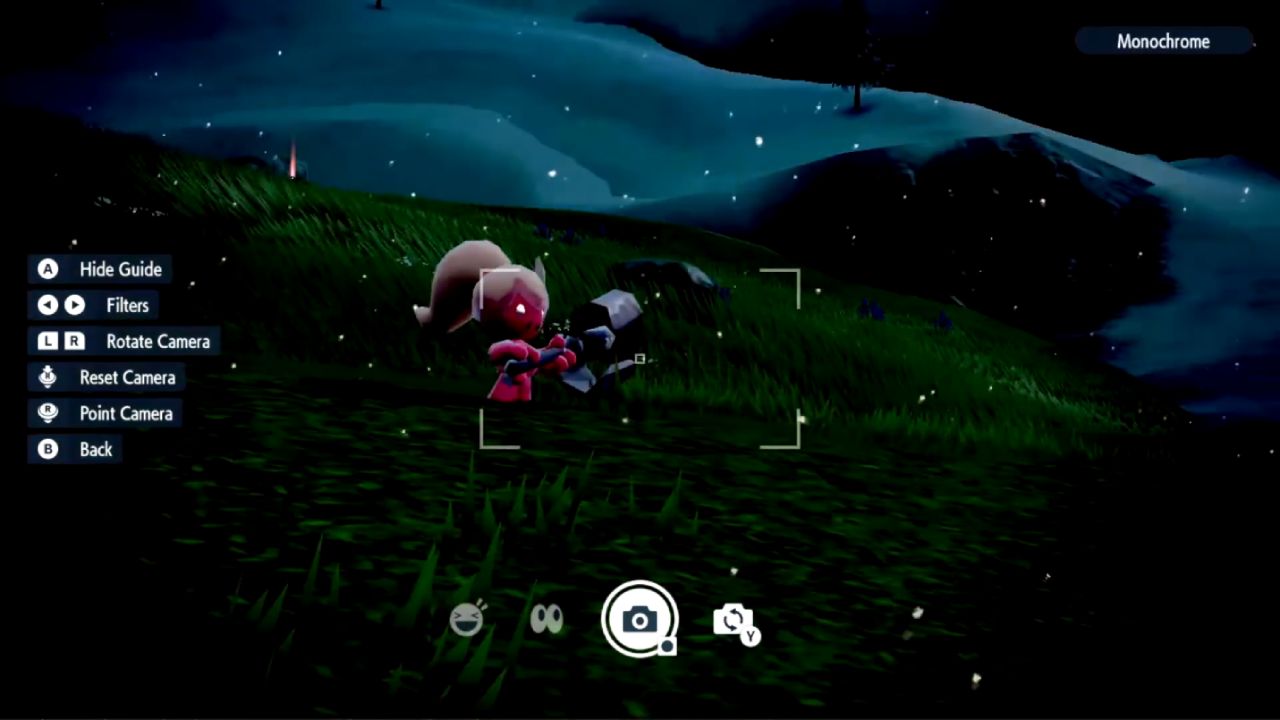
Photo Mode includes filters you can apply to change the look of your screenshot. The filters can look unusual, but they are still useful if you want a stylized image or a different vibe. Cycle through them until you find one that matches what you want.
Camera Options And Movement
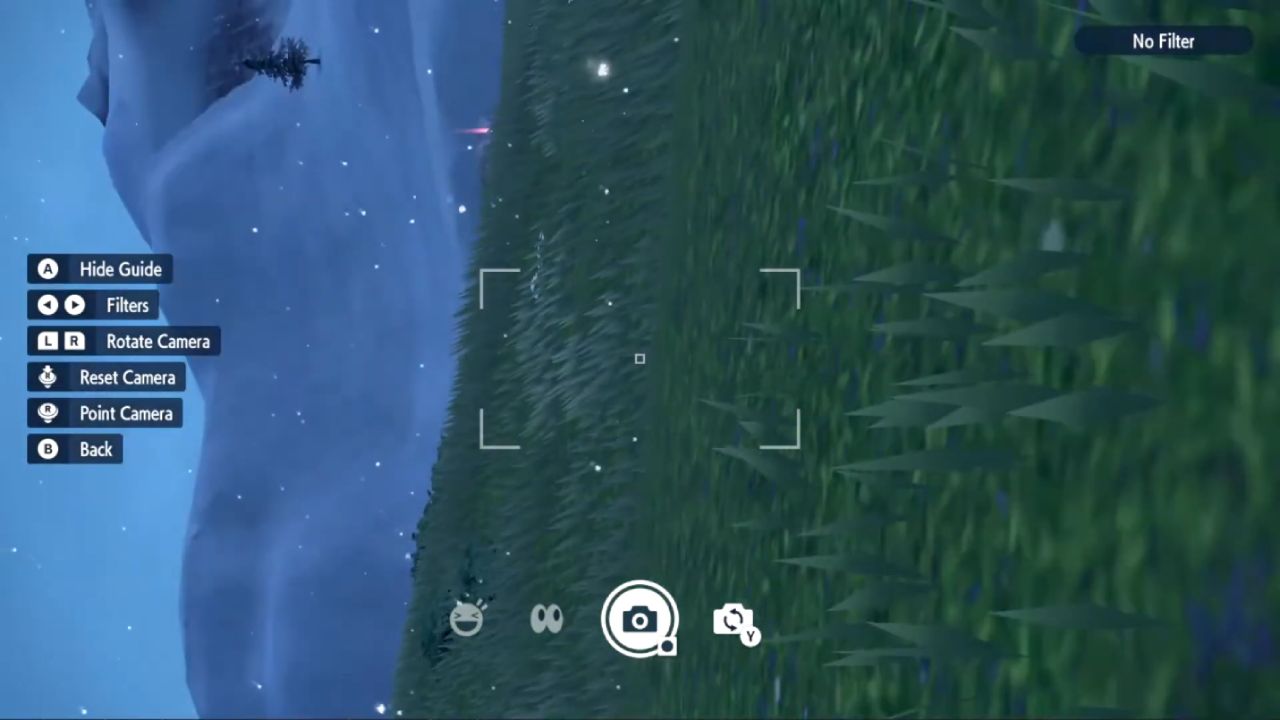
There is no real zoom option here, so framing matters more. You can still adjust how the camera behaves using the available tools. One option resets the camera, which simply centers it back to a default position. Another option lets you move the camera more freely, so you can angle the view and rotate it to the side for better composition.
Take A Selfie And Use Emotes
If you want a selfie, press Y to switch into selfie mode. From there, you can use emotes and different poses. Some emotes also make your character face the camera, which helps produce clearer character shots.
Also, check our other guides below:
- Pokémon Scarlet and Violet Guide | How to Get Shiny Cinderace
- Pokémon Scarlet and Violet Guide | How to Get A Shiny Charizard
- Pokémon Scarlet and Violet Guide | How to Get Shiny Charmander
- Pokémon Scarlet and Violet Guide | How to Get Shiny Decidueye
- Pokémon Scarlet and Violet Guide | How to Max IVs With Bottle Caps
- Pokémon Scarlet and Violet Guide | How to Get Frigibax Early
- Pokémon Scarlet & Violet Guide | How to Find and Catch Ditto
- Pokémon Scarlet and Violet Guide | How to Farm Shiny Pokémon
- Pokémon Scarlet and Violet Guide | How to Change Nature
- Pokémon Scarlet and Violet Guide | How to Catch Rotom and Unlock Every Rotom Form
- Pokémon Scarlet and Violet Guide | All Blue Stakes and Shrine Locations
- Pokémon Scarlet and Violet Guide | How to Get 8 Eggs in 10 Minutes
- Pokémon Scarlet and Violet Guide | All Orange Stakes and Shrine Locations
- Pokémon Scarlet and Violet Guide | How to Find Charcadet Early and Evolve into Armarouge
- Pokémon Scarlet and Violet Guide | All Purple Stakes and Firescourge Shrine Locations
- Pokémon Scarlet and Violet Guide | Where to Find Pawmi and Evolve It into Pawmot
- Pokémon Scarlet and Violet Guide | Where to Find Wiglett and Evolve It into Wugtrio
- Pokémon Scarlet and Violet Guide | All Yellow Stakes and Groundblight Shrine Locations
- Pokémon Scarlet and Violet Guide | How to Order Secret Menu Item in Medali Gym Test
- Pokémon Scarlet And Violet Guide | How to Find Applin and Evolve into Flapple or Appletun
- Pokémon Scarlet and Violet Guide | Where to Find Bramblin and Evolve Into Brambleghast
- Pokémon Scarlet And Violet Guide | How to Find Sunkern and Evolve Into Sunflora
- Pokémon Scarlet and Violet Guide | Where to Find Greavard and Evolve into Houndstone
Editor, NoobFeed
Latest Articles
No Data.