
Ryzen 9 X3D Gaming Fix Improves FPS and Reduces Inter-CCD Latency
Dual CCD communication delays reduce gaming performance consistency on Ryzen 9 X3D processors during CPU-heavy workloads.
Hardware by Nahe Yan on May 14, 2026
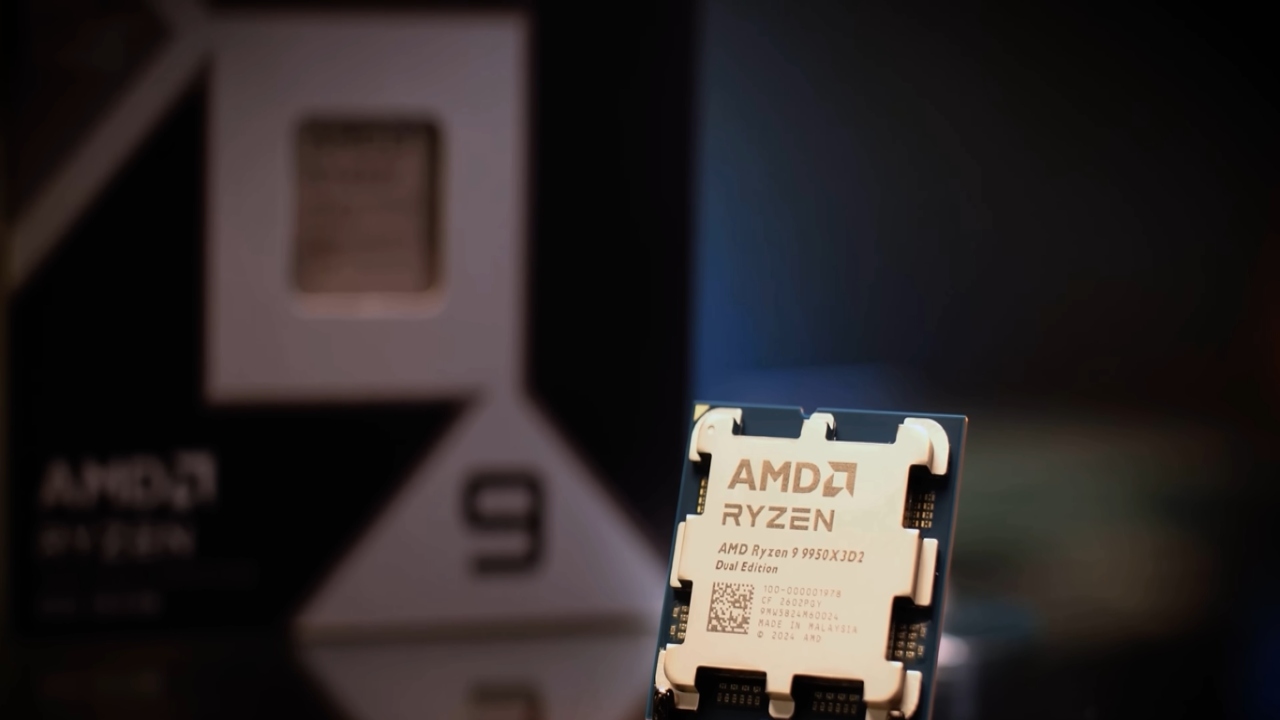
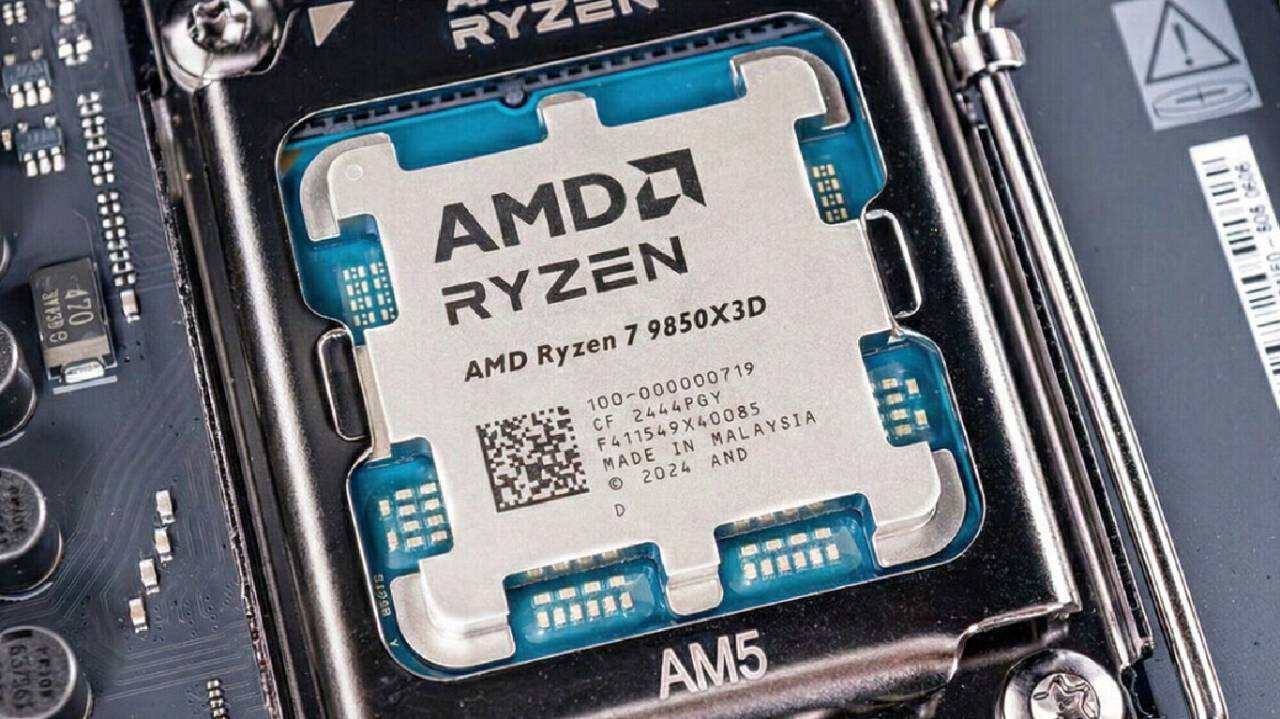
Transitioning to another Ryzen processor, such as the 9950X3D, makes the Ryzen 7 9850X3D one of the best gaming CPUs 2026 offers. While the architectures and clock speeds are the same, the higher-end Ryzen 9 models can sometimes deliver lower gaming performance. The answer is inter-CCD latency.
Ryzen 9 processors divide workloads across two separate CCDs. One CCD is always talking to the other, and that talking causes a lapse of time. With gaming workloads, even a slight lag can drop the frame rate and cause "micro stutters. To alleviate that problem and enhance gaming performance on dual CCD Ryzen X3D processors, there are two main approaches.
Install Core Parking AMD Chipset Drivers
The first way is to install the AMD Chipset driver. People migrating from Intel can expect all Windows drivers to be available, but AMD users must install their chipset drivers. The chipset driver supports core parking for processors with Ryzen X3D branding. The Core parking eliminates cross-CCD latency while playing games.
For gaming, Ryzen 5 and Ryzen 7 processors with a single CCD do not necessarily require it, but AMD does recommend installing the drivers for system stability. The drivers are to be installed from AMD's official website. Look for your actual CPU model and download the drivers from the Drivers and Downloads section.
Download the latest Auto Detect and Install package for the version of Windows in use. Adrenalin and Ryzen Master aren't needed to do this. Once downloaded, execute the program and ensure that all installation boxes are ticked. Proceed with installation, and then restart the PC.
If a CPU upgrade was recently performed, outdated CPU Set Drivers should not be installed. Before installing new drivers, use AMD's Cleanup Utility to delete old drivers. Updating drivers with older chipset packages may cause compatibility issues and system instability.
While the chipset driver solution works well with AMD, it isn't always flawless. Even background tasks or sub-optimal games may not take core parking into account, which could result in reintroduction of micro stutters and frame pacing. To set the manual core control via Process Lasso, proceed with the following steps to configure the process:
Second Technique is to Use Process Lasso
With Process Lasso, we can assign applications to particular CPU cores and control the distribution of workloads on the processor. Process Lasso can map games directly to the X3D CCD and move background applications onto the non-X3D CCD with Ryzen X3D processors. This way, background processes won't affect game performance.
Set CPU affinity: open Process Lasso, then select the All Processes tab. Open CPU Affinity, click All Background Applications, then select CCD1. It brings applications such as Chrome, Discord, and Steam, along with other background processes, to the non-X3D cores.
Once the background tasks are set up, start the desired game. After the game is in the Active Processes tab, right-click it, select CPU Affinity, and set it to CCD0. This means the game will remain on the X3D cores and will not offload the CCDs during gameplay.
May need further adaptations for some games. Some applications, such as the EA F1 series, might require related launcher applications and services to be added to the cache CCD before their performance improvements are evident. When CPU affinity settings are reviewed and frame rates are lower than desired, it may be necessary to revisit and fine-tune them.
Automatically start Process Lasso
Process Lasso can run silently in the background, eliminating the manual configuration required after each boot. In the Process Lasso window, click Options, then General and Configure Startup. From the Management Console Startup, select “Do Not Start at Login.” This will prevent the interface window from coming up when the system starts.
Then, under Core Engine Startup, click “Start Core Engine at System Boot”. This ensures that affinity management and core assignments are active whenever the PC starts up.
Gaming Benchmark Results
The AMD chipset drivers were benchmarked against Process Lasso with the same hardware configuration. The test machine is powered by an undervolted 9950X3D, 48GB DDR5-8000 CL36 memory, and an overclocked RTX 5080.
With Process Lasso, Counter-Strike 2 at 1080p and low settings ran faster and with a higher average FPS. The most money was made in 1% lows, which went up by 24.8%. It was a huge improvement that helped get rid of delays and make frames more consistent.
With Forza Horizon 5 running at maximum settings, the results were almost identical, as both methods relied heavily on the RTX 5080, which became the new limiting factor. Switching to 1080p, however, had a significant impact on the results.
Process Lasso recorded a 10% low improvement at 1080p, and an average FPS increase of more than 18%. The gains revealed that Windows still isn't as good as assigning cores via Process Lasso when using dual CCD Ryzen CPUs.
There are two options: AMD chipset drivers and Process Lasso.
Most Ryzen X3D users can use AMD chipset drivers for a stable and simple solution. They automatically manage core parking and provide a setup experience with little need for additional adjustments.
Process Lasso offers more direct control and can improve gaming performance, particularly in competitive games where frame rate and consistency are more important. With this software, we can assign CPU affinity on a per-process basis and completely separate gaming workloads from background processes.
Uses CPU affinity controls even in the free version, so it shouldn't be a concern for gaming optimization. The only restriction is the 'Start up' reminder message displayed on the screen at startup. If you're experiencing microstutters or poor gaming performance with the Ryzen X3D, tweaking the CCD behavior using chipset drivers or Process Lasso will yield better results than some hardware fixes.
Editor, NoobFeed
Gaming Hardware Updates
No Data.