
Best Steam Machine Settings for Resolution, Storage and Performance
Steam Machine settings and features that can improve display output, storage access, screenshots, and per-game performance controls.
Hardware by Nahe Yan on Sep 07, 2026
A Steam Machine comes with a range of settings and features that can change how games and the system behave. Some options are worth changing when you first set up the system, while others make it easier to manage screenshots, game storage, performance settings, and display features.
If you haven't already, the first change you should make is the Steam Machine resolution, because when you first boot it up, it's set to 1080p. If you've got the Steam Controller, press the Steam button; if you've got something like an 8BitDo controller, press the home button. That can make everything look very small, so we can scale it automatically.
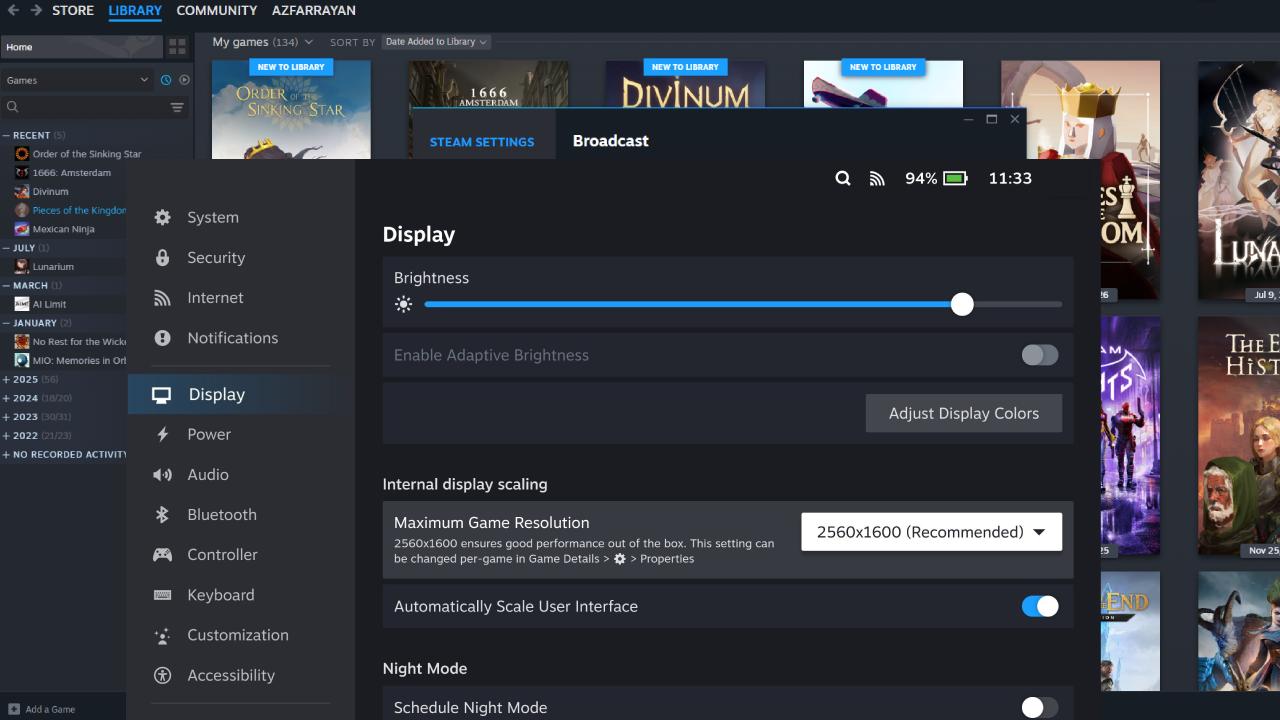
Change the Steam Machine Resolution
When it comes to game resolution, we're not really going to get any 4K games. So we'd bump that down to 1440p. That's one setting to sort out when you first start up your Steam Machine. Next is HDMI CEC, which is available on the Steam Machine. With the Steam Controller, you can turn up the TV volume. Hold the Steam button and flick the left analog stick up or down to change the volume.
You'll hear a camera shutter sound, and then you'll get a notification in the bottom-right corner saying the screenshot has been taken. To find the image, press the Steam button again, then go down to Media. The images will be there. To send them to a device, tap Select. In the bottom-right corner, it will say Share.
You can share it on Steam, copy it to the clipboard, save the image, or send it to your phone through the Steam mobile app and download it there. This does work with other third-party controllers. If you want to take a screenshot on something like the 8BitDo controller, press the button at about the 7:00 position on the controller. We can take the screenshot from there.
The final tip comes from the Steam Deck as well: per-game profiles.
If you have a Steam Deck or another handheld running SteamOS and games on a microSD card, you can hot-swap the card between devices. For example, we had a 512GB card in a Steam Deck and slid that straight into the front of the Steam Machine I/O. It worked straight away. It took a few seconds, but we were playing games from there in no time.
You press the three-dot button and go down to the little lightning bolt. This is where you can enable different settings. If you want a performance overlay to see your FPS, you can turn that on. We can see that the system is currently running at 1440p and achieving 100 FPS.
Once you do that, you can use a per-game profile. This way, every time you boot up Cyberpunk, the Steam Machine will remember to use these settings. We can lower the frame rate to 100fps so it won't go any higher. It can turn off HDR or enable VRR for the game. You can also change how sharp you want the games to look, and the Steam Machine will remember that setting.
Editor, NoobFeed
Gaming Hardware Updates
No Data.