
Xbox Ally X Ray Tracing Performance Guide with 20W Power Mode
Radeon Image Sharpening enhances 720p resolution to near native1080p visual output.
Hardware by Nahe Yan on Mar 03, 2026
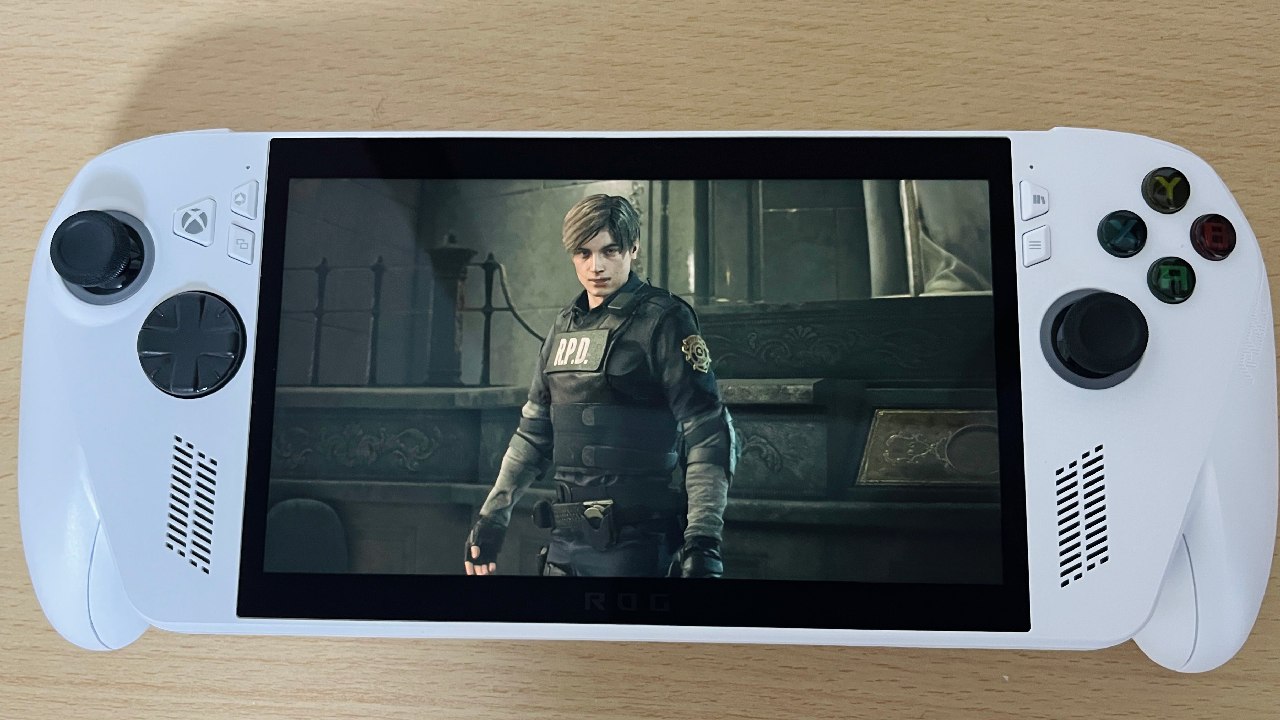
Resident Evil Recreum runs smoothly on the Xbox One X. The settings below are designed to improve performance and picture quality for both handheld and docked play.
To change the AMD settings, we must go back to the desktop. Use a shortcut or search for AMD Software to open it. Once you're in, click on Gaming and then choose Resident Evil Recreum.
.jpg)
Scroll down and turn on RAIS (Radeon Image Sharpening). Keep the default slider at 80%. There is no need to make any more modifications here.
In Armory Crate, set VRAM
Open the Armory Crate, then proceed to the Performance and GPU options next. Set VRAM to 8-10 GB. We test with 10GB. After changing the VRAM, restart the computer, then return to the full-screen Xbox experience.
Settings for Graphics in the Game
Start the game, then go to Options and Graphics. Turn off VSYNC in the Display settings. Set the resolution to 720p under the Image tab. When AMD RAIS is turned on, 720p looks almost like 1080p. Set the frame rate to "Variable." You don't have to use motion blur. We like it off.
Ray tracing can run on Normal with 10 GB VRAM. Expect about 30 fps outside and about 40 fps inside. To improve Performance, switch off ray tracing. Turn off Hair Strands. Change the graphics preset to Custom, then adjust the Advanced Settings. Make a 20W manual power profile.
Open the Armory Crate and click on Performance. Then click on Operating Mode. Choose Manual mode. Set the sliders to 20W, 23W, and 28W. Rename the profile to 20W and save it. After you make it, the available profiles are Silent13W, Performance17W, Turbo25W, and Manual20W. Turn off CPU Boost. We use 20W because it offers the best balance between battery life and Performance compared to 17W and 25W settings.
Handheld Performance at 20W
When ray tracing is turned off at 720p, the frame rate in tough outdoor locations stays between 55 and 60 fps. At 20W, GPU use stays around 94%.
In less demanding parts, the frame rate ranges from 70 to 75 fps. The typical frame rate for indoor settings is 70 to 80 fps, with some dips into the upper 60s. Later parts of the game maintain 63-70 fps, depending on the scene's complexity.
When you switch to Turbo25W, the power draw increases to 25W, yet the frame rates remain almost the same. We suggest 20W for portable play because of this.
Settings for Docked Mode
For docked play, retain the same graphical settings and enable ray tracing at either Normal or Low. Set the upscaling to the highest level. When hooked into a 100W charger, the system can boost to 35W.
In hard beginning areas, the Performance stays above 30 fps. If you don't have a VRR display and the panel only supports 60Hz, enable VSYNC to prevent screen tearing.
With ray tracing, docked Performance inside is about 50 fps. Turning off ray tracing and switching upscaling back to Performance makes frame rates even higher. All testing was done without frame generation; turning it on provides even greater improvements.
Final Thoughts
For portable use, we suggest using the 20W manual mode, 720p resolution, Performance upscaling, and Radeon Image Sharpening at 80%. You can turn on ray tracing for a 30 fps experience or off for faster frame rates.
For use while docked, turn on ray tracing with Ultra Performance upscaling and make sure there is enough power to reach higher TDP levels. These settings keep the Xbox Ally X's frame rates steady while keeping the picture clear.
Also, check our other hardware articles:
- AMD Ryzen 9 9950X3D Review: Setting The Standard For 2025 Gaming CPU
- Amazon Luna 2025 Review: Is Prime Gaming's Cloud Service Your Go-To For Casual Fun?
- AMD RX 9070 XT Review: AMD's RDNA 4 Champion for 1440p Gaming
- GeForce Now Ultimate: Ditching Your Gaming PC For Cloud RTX 4080 Power?
- NVIDIA GeForce RTX 5080 Review (2025): Still A 4K Gaming Powerhouse?
- Intel Core Ultra 9 285K Review And Performance Breakdown (2025)
- AMD Ryzen 7 9800X3D Review: 3D V-Cache Goes God Mode with Stunning Gaming Performance
- Intel Core Ultra 9 285K vs AMD Ryzen 7 9800X3D: In-Depth Gaming Performance and Benchmark Comparison
- NVIDIA GeForce RTX 5080 Super Performance In Cyberpunk 2077: Path Tracing & DLSS 4.0 Tested
- AMD Radeon RX 9070 XT In Cyberpunk 2077: Ray Tracing & FSR 4.0 Tested
- Intel Arc B580 Review: The $250 GPU Revolutionizing 1440p Gaming
- Intel Arc B570 Vs. B580: Value, Specs, And Real-World Gaming Performance
- RTX 5090 Laptop Vs. M4 Max MacBook Pro: Ultimate Raw Performance Vs. Battery Endurance
- Intel Arc b580 Vs. RTX 4060: Game Performance And Value Analysis
- RTX5090 Hell Is Us Demo 4K Ultra Benchmark: DLSS Vs. Native Performance Guide
- NVIDIA RTX 5070 Review: Mid-Range Muscle or Marketing Hype?
- Nintendo Switch 2 Review: Handheld Performance, Features & Value Breakdown
- RTX 5070 Ti Review: Performance, Thermals & Power Efficiency Tested
- Samsung Odyssey OLED G81SF Review 2025: Ultimate 32-Inch QD-OLED Gaming Monitor
- AMD RX 9070 Performance Review: Thermals, Clocks, and Real-World FPS
- AMD Ryzen 5 7600 Review: Best Budget Gaming CPU of 2025?
- AMD Radeon RX 7800 XT Review: RDNA 3 Power For Midrange Gaming
- Asus ROG RTX 5090 Astral OC Vs. Founders Edition: The 4K Gaming Benchmark
Editor, NoobFeed
Gaming Hardware Updates
No Data.