
DLSS 4 Balanced vs. Performance: Striking the Perfect FPS and Image Quality Balance
Comparing DLSS 4 Quality, Balanced, and Performance presets to reveal their impact on texture fidelity and frame rates
Hardware by Tanvir Kabbo on Jul 09, 2025
Ever since NVIDIA introduced DLSS 4, the debate over which preset—Quality, Balanced, or Performance—offers the best visual experience has intensified. With improvements in reconstruction algorithms, even lower presets can now rival the sharpness and stability once reserved for the highest setting.
We've tested all three modes at 4K, 1440p, and 1080p on a GeForce RTX 5090, locked at 60fps, with motion blur and chromatic aberration disabled, and sharpening held constant.
I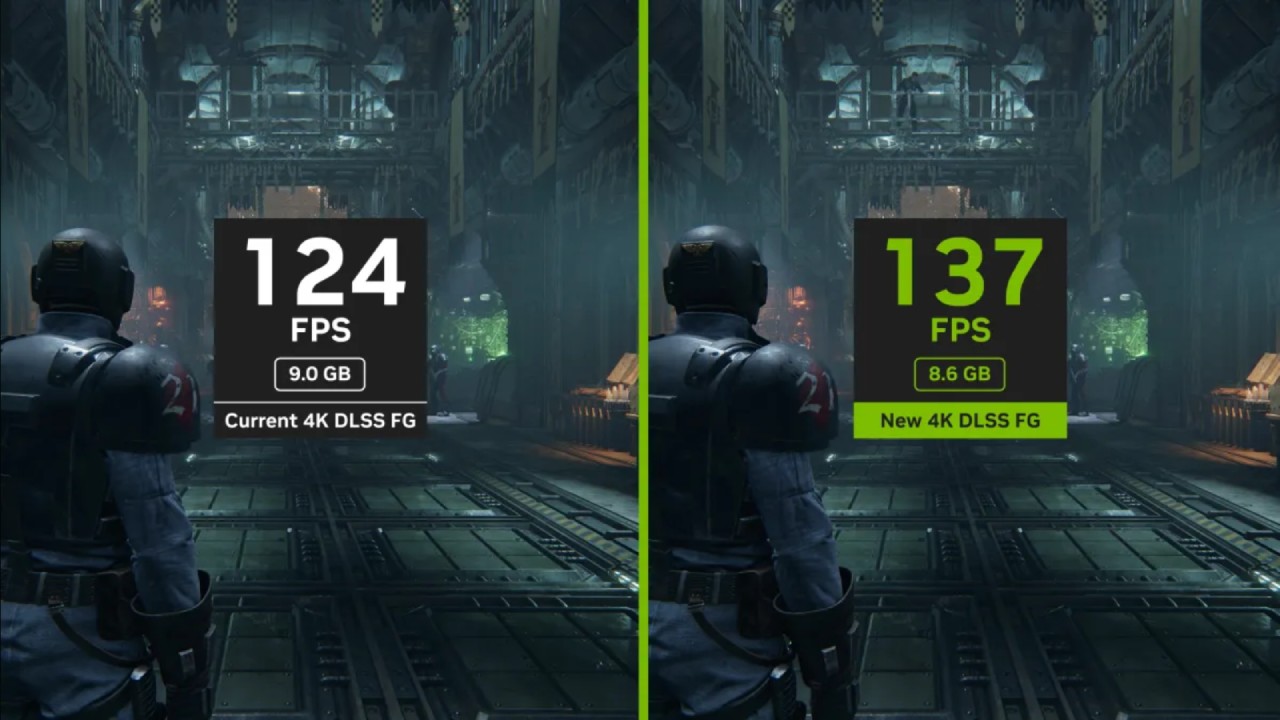
Understanding the trade-offs between wanting more frames and choosing faultless visuals will help you select the optimal DLSS 4 option for your gaming needs.
Texture Quality
One of the most notable improvements in DLSS 4 is its ability to eliminate TAA blur while maintaining complete texture detail across all presets. When you switch from Quality to Performance at 4K, you won't see the bloom of blur that plagued earlier versions.
Even at 1440p and 1080p, the graininess introduced in motion is minimal. We found that Performance and Balanced modes reconstruct textures so effectively that you'd be hard‑pressed to spot a difference in static scenes.
If you've avoided lower DLSS modes due to blur concerns, DLSS 4 invites you to reconsider—especially at higher resolutions where texture fidelity remains nearly identical.
Image Stability
Image stability under fast motion has also seen significant improvements. At 4K, Performance mode holds up remarkably well, with only occasional shimmering of pixel‑level details like wires and fine lines.
Even when driving vehicles or during rapid camera pans, you'll rarely notice a downgrade from Quality. At 1440p and 1080p, fine elements may show more aliasing and sizzling in Performance mode, but overall stability remains impressive.
Unless you're hyper‑sensitive to every frame, lower presets remain highly usable, even at 1080p, provided the scene lacks extreme contrast or ultra‑fine geometry.
Disocclusion Artifacts
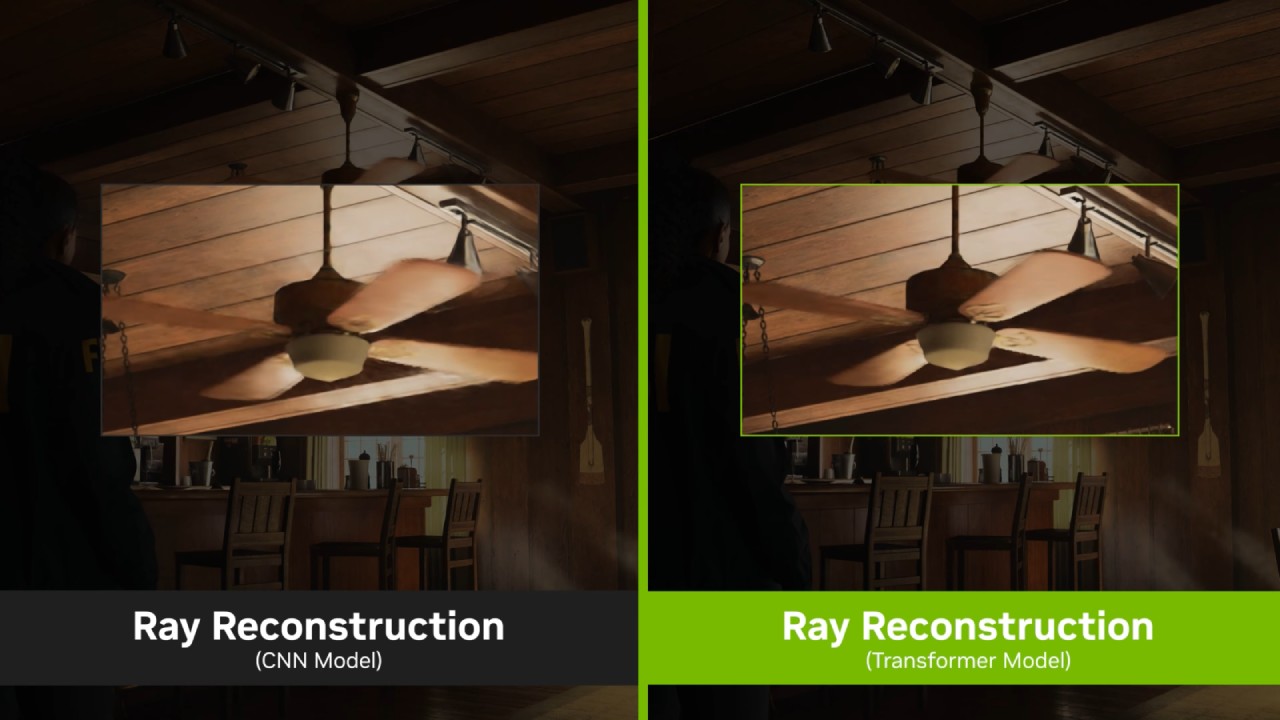
The moment new background areas become visible—remains the area most affected by lower presets. In Performance mode, you'll notice longer blur trails and pixelation around moving objects, such as character limbs or swinging weapons.
Balanced eases this somewhat, but Quality still leads to minimizing these artifacts. The impact gets more evident at 1080p, but it is still acceptable at 4K.
In games with a lot of third-person action or a lot of greenery, you might decide to stick with higher defaults, depending on the game's graphic style and your grain tolerance.
Hair Quality
Even in Performance mode, DLSS 4's ability to rebuild tiny features is demonstrated in hair rendering tests. At 4K, we saw virtually no difference moving from Quality to Performance, aside from the finest strands in close‑up character editors.
During actual gameplay, hair looks stable and retains its natural flow across all presets. At lower resolutions, you may spot some grain in Performance mode during rapid movement, but Balanced offers nearly the same fidelity as Quality.
Unless your game features voluminous, exposed hairstyles, you can comfortably use lower presets without sacrificing immersion.
Particle Quality
Particles—whether rain, snow, or dynamic effects—survive downscaling impressively in DLSS 4. Even at 4K Performance mode, raindrops and smoke remain sharply defined. Lower resolutions introduce disc occlusion grain behind effects like snow or spores, but only Performance mode shows a significant drop in clarity.
In practice, you'll find that Balanced and Quality preserve particle detail so well that you can crank up performance without missing the visual drama of weather or magical effects.
Transparency and Fine Patterns
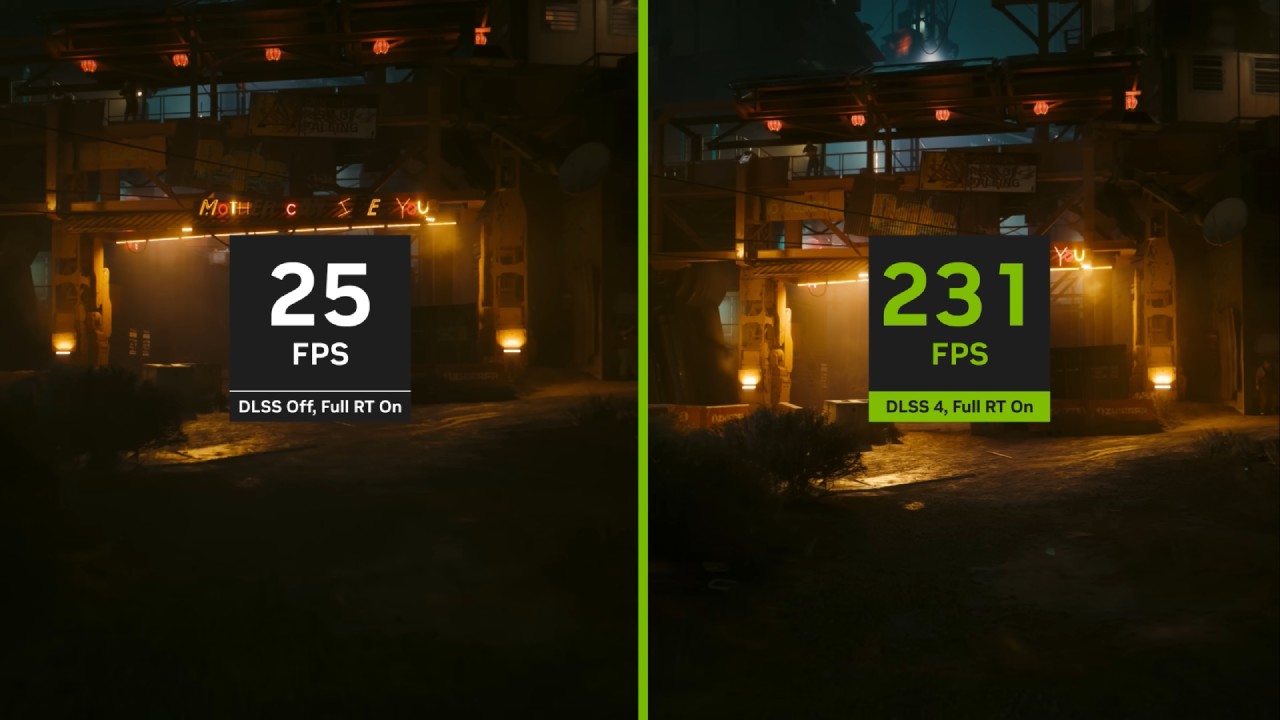
Fine transparent elements, such as holograms or patterned surfaces, suffer more when you drop presets. At 1080p Performance mode, you'll notice pixelation in rotating holographic interfaces or delicate mesh patterns. Stationary transparencies fare better, but motion reveals the limitations of aggressive upscaling.
Fire effects and volumetric smoke remain largely unaffected even in Performance mode at 4K, so not every transparency issue should steer you away from lower presets. Gauge each game's worst offenders before deciding how low to set the limit.
Foliage and Grass
Grass and foliage represent the biggest challenge for lower DLSS 4 modes. At 4K Performance mode, the grass appears grainier and more pixelated when wind and character movement are combined.
At 1080p, even Quality mode can show grain, with Performance amplifying the effect across high‑density grass fields. Trees, branches, and leaves fare much better, with only the thinnest branches showing aliasing in lower presets.
If you play titles with sweeping grassy plains or dense underbrush, you'll likely prefer Quality or Balanced, especially below 4K.
Mesh and Fences
Fine-mesh objects—such as wire fences, stair railings, or patterned cloth—reveal aliasing and shimmer in Performance mode, particularly at 1080p. In Quality mode, these elements maintain a crisp, higher‑resolution look. Balanced often provides a solid middle ground, reducing aliasing without the full performance hit of Quality.
When rapid disc occlusion occurs, such as overlapping wire fences in action games, Quality preserves pattern integrity, but you may accept slight grain in exchange for higher frame rates.
Stationary Performance
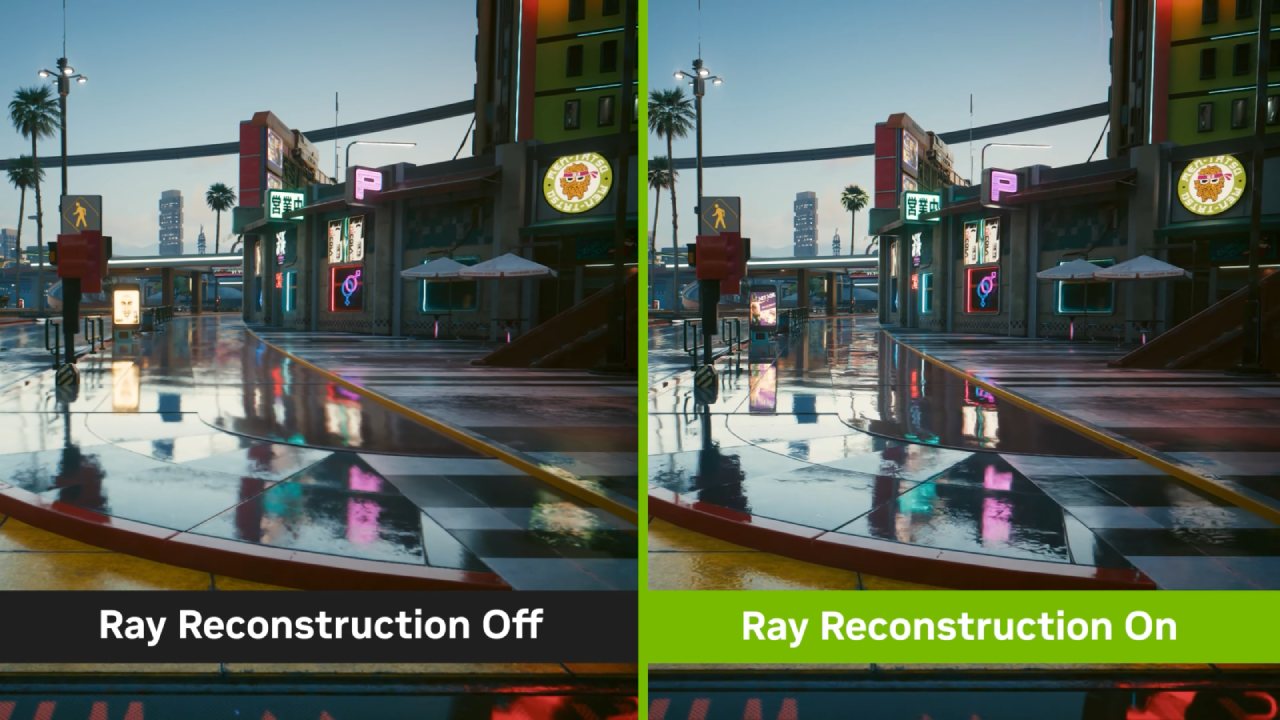
When you stand still, all DLSS 4 presets accumulate data over multiple frames to deliver near-native clarity. Performance mode becomes just as sharp as Quality or native rendering for screenshots.
However, motion is how you experience games, so evaluate presets under dynamic conditions before settling on your preference.
If the game lacks detailed environmental elements, feel free to switch to Performance mode for its speed boosts without compromising visual quality.
Value Proposition
The Balanced and Performance modes of DLSS 4 offer notably improved texture integrity and stability compared to its predecessors, often falling within a hair's breadth of quality.
Although your mileage may differ by title, our basic guidelines are to use Performance or Balanced at 4K, Quality or Balanced at 1440p, and Quality at 1080p. Each DLSS 4 step-down typically nets a 10–20% performance boost at higher resolutions, so dial in the highest preset that still yields frame-rate gains.
If you hit a point where switching from Quality to Balanced yields no benefit, you're likely CPU‑limited—at that point, lock in the highest preset you can. Ultimately, you and we will choose presets based on the balance of FPS and image quality that best suits each game's demands.
Check Our Other NVIDIA Articles:
- GeForce RTX 5090 Unleashed: Is NVIDIA's New Flagship the Ultimate 4K Gaming GPU?
- NVIDIA GeForce RTX 5080 Review (2025): Still A 4K Gaming Powerhouse?
- NVIDIA GeForce RTX 5080 Super Performance In Cyberpunk 2077: Path Tracing & DLSS 4.0 Tested
- RTX 5090 Performance Testing In GTA 5 – 1080p, 1440p, and 4K Max Settings Benchmark
- RTX 5090 Laptop Vs. M4 Max MacBook Pro: Ultimate Raw Performance Vs. Battery Endurance
- NVIDIA RTX 5070 Review: Mid-Range Muscle or Marketing Hype?
- RTX 5070 Ti Review: Performance, Thermals & Power Efficiency Tested
- Asus ROG RTX 5090 Astral OC Vs. Founders Edition: The 4K Gaming Benchmark
- ASUS ROG Astral RTX 5090 OC Edition Review: 32GB GDDR7 & 4K Gaming Benchmark
- ASUS GeForce RTX 5090 LC Liquid Cooled GPU Review: Unmatched Silence & Speed
- MSI GeForce RTX 5090 32GB SUPRIM SOC Review: Power Efficiency, Cooling, and Gaming Performance
- NVIDIA GeForce RTX 5050 Review: Specs, Gaming, and Pricing Versus Rivals
Senior Editor, NoobFeed
Gaming Hardware Updates
No Data.