
NVIDIA GeForce Now on Steam Deck: Battery Life, Gameplay, Streaming
Guides through native GeForce Now installation on Steam Deck for seamless, high‑quality cloud gaming across multiple devices
Hardware by Tanvir Kabbo on Jul 08, 2025
Cloud gaming has evolved rapidly over the past few years, offering gamers the opportunity to play high‑end titles without investing in expensive hardware. Nvidia's GeForce Now service lets you tap into powerful GPU rigs hosted in data centers, streaming your game library over the internet to a variety of devices.
With the recent release of a native application for the Steam Deck, the experience has never been more seamless. We will explore both the limitations and advantages of GeForce Now on the Steam Deck, guiding you through setup, performance considerations, and practical tips to maximize the service's benefits.
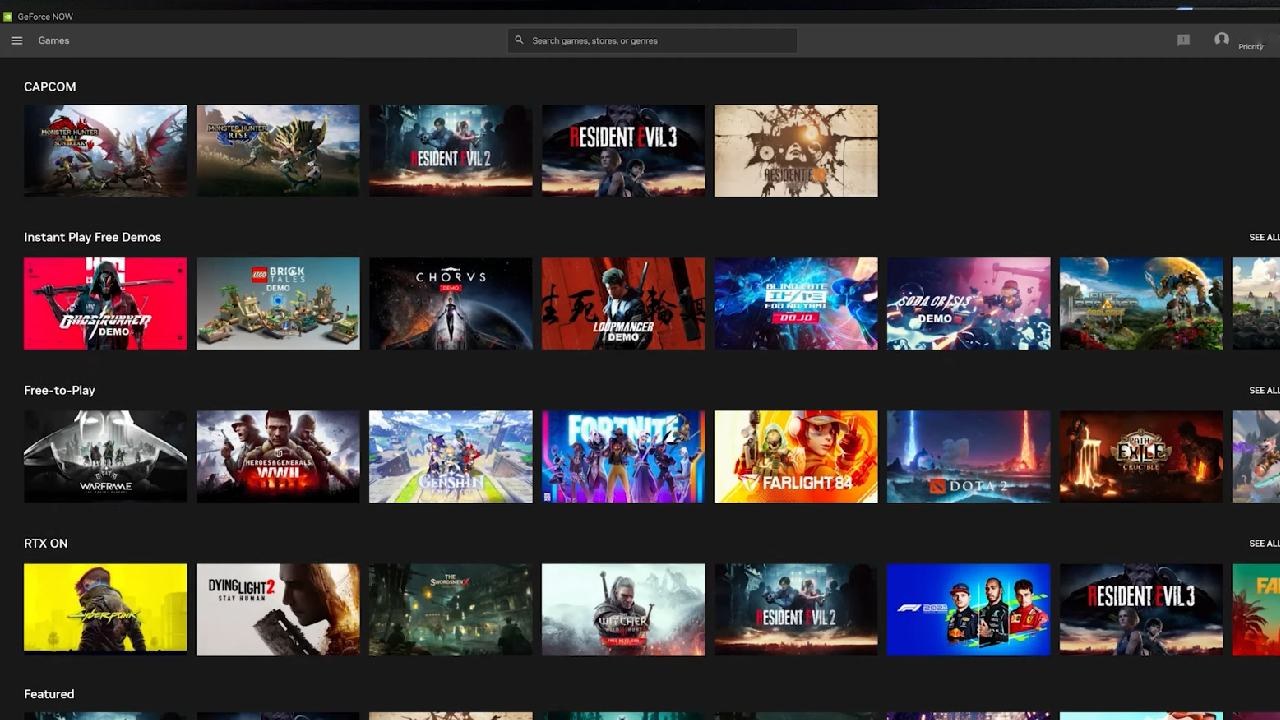
What is GeForce Now?
Nvidia GeForce Now is a cloud-based gaming platform that allows you to rent GPU-powered virtual machines to run your games. Rather than relying on your local hardware, you stream gameplay from Nvidia's servers to your device, be it a smartphone, tablet, laptop, or now the Steam Deck. You maintain ownership of your games—you simply need to link your digital stores (such as Steam or Xbox Game Pass) to the service.
GeForce Now supports both free and paid tiers, offering various levels of performance that range from standard rigs with ads and session limits to high-end RTX 4080-class machines delivering ray-tracing and DLSS features.
Cloud gaming inherently brings some trade‑offs. Internet connectivity, latency, and server availability all play a role in your experience. However, the benefits—instant access to titles without lengthy downloads, high fidelity graphics even on modest devices, and extended battery life—make it an attractive option for many. Below, we delve into the downsides first, then highlight why we believe GeForce Now on the Steam Deck is a compelling addition to your gaming toolkit.
Shortcomings of GeForce Now
The foremost limitation of any cloud‑streaming service is its dependency on your internet connection. You must be online to play; there is no offline mode. Latency and bandwidth fluctuations can introduce stutters or input lag, and your proximity to Nvidia's data centres significantly affects ping. In regions far from server hubs, you may experience 60 ms or more of latency, which can be noticeable in fast‑paced or competitive titles.
Another restriction is library availability. Although GeForce Now supports over 2,200 games, you might find that some of your favourite Steam or other storefront titles are not included due to licensing. For instance, certain publisher‑exclusive or recently released games require a paid subscription even if they are on the supported list. Expect around 30%–40% of your Steam library to be accessible, depending on titles and region.
Session limits vary by tier. The free tier caps play sessions at 1 hour and includes ads, while the Performance and Ultimate tiers offer longer sessions—up to 8 hours—along with higher‑end hardware like RTX 4080 and features such as ray‑tracing and HDR. Paid subscriptions also enforce monthly hour limits (e.g., 100 hours rolling) and can queue you behind other users during peak times, although wait times are generally shorter than on the free tier.
On the Steam Deck specifically, the native app currently streams at a maximum of 60 fps, even if your display supports 90 Hz or higher. Nvidia has indicated that 90Hz support is under testing but is not yet widely available. Finally, if you have extensive libraries on other stores like Epic Games or GOG, those titles are seldom supported. So you'll want robust Steam and Game Pass libraries to maximise value.
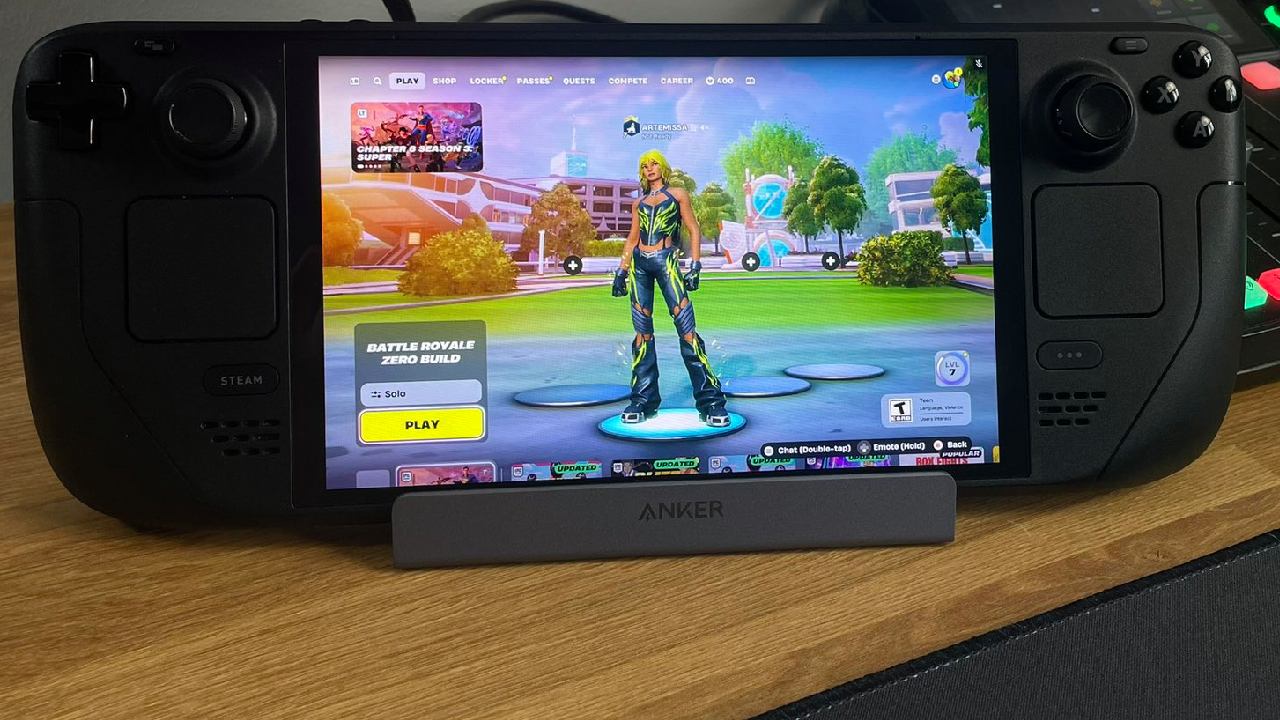
Setting Up the Native App
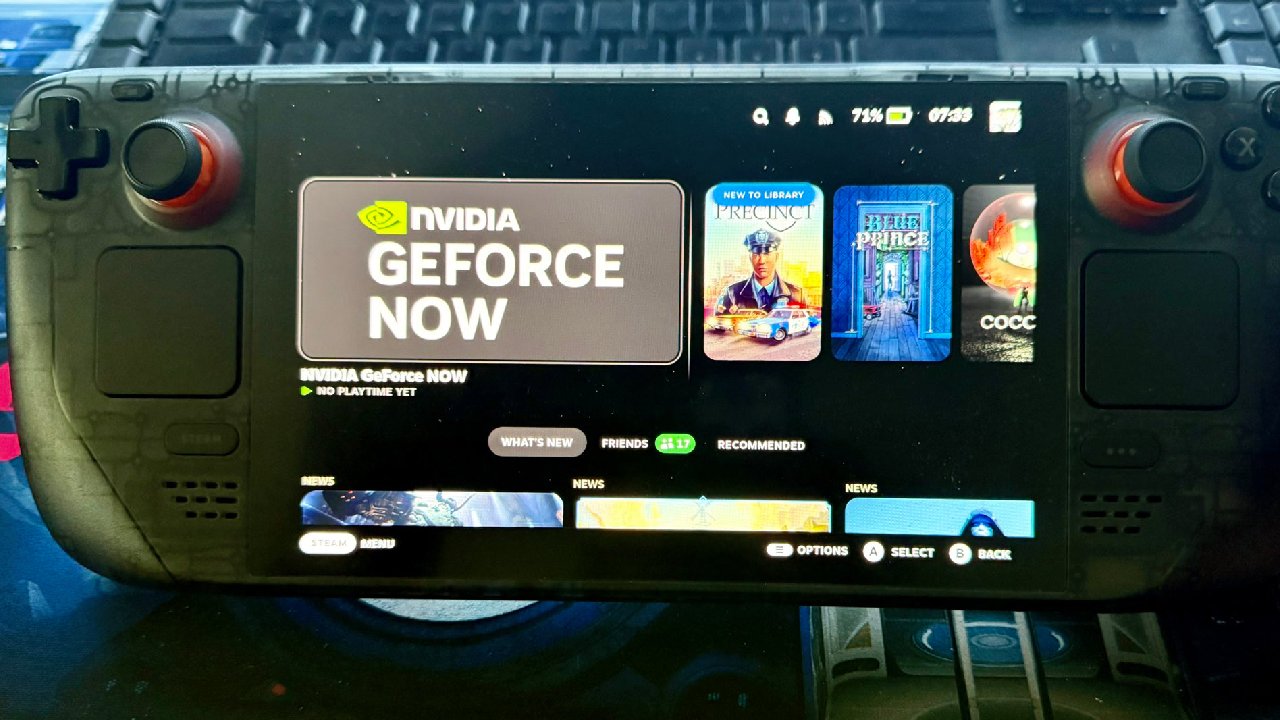
Installing the native GeForce Now app on the Steam Deck is straightforward. Holding down the power button while choosing "Desktop" will switch to desktop mode. Open your browser and navigate to the GeForce Now download page. You will see a Steam Deck section; click "Download" and run the installer from your Downloads folder. The app will automatically be added to your Steam library under 'Non-Steam Games'.
Return to Gaming Mode, where you can launch GeForce Now directly from your Steam Deck's home screen. If it's not visible, check your Library and filter for Non‑Steam titles under the letter N. Once launched, sign in with your Nvidia account. If you don't already have one, you can create it on the spot; you'll default to the free tier but can upgrade from within the app.
Before playing any games, link your digital libraries. In the GeForce Now app, navigate to Account Settings, where you'll find a QR code. Scan it with your phone and sign in to Steam, Xbox Game Pass, and any other supported services. After syncing, your available games will populate your Library, with recently played titles listed first, or you can browse All Games. Use the Filter icon to narrow by store, genre, or play status.
Quick Access to Games
One of the standout advantages of GeForce Now is its Instant-Play model. Instead of downloading a 110GB game over days, you simply click Play and launch within seconds. This low barrier to entry is ideal for trying new titles or replaying classics without managing disk space. We often find ourselves jumping straight into large AAA games like the Mass Effect trilogy without waiting hours for downloads.
Because you're streaming, there's no need to tweak graphics settings for compatibility; Nvidia's GPUs handle the heavy lifting, and the service defaults to optimal presets. Whether you're on the go with a Steam Deck or lounging with a tablet, you can resume your game from the very point you left off, thanks to synchronised cloud saves.
Better Performance Over the Cloud
Even high‑end handhelds face hardware limits. On the Steam Deck, Native Play may require reduced settings or bespoke community presets to maintain stable framerates. With GeForce Now, you can enjoy titles like Cyberpunk 2077 at ray‑tracing Ultra settings, guaranteed 60 fps, and HDR on paid tiers—visual fidelity far surpassing what the Deck achieves natively at 800p.
In our tests, playing Cyberpunk via GeForce Now delivered a rock‑solid 60 fps under ray‑tracing Ultra, whereas the Steam Deck's optimised preset fluctuated between 35–40 fps. Reflections, global illumination, and advanced effects shine on remote RTX 4080 hardware, making your handheld look and perform more like a desktop gaming rig.
Longer Battery Life
Streaming also offloads intense GPU and CPU work from the Steam Deck, significantly reducing power draw. Native play of Rise of the Tomb Raider at medium settings (800p) consumes around 22W, yielding roughly 2–2.5 hours of battery life while rendering at a variable 40–55 fps. Capping the framerate to 45 fps reduces power consumption to roughly 15W, extending playtime to 3–3.5 hours.
Conversely, streaming the same game through GeForce Now requires only 7–8W of draw, giving you between 6–8 hours on a single charge. We regularly use cloud streaming to stretch marathon sessions and save precious battery, all while enjoying maxed‑out graphics that would otherwise drain our Deck in record time.
Smooth Gameplay and Low Bandwidth Usage
On paid tiers, GeForce Now provides remarkably stable streaming, even over modest connections. We observed a bandwidth consumption of just 12 Mbps during intensive game streaming, leaving plenty of headroom for other home network tasks. Frame drop and packet loss are minimal, delivering a near-native feel for many single-player or lightly competitive games.
Latency remains subjective, though. In titles like Clair Obscure Expedition 33, some users report negligible input lag, while others perceive a slight delay. Your comfort threshold depends on your network and region, but we've found that non-Twitch genres—adventures, RPGs, or platformers—work exceptionally well. Fast-paced shooters may expose latency more, so trial days pass before committing to those genres.
.jpg)
Cloud Save Sync Across Devices
A standout feature of GeForce Now is seamless Cloud-save integration. Whether you play Doom: The Dark Ages on your Steam Deck, phone, or tablet, your progress follows instantly. We've switched between device types mid‑game without missing a beat—all achievements, checkpoints, and settings remain intact. You don't even need to own the game in every store; free‑to‑play and Game Pass titles sync flawlessly if linked.
This cross-device continuity transforms the way we game. Mornings spent on a commute can continue in the evening on a deck or desktop, preserving immersion. And because all game updates are installed on Nvidia's servers, you avoid lengthy patch waits at home—updates are ready by the time you log in.
Playing Hard‑to‑Run Titles and Anti‑Cheat Games
Many modern AAA games either struggle with the Steam Deck's hardware or conflict with Linux-based anti-cheat solutions. We tested Final Fantasy XVI and found its native performance to be poor, even after extensive tweaks. GeForce Now solves this entirely: you get native Windows compatibility, forced RTX support, and consistent 60fps gameplay without installing workarounds.
Similarly, titles like Destiny 2 that rely on anti‑cheat drivers run seamlessly via GeForce Now. We simply launch from the cloud, bypass local OS restrictions, and dive right into multiplayer without error screens or workarounds. This broadens the Deck's Library to include otherwise unsupported PC titles.
Automatic Game Updates
Managing patches and updates becomes a non‑issue when gaming on Nvidia's servers. Destiny 2, for example, frequently receives sizable updates—sometimes tens of gigabytes at a time. In our experience, logging into GeForce Now means those patches are already applied, allowing you to jump into matches immediately rather than waiting for days-long downloads.
This "always‑ready" aspect removes one more barrier to play. We no longer dread surprise updates preventing spontaneous gaming sessions; the cloud is always up to date. With auto‑approved updates on Nvidia's side, you click Play and instantly join your game—not queue up downloads.
Minor Annoyances
Despite its merits, a few quirks persist. When you launch games via GeForce Now, your Steam profile status displays "GeForce Now" rather than the actual title playing. Your friends see you online but won't know which game you're in until you finish, and your playtime aggregates later.
Occasionally, third‑party integrations require repeated logins. Ubisoft titles force you to enter your email address each session, even if you've linked your account. This friction feels paradoxical to cloud gaming's promise of fast access and disrupts the otherwise smooth flow.
Synopsis and Value Proposition
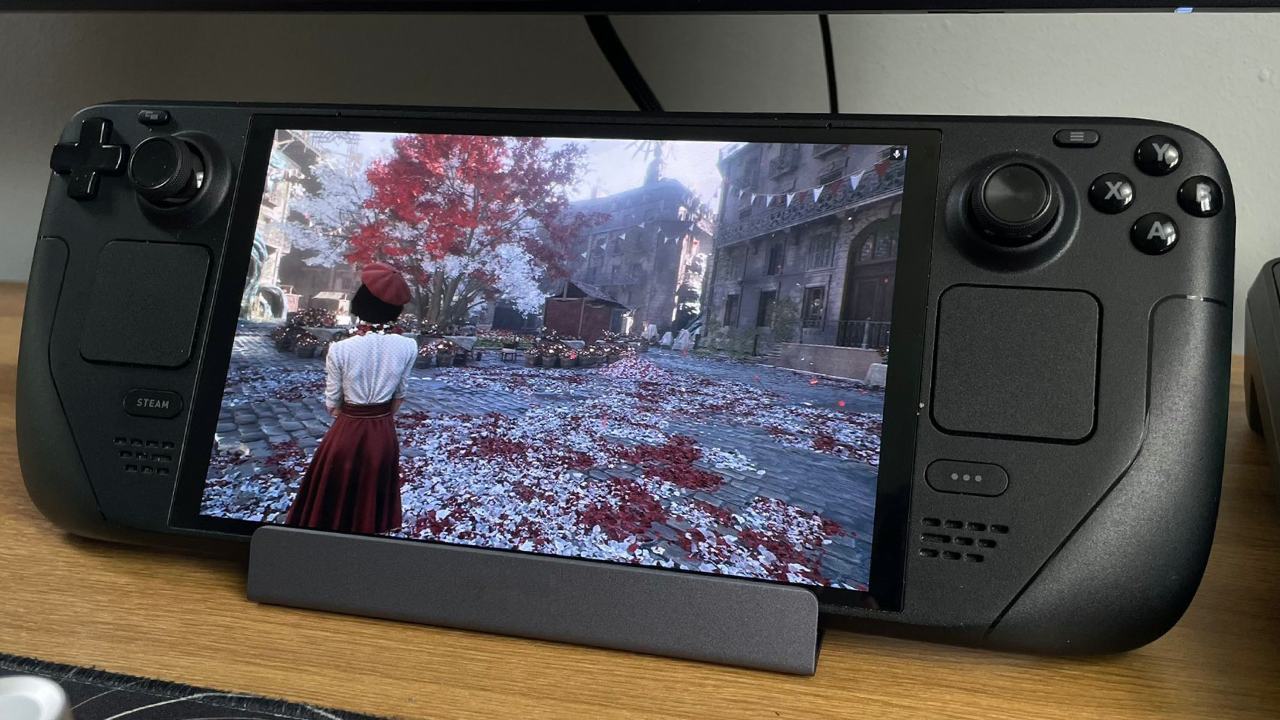
GeForce Now on the Steam Deck combines the power of distant GPU servers with the portability of mobile gaming. The benefits outweigh the drawbacks, which include session caps, library gaps, online-only play, and 60 fps streaming. Instant access to large titles, superior graphical fidelity, extended battery life, and cross‑device save sync redefine how we game on the go.
For those without a dedicated gaming PC, the Ultimate tier ($99/6 months) provides RTX 4080 access for a fraction of the hardware cost. Even the mid‑tier's Performance level delivers substantial upgrades over the Deck's native capabilities. We encourage you to experiment with day passes to assess your latency tolerance and network performance.
Ultimately, GeForce Now is not a wholesale replacement for local gaming, but a powerful supplement. We continue to install core titles directly on our Steam Deck; however, for demanding or anti-cheat-restricted games, cloud streaming is a revelation.
A sizable collection can be accessed, and excellent photos can be taken while maintaining battery life and convenience by striking a balance between local and cloud play. Whether you're at home or on the go, portable gaming has never had a greater future thanks to its abundance of possibilities.
Check our Other Handheld Articles :
- ASUS ROG Ally X Handheld Review: Double the Battery, Double the Comfort
- Nintendo Switch 2 Vs. Original Switch 1: A Full Comparison
- How To Connect A Camera And Join Voice Chat With Nintendo Switch 2
- Nintendo Switch 2 Review: Handheld Performance, Features & Value Breakdown
- ROG Xbox Ally X Vs. ROG Ally X: Display, Battery & Controls
- ASUS ROG Ally X vs. Steam Deck OLED: Display, Battery & Gaming Benchmarks
- MSI Claw 8 AI+ Review: Display, Controls & Gaming
- Nintendo Switch 2 vs. Steam Deck OLED: Gaming, Performance, Battery, Display and Value
Senior Editor, NoobFeed
Gaming Hardware Updates
No Data.