
PCIe M.2 vs Thunderbolt 5 eGPU: Which Delivers Better Gaming Performance
Thunderbolt 5 eGPU enclosures offer higher bandwidth, improving gaming performance while still facing limitations compared to desktop PCIe connections.
Hardware by Tanvir Kabbo on Mar 12, 2026
External graphics for laptops, also known as eGPUs, sound perfect on paper. Desktop GPUs perform better than their laptop counterparts, and an eGPU setup allows a desktop graphics card to connect directly to a laptop. Upgrading also seems simple because the old GPU can be removed and replaced with a new one whenever necessary.
However, the biggest limitation of an eGPU system has always been the connection to the laptop. The bandwidth available through the cable creates a bottleneck compared to the direct PCIe connections used in desktop PCs.
With the arrival of Thunderbolt 5 eGPU enclosures promising at least double the bandwidth of Thunderbolt 4, the possibility of higher gaming performance has brought renewed attention to eGPU setups.
Test System and Hardware Setup
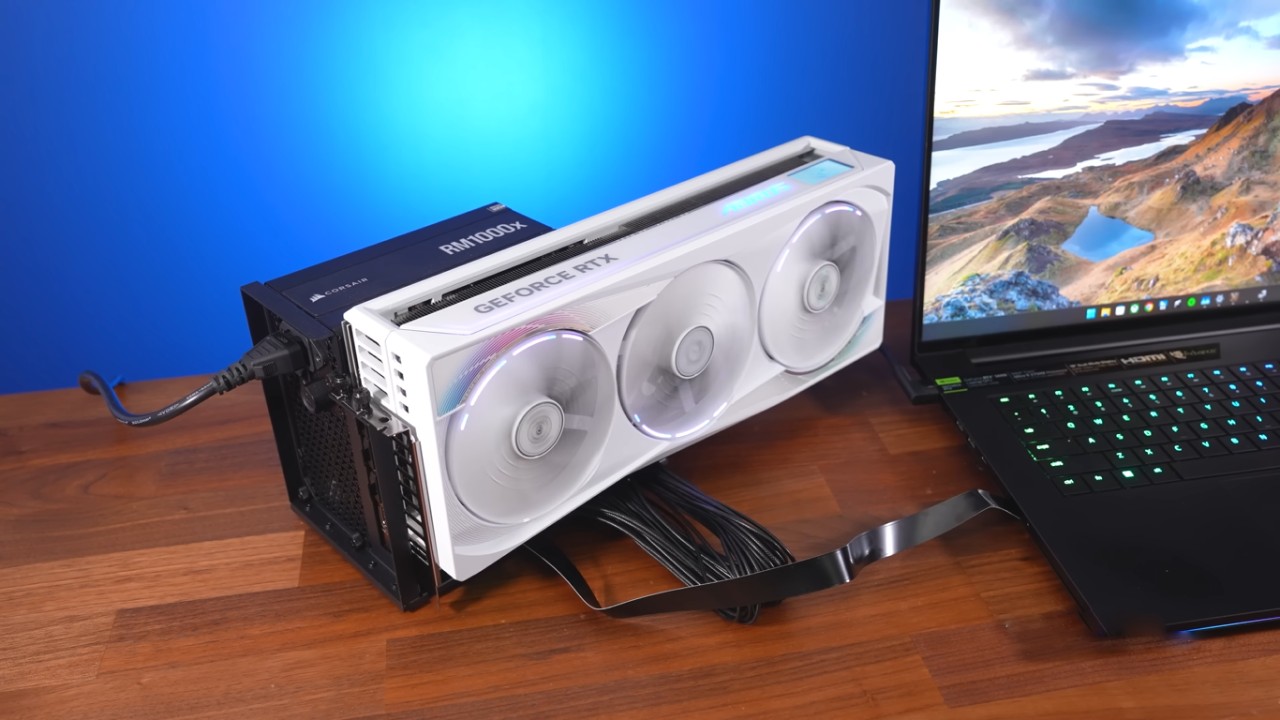
Testing was performed using the Razer Blade 18, one of the few gaming laptops equipped with both Thunderbolt 4 and Thunderbolt 5 Type-C ports. Having both ports on the same machine allows a fair apples-to-apples comparison on identical hardware. For Thunderbolt testing, the Razer Core X V2 eGPU enclosure was used, as it supports Thunderbolt 5 while also remaining backward compatible with Thunderbolt 4.
Desktop graphics cards normally connect to a desktop PC through a direct PCIe connection, which offers much more bandwidth than a Thunderbolt cable. However, a desktop GPU can also be connected to a laptop via the M.2 slot, as it uses PCIe lanes. The Blade 18 includes a PCIe Gen 4 M.2 slot on the left and a faster PCIe Gen 5 slot on the right.
The SSD comes installed in the Gen5 slot by default, but since the laptop ships with Gen4 SSDs, moving the SSD to the Gen4 slot frees up the Gen5 slot for a better eGPU experience. To make this possible, the ADT-Link F43SG-BK7 adapter was used, which allows a desktop GPU to connect directly to the laptop through the M.2 slot using a PCIe connection.
Plug-and-Play vs Direct PCIe Connection
The two eGPU approaches differ greatly in convenience. Thunderbolt 4 and Thunderbolt 5 are essentially plug-and-play solutions. After turning on the laptop, connecting the Type-C cable is usually enough to start using the external GPU immediately.
The direct PCIe connection through the M.2 slot is less convenient. The laptop needs to be powered off before connecting the adapter and powered off again before removing it. Unless the chassis is modified, the laptop's bottom panel must remain partially open so the cable can pass through. That makes the setup less practical if the laptop needs to be moved frequently.
Bandwidth Differences
Running the 3DMark PCIe bandwidth test on the laptop’s built-in mobile GPU showed the significant bandwidth differences between these configurations. The laptop’s GPU uses 16 lanes of PCIe Gen 5 bandwidth, delivering results similar to a desktop graphics card installed directly in a desktop PC.
All of the eGPU configurations deliver far less bandwidth. Thunderbolt 4 delivers about 3GB/s, whereas Thunderbolt 5 almost doubles that to 6GB/s. Connecting a monitor directly to the GPU in the eGPU enclosure also makes things run faster because the display signal doesn't have to go back through the Thunderbolt wire to the laptop.
Even with Thunderbolt 5, PCIe Gen 4 via the M.2 slot still delivers more bandwidth, and PCIe Gen 5 nearly doubles that bandwidth. Laptop M.2 storage slots typically use four PCIe lanes, which explains why they cannot compete with the laptop’s built-in GPU that uses a full 16-lane connection.
Gaming Performance at 1080p
At 1080p resolution, the laptop’s built-in mobile GPU delivered better performance than all of the Thunderbolt-based eGPU setups across a 9-game average. Thunderbolt 5 with a monitor directly connected to the desktop GPU performed much closer, but still slightly behind the internal GPU.
Performance was 27% higher while using Thunderbolt 5 with an external monitor that was directly linked to the GPU than when using the laptop's display. The external display arrangement made a 38% improvement using Thunderbolt 4. The reason for this difference is that when using the laptop screen, the rendered image must travel back across the Thunderbolt cable before it can be displayed.
The PCIe Gen4 and PCIe Gen5 setups performed almost the same at this resolution and were roughly 12% faster than the best Thunderbolt 5 result. Even with those gains, running the same desktop GPU directly inside a desktop PC remained clearly ahead of every eGPU configuration.
Gaming Performance at 1440p
At 1440p resolution, the results started to change slightly. Thunderbolt 5 with an external monitor connected to the desktop GPU achieved higher average FPS than the laptop’s built-in mobile GPU. However, the laptop still produced stronger 1% low results, meaning fewer performance dips and a more consistent gaming experience.
Thunderbolt 5 on the laptop display was 20% faster than Thunderbolt 4. When both setups used an external monitor, Thunderbolt 5 was only 8% faster than Thunderbolt 4. Connecting a monitor directly to the GPU continued to provide a noticeable benefit.
Thunderbolt 5 showed a 35% improvement with an external display. In comparison, Thunderbolt 4 achieved a larger 50% improvement because it has less bandwidth available to send the display signal back to the laptop.
PCIe Gen4 and PCIe Gen5 once again outperformed all Thunderbolt configurations, although the difference between them remained relatively small at this resolution.
.jpg)
Gaming Performance at 4K
The laptop's built-in mobile GPU started to lag behind the external GPU installations when the resolution was set to 4K. The integrated GPU still averaged over 60 fps without upscaling, which is still amazing for a laptop GPU. But even with Thunderbolt 4 and a more powerful desktop GPU, performance was greater when the monitor was connected directly to the GPU.
Thunderbolt 5 was only 6% faster than Thunderbolt 4 at this resolution. At 4K, bandwidth becomes less important because the workload is more heavily dependent on the GPU’s raw processing power.
The biggest difference appeared between PCIe Gen4 and PCIe Gen5, with the Gen5 setup delivering about 8% higher average FPS. Even then, the PCIe Gen 5 configuration was not far behind running the same desktop GPU inside a full desktop PC with a more powerful processor. The desktop still achieved a 27% higher 1% low result, likely due to the stronger CPU.
Cost Considerations
The Razer Core X V2 eGPU enclosure costs around $350, while the PCIe-based solution using the ADT-Link F43SG-BK7 adapter costs roughly $100. These prices do not include the power supply required to run the desktop GPU.
Desktop GPUs themselves add a high cost on top of the laptop purchase. Even so, pairing a modest GPU with a laptop that lacks dedicated graphics could still provide a useful upgrade, allowing gaming on systems that otherwise would not be capable of running demanding titles.
Final Thoughts on eGPU Setups
Thunderbolt 5 represents a noticeable improvement over Thunderbolt 4 by providing higher bandwidth and slightly better gaming performance. Despite that progress, the overall value proposition of eGPU setups remains limited.
The PCIe-based M.2 solution is cheaper and delivers better performance, but it is far less convenient because the laptop must be opened to access the slot, and the bottom panel may need to remain partially removed.
Although eGPU systems are interesting and the idea of easily upgrading the graphics card is appealing, the overall experience can still be less stable. Occasional game crashes and random issues occurred more frequently compared to running the same GPU directly inside a desktop PC or using the laptop’s built-in graphics.
Most people still find it easier to use either a desktop gaming PC or a gaming laptop that is made just for gaming. Only a limited number of users will really benefit from the flexibility that modern eGPU systems offer.
Also, check our other hardware articles:
- AMD Ryzen 9 9950X3D Review: Setting The Standard For 2025 Gaming CPU
- Amazon Luna 2025 Review: Is Prime Gaming's Cloud Service Your Go-To For Casual Fun?
- AMD RX 9070 XT Review: AMD's RDNA 4 Champion for 1440p Gaming
- GeForce Now Ultimate: Ditching Your Gaming PC For Cloud RTX 4080 Power?
- NVIDIA GeForce RTX 5080 Review (2025): Still A 4K Gaming Powerhouse?
- Intel Core Ultra 9 285K Review And Performance Breakdown (2025)
- AMD Ryzen 7 9800X3D Review: 3D V-Cache Goes God Mode with Stunning Gaming Performance
- Intel Core Ultra 9 285K vs AMD Ryzen 7 9800X3D: In-Depth Gaming Performance and Benchmark Comparison
- NVIDIA GeForce RTX 5080 Super Performance In Cyberpunk 2077: Path Tracing & DLSS 4.0 Tested
- AMD Radeon RX 9070 XT In Cyberpunk 2077: Ray Tracing & FSR 4.0 Tested
- Intel Arc B580 Review: The $250 GPU Revolutionizing 1440p Gaming
- Intel Arc B570 Vs. B580: Value, Specs, And Real-World Gaming Performance
- RTX 5090 Laptop Vs. M4 Max MacBook Pro: Ultimate Raw Performance Vs. Battery Endurance
- Intel Arc b580 Vs. RTX 4060: Game Performance And Value Analysis
- RTX5090 Hell Is Us Demo 4K Ultra Benchmark: DLSS Vs. Native Performance Guide
- NVIDIA RTX 5070 Review: Mid-Range Muscle or Marketing Hype?
- Nintendo Switch 2 Review: Handheld Performance, Features & Value Breakdown
- RTX 5070 Ti Review: Performance, Thermals & Power Efficiency Tested
- Samsung Odyssey OLED G81SF Review 2025: Ultimate 32-Inch QD-OLED Gaming Monitor
- AMD RX 9070 Performance Review: Thermals, Clocks, and Real-World FPS
- AMD Ryzen 5 7600 Review: Best Budget Gaming CPU of 2025?
- AMD Radeon RX 7800 XT Review: RDNA 3 Power For Midrange Gaming
- Asus ROG RTX 5090 Astral OC Vs. Founders Edition: The 4K Gaming Benchmark
Senior Editor, NoobFeed
Gaming Hardware Updates
No Data.