
End of Abyss Guide | How to Use the Map and Backtrack
Here’s a guide on how to use the Map and backtrack to previously explored locations in End of Abyss.
Game Guide by Jubair Baky on Oct 20, 2026
The Map is important in End of Abyss because many locked doors, secret passages, and collectibles require tools you get later in the story. The facility is multi-floored with multiple connected areas, so backtracking can be a little confusing. Fortunately, there are navigation markers, floor controls, area connections, and Shuttle locations on the Map to help you plan your route.
Switch Between Floors and Locations
You can open the Map to see where you & the rooms around you are. If you’re on PlayStation, press Triangle to open the Map Legend, which details the different markers and symbols.
Press Square to switch to the World Map. Here, you can browse the facility's different sectors and identify your current main objective.
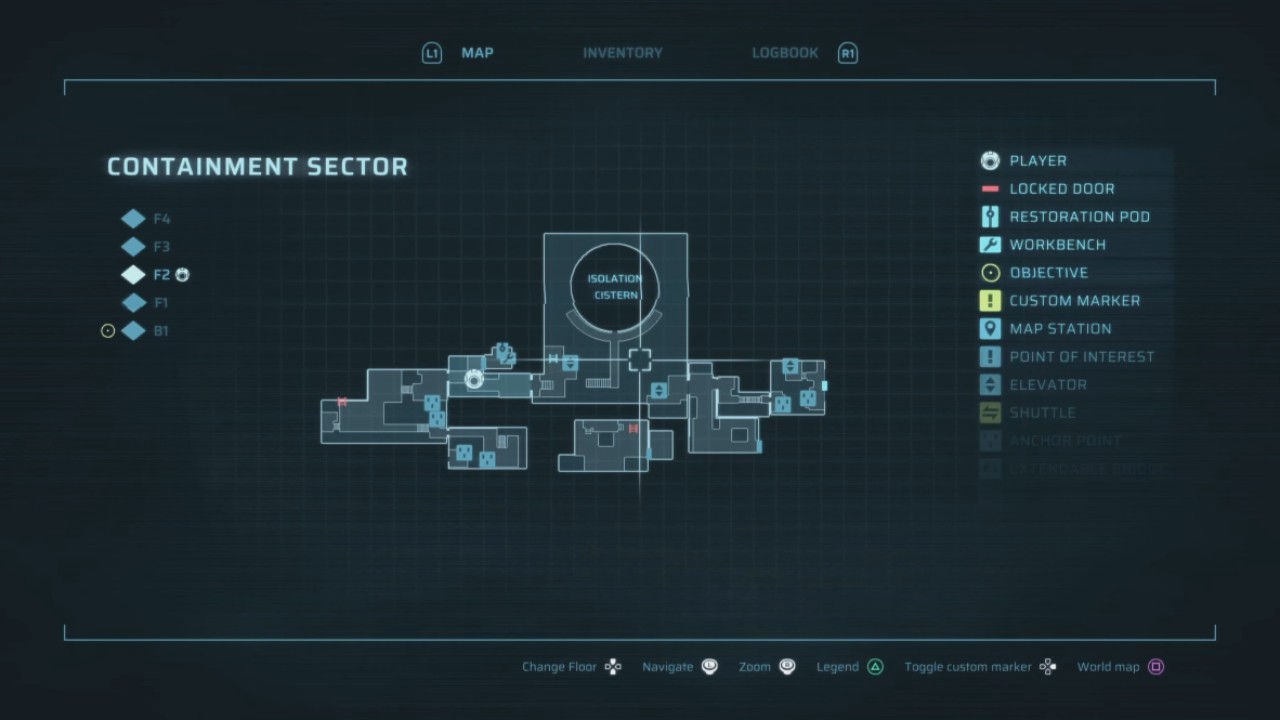
Many locations contain multiple floors, so checking the correct level is important when searching for a passage.
Use Up and Down on the directional pad to switch between floors. Each level displays its available rooms, corridors, doors, and connections.
Look for an entrance or exit marker to locate a way into another sector. Choose the connected location to show its Map and continue tracing the route.
To leave the Containment Sector and return to the Ventilation Tunnels, locate the proper exit marker and select it to view the layout of the connected area.
This changes the Map view instead of transporting you, so you can plan your route before you start moving.
Understand Locked Doors and Blocked Ladders
The Map also helps you identify places that cannot be accessed immediately.
Blocked ladders appear in red, while locked doors remain marked for future exploration.
If you encounter a door requiring a Keycard or a passage that needs the Grappling Hook, you can return after obtaining the necessary equipment.
You can also place custom markers on points of interest by pressing Right on the directional pad.
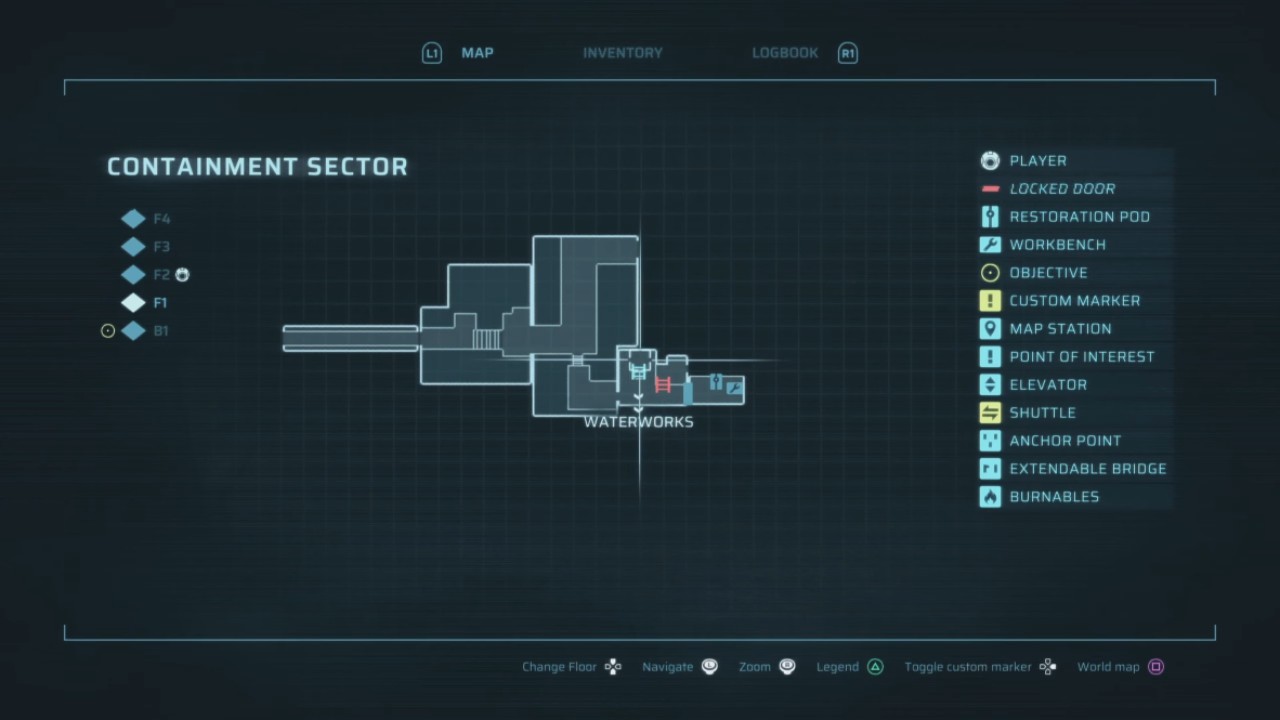
Use the Shuttle System for Fast Travel
The Shuttle System is one of the easiest ways to travel between previously explored locations.
To unlock a Shuttle station, find its terminal and interact with it. Activated stations appear as yellow square symbols on the World Map.
When you need to return to another area, locate an activated Shuttle station by switching between floors on the Map.
Enter the Shuttle and select a destination that you have already unlocked.
This allows you to bypass long corridors and enemy-filled passages, saving considerable time when collecting missed items.
Update Your Map Data
As you explore, new rooms are automatically added to your Map when you enter them.
However, you can reveal additional information by interacting with Map Stations located throughout the facility.
Approach a Map Station and download the available Map Data to expand your knowledge of the surrounding area.
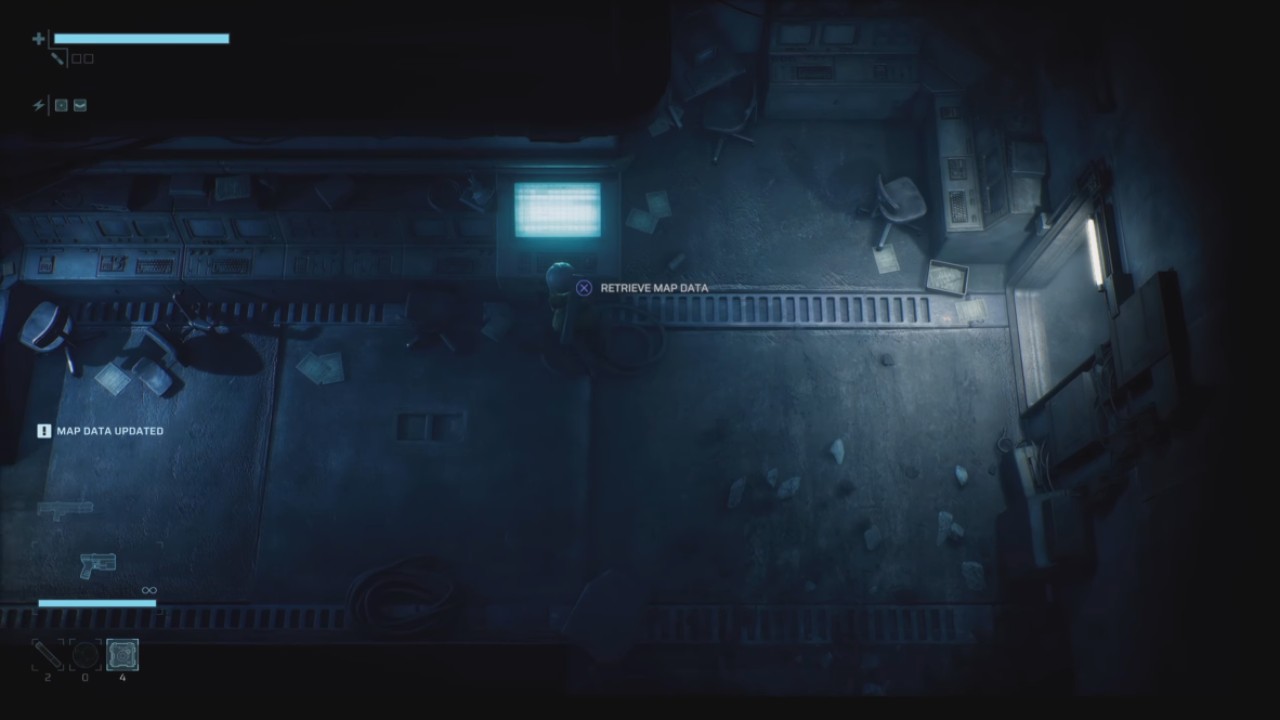
Plan Your Backtracking Route
Before revisiting an earlier location, open the World Map and identify the destination.
Switch between floors to locate the relevant entrance, locked door, or Shuttle station.
Check whether you have the necessary Keycard, Grappling Hook, Explosive Charges, or Incinerator to access the area.
Use activated Shuttles whenever possible, then follow the remaining route using the local Map.
Using the Map Legend, floor controls, area connections, Map Stations, and Shuttle System allows you to navigate the facility efficiently and return to previously inaccessible locations.
FAQ
Q. How do you switch floors on the Map in End of Abyss?
A. Use Up and Down on the directional pad while viewing the Map to cycle through the available floors.
Q. How do you unlock Shuttle fast travel?
A. Locate a Shuttle station and activate its terminal. You can then travel between unlocked Shuttle destinations.
Editor, NoobFeed
Latest Articles
No Data.